

Chapter 15
Troubleshooting
Start with the first rule: Players keep their picture. If a Controller, the Server or the network fails, every screen holds what it was showing. You have time to fix things calmly.
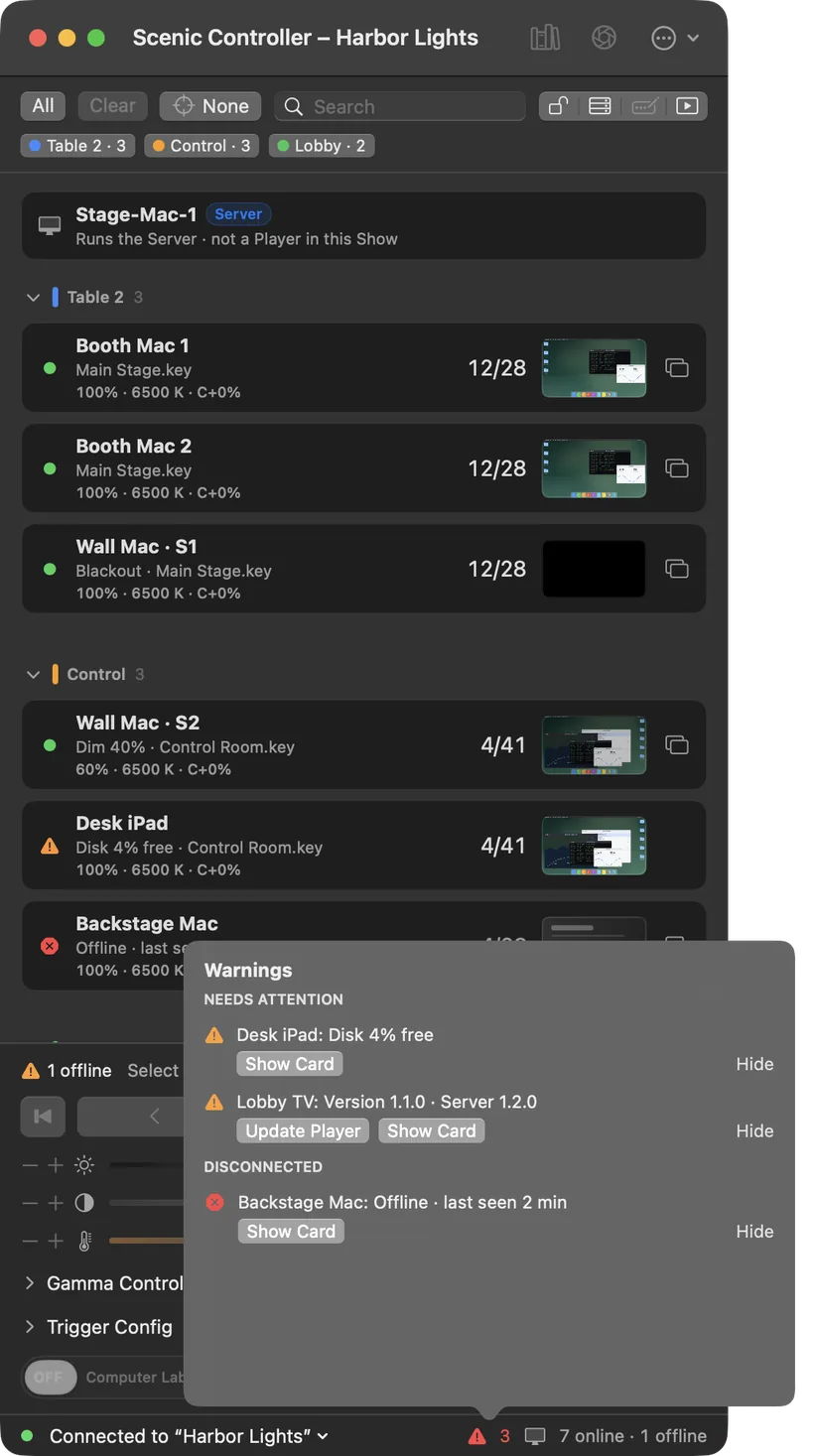
The quickest place to look is the Warnings list: click the warning count in the footer of the Controller. It lists everything that needs attention, by Player, with a button to fix it where there is one: Update Player, Show Card, Open Network Window.
Quick fixes
| Problem | What to do |
|---|---|
| A Player does not appear in the Network window | Check it is on the show network and Scenic Player is open. On a Mac, check System Settings ▸ Privacy & Security ▸ Local Network allows Scenic Player. On Windows, check the installer's firewall option was allowed. If the network blocks discovery, add the Player under Static Players. |
| Everything reads "Connecting" right after installing a new version | macOS can quietly withdraw the Local Network permission from a newly installed app. In System Settings ▸ Privacy & Security ▸ Local Network, turn Scenic off and on again, then reopen it. |
| A screen's card reads Offline · last seen 2 min | The Player cannot be reached. Its screen keeps its last picture. Check its cable or Wi-Fi. A Mac Player relaunches itself after a crash; if not, Relaunch… from the Network window, or open it at the machine. When it returns it reports what it shows; send or recall to it if it differs. |
| A card stays at Accepted and never reaches Observed | The Server sent the command, but the Player has not confirmed it. Look at that screen. Check it is Live and that it can play that content. |
| A press reads Uncertain | The answer was lost; the command may or may not have run. Look at the screen, then press again only if you need to. Mark Reviewed in Activity clears it. |
| Cues go to the wrong screens | Check the selection chip. Press Clear, then select again. Use Hold selection during takes. |
| The live controls are greyed out | Nothing is selected ("Select screens to use the live controls"), the Controller is locked (hold Hold to Unlock for a second), the Controller is View only, or the Server is unreachable. The dock says which. |
| The send sheet says Cannot play | Read the reason on that row. Usually the Player is too old (update it from the Network window) or the content needs something that Player does not have. |
| A screen reads Player too old for this deck | It still plays, with the older Player's motion. Press Update Player in the Warnings list between takes. |
| A card reads Disk 4% free | The Player is nearly full. It keeps fewer earlier decks automatically; clear space on the machine when you can. |
| A card reads Local | Someone used that Player's own controls. Check the screen, then cue it from the Controller as usual. |
| A card reads Emergency blackout | A phone blacked it out while the Server was unreachable. Press Reveal to bring it back. |
| Video is out of step between screens | Pause (K) and play again on all of them together. If one display always lags, set that Player's Output latency. |
| A screen dropped out of full screen | On a Mac, press ⌃⌘F at the machine, or use Display ▸ Full Screen in the Network window. On Windows, Ctrl+Alt+Shift+F. |
| Reboot or Shut Down does nothing on a Mac | Allow restart in Scenic Player ▸ Permissions… on that Mac, or turn on Remote Login so the Network window can use SSH. |
| IP Config, Wi-Fi or Rename Host fails | The Player Mac's account must be an administrator. |
| A Player is unreachable after IP Config | The new address is probably wrong or on another subnet. Fix it at the machine in System Settings ▸ Network, or switch it back to DHCP. |
| A Mac Player went to sleep | Run Disable Sleep… from the Network window. If the Mac runs without a monitor, use a display adapter that reports a display (EDID). |
| A Controller asks to join and nobody answers | On a Controller already attached, open the Network window and press Allow on the request. |
| OSC commands do nothing | Check Enable OSC in Settings ▸ OSC and the port. Open the OSC Log: it says whether each message was refused, locked, a duplicate or not understood. If Listen on is This Mac only, other computers are refused. |
| Timecode cues do not fire | Check the window reads Locked or Chasing, that Armed is on, and that each cue is ticked. Check the Server has microphone permission for LTC. |
The Server is unreachable
A red bar on every Controller reads Server unreachable, with a timer, and the live controls read "Waiting for Server". The screens keep their picture.
- Wait a moment: the Controller reconnects by itself when the Server or network comes back.
- Check the Server Mac: is it on, awake and on the show network?
- If the Server cannot come back in time, choose Take Over as Server… on the bar. This Mac starts a Server from its copy of the Show and takes the Players. See Moving the Server, and rescue.
While the Server is gone, the only way to change a screen is a phone's Hold to Blackout (if the Show allows emergency blackout from phones) or the Player's own Local Controls.
The Controller quit or froze
Open it again. It reattaches to the Server and the Show. Commands that were waiting for an answer are listed with what the Server recorded for each; they are not sent again. Check those screens, then carry on.
The Server keeps stopping
The Controller restarts the Server by itself and says so. If it keeps stopping, the notice offers Show Log and Retry. If it will not start at all, take over from another Mac Controller.
Scenic Decorator crashed
Open it again. It offers to recover the unsaved deck, with your edits from up to 30 seconds before. The deck file on disk is untouched.
The network
Scenic needs very little from a network, but it does need these:
- Every machine on one network that lets devices talk to each other. Guest Wi-Fi and "client isolation" block this.
- Discovery (Bonjour, also called mDNS) allowed. If the venue blocks it, list Players by address under Static Players, and join the Server by address.
- No internet needed. Scenic never needs to reach an outside service during a show.
Wired Players are steadier than Wi-Fi. A Player that cannot be heard from for 15 seconds is shown as offline; change this under Settings ▸ General ▸ Player offline timeout on a slow network.
Collecting logs
When something went wrong and you want to report it, select the Players involved in the Network window and choose Player ▸ Collect Diagnostic Logs. Scenic gathers the Controller, Server and Player logs into one dated report. Send it with the time it happened and what you saw to support@stageglass.app.
The Logs window (⌘7) shows this Controller's events, the Server's, and each Player's, and filters by cues, Snapshots, content, Players or the Server, and by warnings and failures.