

Chapter 02
Quick start: your first show in 10 minutes
From a Mac and a couple of screens to a deck on set, cued together. You need:
- A show network that every machine is on: a switch with cables, or a Wi-Fi network without client isolation. It does not need the internet.
- A Mac with Scenic Controller. It runs the Server in the background.
- One or more Players: Macs with Scenic Player, iPads, iPhones, Apple TVs or Windows PCs, each connected to its display.
- Something to show: a Keynote file, a PowerPoint file, a Scenic deck from the Decorator, or a folder of images and video.
1. Start the Players
Open Scenic Player on each Player machine. Until it is in a Show, a Player shows its name and address on an operator-facing display (or on its only display) and waits. Its show outputs stay black.
- Mac: if Scenic Player is not installed yet, you can install it from the Controller in step 3.
- iPhone, iPad, Apple TV: install Scenic Player from the App Store and open it.
- Windows PC: run the Scenic Player installer, and leave Allow Scenic Player on the show network ticked.
2. Open Scenic Controller
Open Scenic Controller on your Mac. It starts the Server on this Mac and opens your Show. The first time, that is an empty Show; later it opens the one you had open last. The footer reads Connected to and the Show's name.
To give the Show a name, choose Server ▸ Shows…, type a name under New Show and press Create and Open.
3. Add the Players to the Show
- Open the Network window (⌥⌘N, or the Network button in the control row).
- Your Players are listed under Not in Show. Select them all.
- Choose Add to Show from the Show menu in the toolbar, or right-click and choose it there.
Their screens appear in the Player List in the main window, each reading Live.
4. Find which screen is which
Drag the Computer Labels switch all the way across. Every screen shows its Player's name. Make a note, then pull the switch back to turn the labels off.
Computer Labels is a slide switch on purpose: a tap does nothing, so labels cannot appear on set by accident.
5. Group the screens
Select the screens that belong together, right-click and choose New Group from Selection…. Name the group after the set or the role: "Office wall", "Desk monitors", "Lobby". A button for each group appears under the control row; click it to select the whole group.
6. Add content to the Library
Click the Library button in the toolbar (or File ▸ Add Content to Library…, ⇧⌘O) and press Add…. Choose your .key, .pptx, .sgdeck, image, video or media folder.
Scenic reads Keynote and PowerPoint files itself. Neither app needs to be installed anywhere.
7. Send it to the screens
- In the Player List, select the screens, or press All.
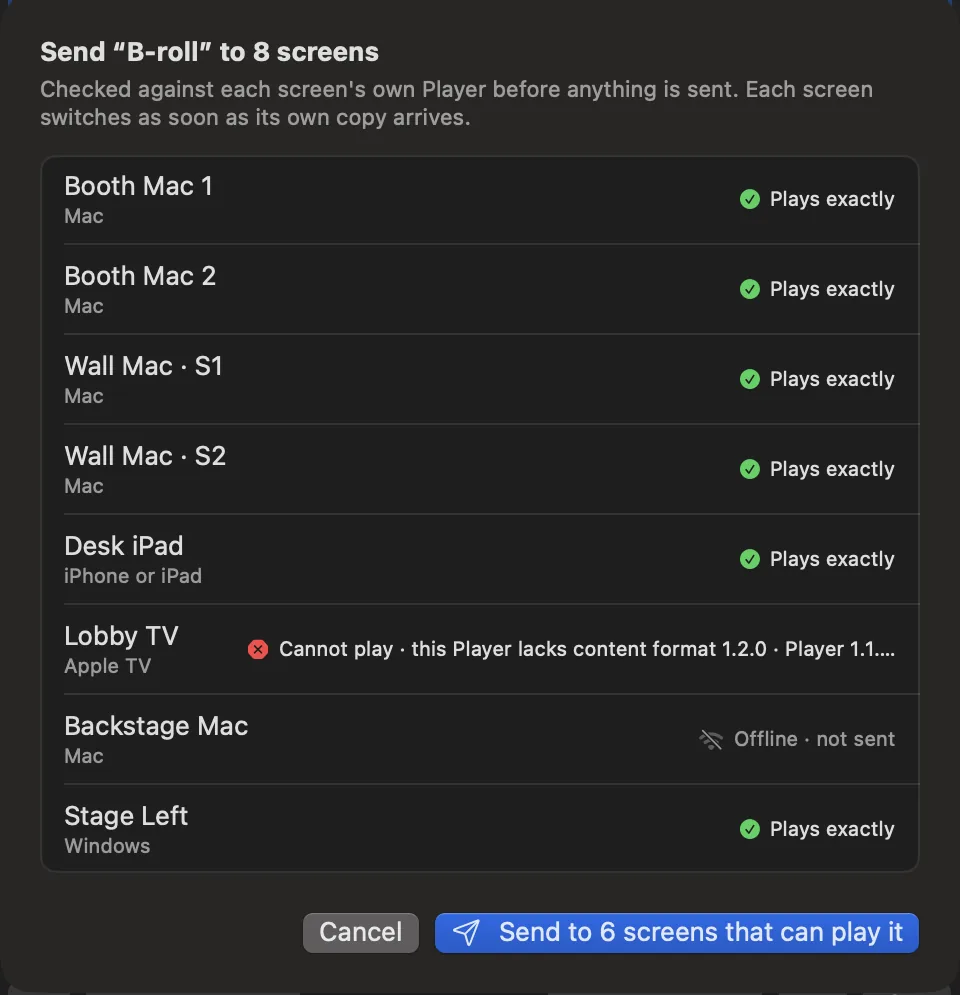
- In the Library, select the deck and press Send to N Screens….
- The send sheet checks the deck against every screen's Player and gives each one a verdict: Plays exactly, Plays with changes (with the list), or Cannot play (with the reason).
- Press Send to N screens.
Each screen switches as soon as its own copy arrives, and its card reads Preparing, Copying, Checking, then the slide counter with Observed.
8. Cue
With screens selected:
| Do | Press |
|---|---|
| Next slide or build | Next, or → or Space in the Player List |
| Previous | Previous, or ← |
| Black out the selected screens | B, or Blackout in the overlay row |
| Bring them back | R |
| Black out every screen at once | ⌥⇧⌘B |
Every press goes out at once, with no dialog, to exactly the screens selected when you pressed. Watch each card: Accepted means the Server sent it, Observed means the Player reports it on screen.
9. Save a Snapshot
When the screens look right for the scene, press ⌥⌘E, fill in Scene and Take, and press Return. Next time, select that Snapshot and press Recall on N Screens… to put every screen back exactly as it was.
That is a show. The rest of this guide goes deeper: setting up a Show, sending content, cueing, matching to camera and Snapshots.