

Scenic · Preview
Scenic User Guide
StageGlass Scenic runs the screens in your shot. Put content on every monitor, laptop, tablet and TV on the set, cue them together with one press, match them to camera, and put them back exactly as they were for the next take.
#Chapters
- What Scenic is
- Quick start: your first show in 10 minutes
- Setting up a Show and Players
- Sending content
- Cueing
- Matching screens to camera
- Snapshots
- Timecode, OSC and Stream Deck
- The Network window and fleet maintenance
- Moving the Server, and rescue
- The Players
- Scenic Decorator
- Keyboard shortcuts
- Best practices on set
- Troubleshooting
- Glossary
#Find it fast
| I want to… | Go to |
|---|---|
| Run my first show | Quick start |
| Black out every screen at once | Cueing: Panic Blackout All |
| Put a Keynote or PowerPoint deck on the screens | Sending content |
| Move many screens on the same cue | Cueing: synchronized cues |
| Make the screens sit right on camera | Matching screens to camera |
| Reset every screen for the next take | Snapshots |
| Cue from a lighting desk or Stream Deck | Timecode, OSC and Stream Deck |
| Install Scenic Player on a set of Macs | Fleet Setup |
| Run the show from a Mac on the cart | Moving the Server |
| Build a fake desktop | Scenic Decorator |
| Fix something now | Troubleshooting |
Questions or problems: support@stageglass.app.
Chapter 01
What Scenic is
StageGlass Scenic runs the screens in your shot: the monitors on a set, the wall in a control room, the TV in the background of a lobby. You put content on them, cue them together, match them to camera, and put them back exactly as they were for the next take.
Scenic is made of four parts. Three are apps you open. The fourth, the Server, runs in the background.
| Part | Runs on | What it does |
|---|---|---|
| Scenic Controller | Mac, iPhone, iPad | Where you run the show: pick screens, send content, cue, grade, save and recall Snapshots. |
| Scenic Player | Mac, iPhone, iPad, Apple TV, Windows PC | Shows content on its screens and does what the Server tells it. A Player with two displays has two screens. |
| Scenic Decorator | Mac | Builds decks for screens: fake desktops, monitors, signage. Imports Keynote and PowerPoint. Hands the finished deck to the show. |
| Server | A Mac, in the background | Owns the Show. Every cue from every Controller, console or timecode goes through it to the Players. |
#How the parts fit together
The Server keeps the Show: which Players are in it, how they are grouped, the content Library, the Snapshots, the timecode cues and the settings. It is the only thing that sends commands to Players. Each Player belongs to one Server at a time.
A Controller attaches to the Server and gives you the controls. You can have several Controllers on one Show: the Mac at the desk, an iPad on a stand, an iPhone in your pocket. They all see the same Show, and each press is labelled with the Controller that made it.
Players show what they are told and report back what they are actually showing. That report is what you see on each screen's card in the Controller.
Consoles and timecode use the same road. An OSC message from a lighting desk or a Stream Deck, or a cue fired by LTC, goes into the Server and out to the Players exactly as if you had pressed the button on a Controller.
   Controllers (Mac, iPhone, iPad)     OSC consoles, Stream Deck     LTC timecode
                 \                              |                     /
                  \_____________________ Server (background) ________/
                                     owns the Show, sends every cue
                                                |
                 Players: Mac · iPhone · iPad · Apple TV · Windows PC
each output is a screen; each reports what it shows#Where the Server runs
Most of the time you never think about it. When you open Scenic Controller on a Mac, it starts the Server on that Mac in the background. Close the Controller and the Server keeps going for 30 minutes in case you come back, then stops by itself. Your screens keep their picture the whole time.
On a bigger show you can give the Server its own Mac, a location Mac that stays on the cart or in the rack. Controllers join it over the network. If your laptop leaves the building, the show does not. See Moving the Server, and rescue.
#Words this guide uses
| Word | Meaning |
|---|---|
| Show | Everything the Server keeps for one production: Players, groups, Library, Snapshots, timecode cues and settings. |
| Server | The background process that owns the Show and sends every command to the Players. |
| Player | A computer or device running Scenic Player. |
| screen | One display output of a Player. Every cue targets screens. A Mac with two monitors is one Player with two screens, written Wall Mac · S1 and Wall Mac · S2. |
| Player List | The list of screens in the Controller's main window. |
| Network window | Every Player on the network, in the Show or not, with setup and maintenance. |
| Snapshot | What every screen showed at one moment, saved so you can bring it back. |
| Grid | A floor plan of the set with each screen placed where it really is. |
| Library | The decks and media on the Server, ready to send. |
The Glossary has the full list.
#What makes Scenic different
- Cues land together. One press of Next moves every selected screen, on every kind of Player, at once. Video on several screens starts on the same frame.
- You always know what a press will touch. The selection is on screen, and a cue goes only to what you selected when you pressed.
- You know whether it landed. Each screen reports back. "Accepted" means the Server sent it; "Observed" means the Player says it is on screen. Scenic never shows a slide as changed because you pressed a button.
- Keynote and PowerPoint without Keynote or PowerPoint. Scenic reads
.keyand.pptxfiles itself and plays them on every Player, Windows PCs included. No show machine needs either app installed. - It checks content before it sends. If a screen cannot play something exactly, you are told which slide, what changes and why, before anything leaves the Server.
- No accounts, no pairing codes. Scenic works on the show network with no internet connection. Players are found on the network and added with one click.
Chapter 02
Quick start: your first show in 10 minutes
From a Mac and a couple of screens to a deck on set, cued together. You need:
- A show network that every machine is on: a switch with cables, or a Wi-Fi network without client isolation. It does not need the internet.
- A Mac with Scenic Controller. It runs the Server in the background.
- One or more Players: Macs with Scenic Player, iPads, iPhones, Apple TVs or Windows PCs, each connected to its display.
- Something to show: a Keynote file, a PowerPoint file, a Scenic deck from the Decorator, or a folder of images and video.
#1. Start the Players
Open Scenic Player on each Player machine. Until it is in a Show, a Player shows its name and address on an operator-facing display (or on its only display) and waits. Its show outputs stay black.
- Mac: if Scenic Player is not installed yet, you can install it from the Controller in step 3.
- iPhone, iPad, Apple TV: install Scenic Player from the App Store and open it.
- Windows PC: run the Scenic Player installer, and leave Allow Scenic Player on the show network ticked.
#2. Open Scenic Controller
Open Scenic Controller on your Mac. It starts the Server on this Mac and opens your Show. The first time, that is an empty Show; later it opens the one you had open last. The footer reads Connected to and the Show's name.
To give the Show a name, choose Server ▸ Shows…, type a name under New Show and press Create and Open.
#3. Add the Players to the Show
- Open the Network window (⌥⌘N, or the Network button in the control row).
- Your Players are listed under Not in Show. Select them all.
- Choose Add to Show from the Show menu in the toolbar, or right-click and choose it there.
Their screens appear in the Player List in the main window, each reading Live.
#4. Find which screen is which
Drag the Computer Labels switch all the way across. Every screen shows its Player's name. Make a note, then pull the switch back to turn the labels off.
Computer Labels is a slide switch on purpose: a tap does nothing, so labels cannot appear on set by accident.
#5. Group the screens
Select the screens that belong together, right-click and choose New Group from Selection…. Name the group after the set or the role: "Office wall", "Desk monitors", "Lobby". A button for each group appears under the control row; click it to select the whole group.
#6. Add content to the Library
Click the Library button in the toolbar (or File ▸ Add Content to Library…, ⇧⌘O) and press Add…. Choose your .key, .pptx, .sgdeck, image, video or media folder.
Scenic reads Keynote and PowerPoint files itself. Neither app needs to be installed anywhere.
#7. Send it to the screens
- In the Player List, select the screens, or press All.
- In the Library, select the deck and press Send to N Screens….
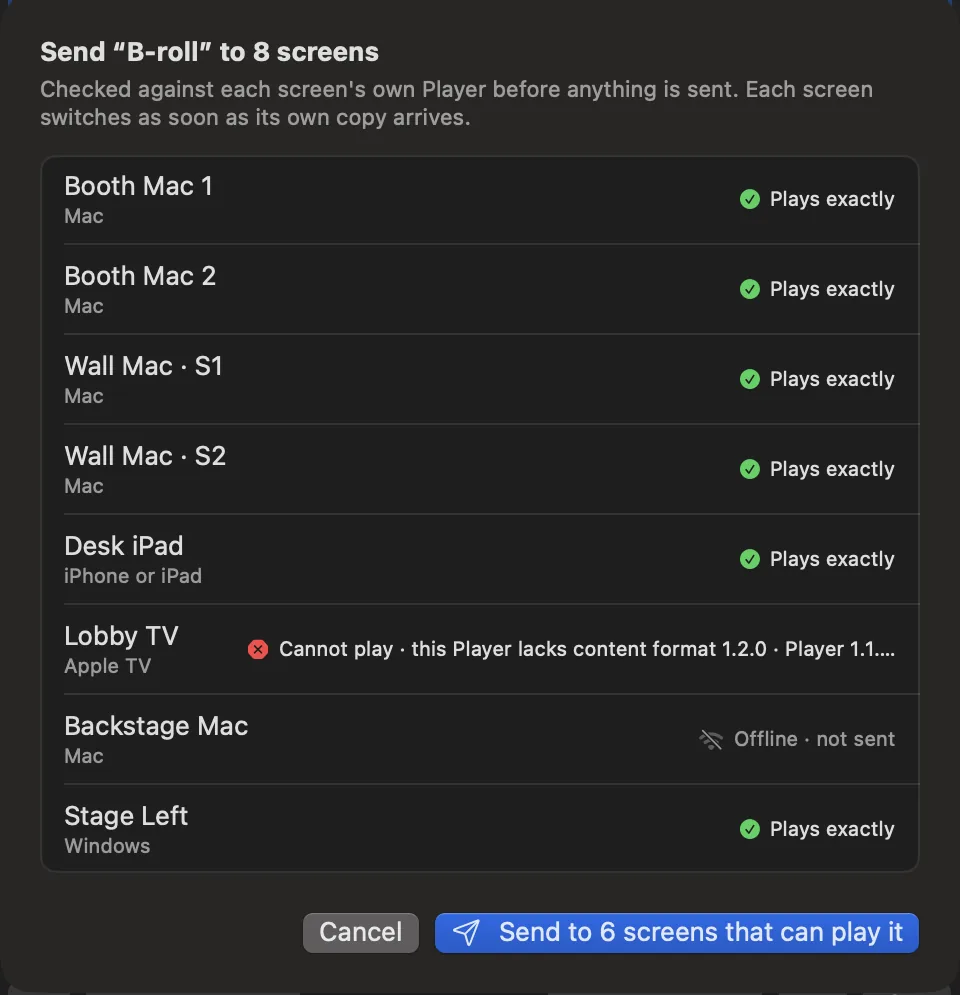
- The send sheet checks the deck against every screen's Player and gives each one a verdict: Plays exactly, Plays with changes (with the list), or Cannot play (with the reason).
- Press Send to N screens.
Each screen switches as soon as its own copy arrives, and its card reads Preparing, Copying, Checking, then the slide counter with Observed.
#8. Cue
With screens selected:
| Do | Press |
|---|---|
| Next slide or build | Next, or → or Space in the Player List |
| Previous | Previous, or ← |
| Black out the selected screens | B, or Blackout in the overlay row |
| Bring them back | R |
| Black out every screen at once | ⌥⇧⌘B |
Every press goes out at once, with no dialog, to exactly the screens selected when you pressed. Watch each card: Accepted means the Server sent it, Observed means the Player reports it on screen.
#9. Save a Snapshot
When the screens look right for the scene, press ⌥⌘E, fill in Scene and Take, and press Return. Next time, select that Snapshot and press Recall on N Screens… to put every screen back exactly as it was.
That is a show. The rest of this guide goes deeper: setting up a Show, sending content, cueing, matching to camera and Snapshots.
Chapter 03
Setting up a Show and Players
A Show is everything the Server keeps for one production: the Players in it, their groups and aliases, the Grid, the Library, the Snapshots, the timecode cues and the settings. This chapter takes you from an empty Show to a set of named, grouped screens on a floor plan.
#Shows
When you open Scenic Controller on a Mac, it starts the Server on that Mac and opens the Show it had open last.
Server ▸ Shows… lists every Show on this Server:
- New Show: type a name and press Create and Open.
- Open another Show. Every Controller attached to the Server moves to it. Screens keep their picture until the new Show cues them.
- Rename or delete a Show. A deleted Show goes to Recently Deleted, where Put Back returns it.
- Close the Show, leaving the Server with none open. Screens keep their picture.
The same window holds the Show's backups, the emergency blackout setting and the Server's name. See Moving the Server, and rescue.
#Joining a Server from another Controller
On another Mac, choose Server ▸ Connect to Server…. On an iPhone or iPad, open Scenic Controller: it lists Servers on This Network. Press Join. If discovery is blocked on your network, use Enter Address with the Server Mac's IP address.
The first time a Controller joins, the Server asks once: a request appears in the Network window and the Warnings list, and someone already connected presses Allow (or View only). After that the Controller reconnects by itself. An iPhone or iPad rejoins the last Server it used when it opens.
There are no pairing codes or passwords. Scenic trusts the show network, and the Allow step stops a stray device from cueing your screens.
#The main window
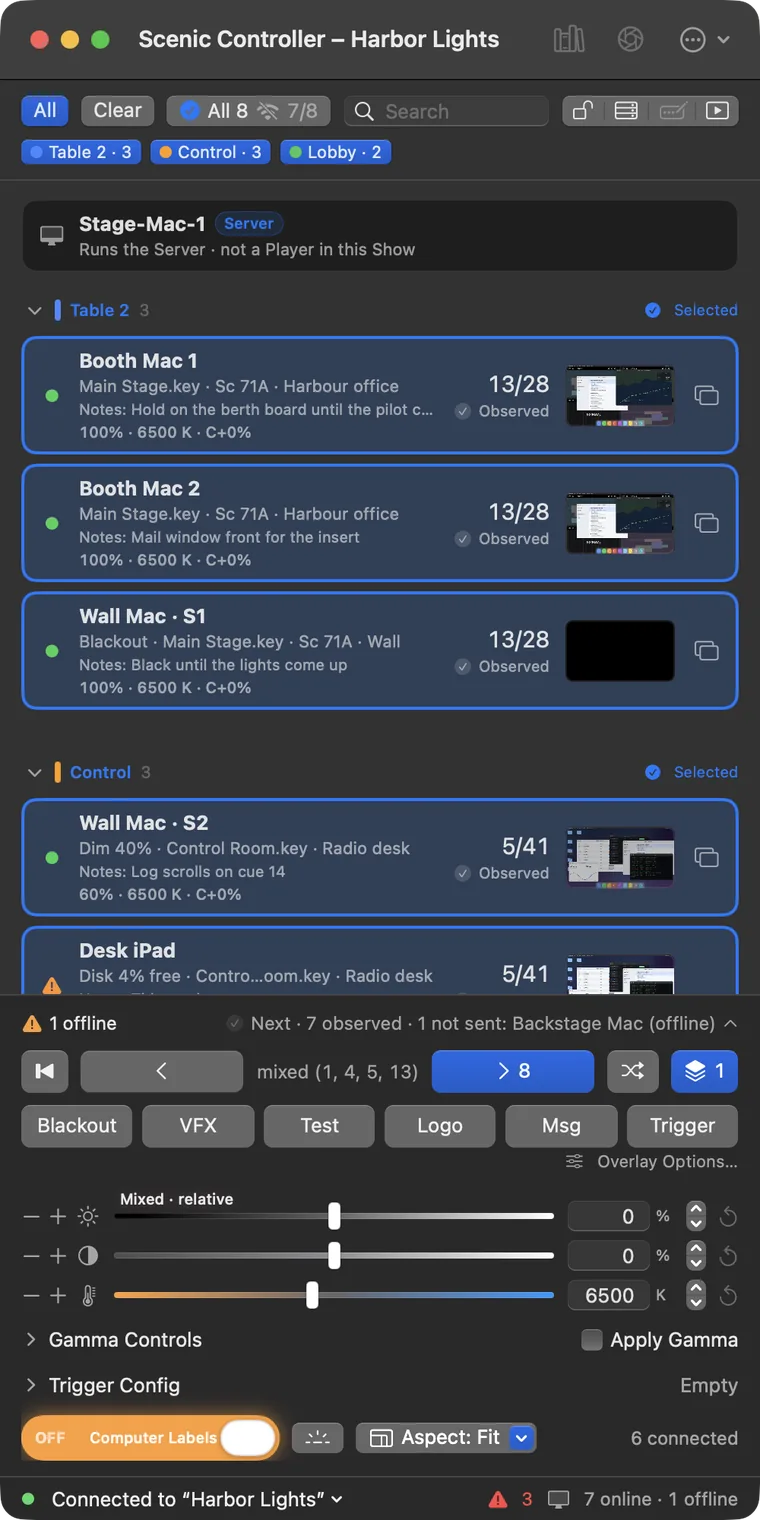
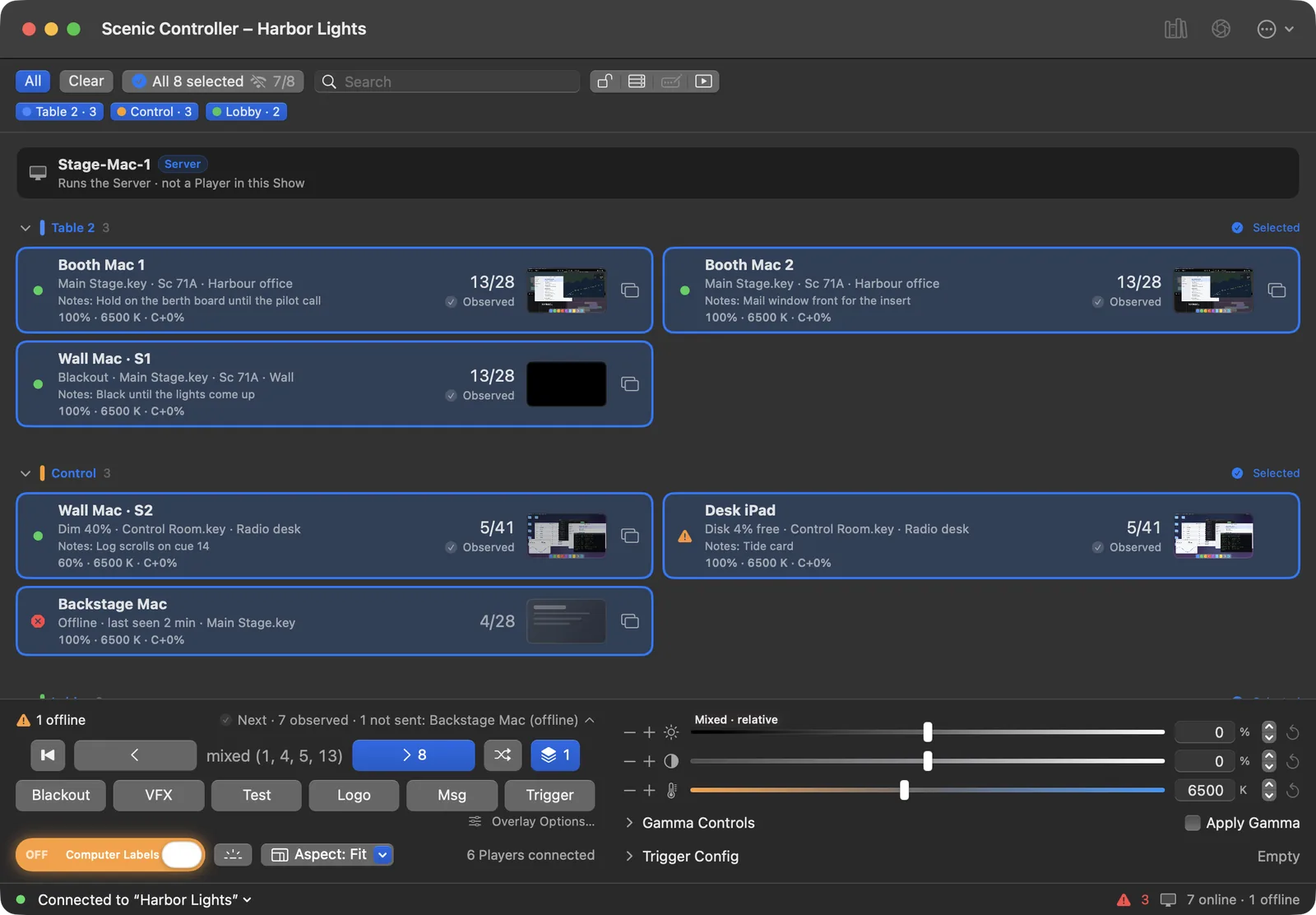
The Controller is one column, top to bottom:
- Notices: a Player went offline, the Server is unreachable, a short Undo after something you did.
- The control row: All, Clear, the selection chip ("3 selected"), Search, and four buttons: Interface Lock, Network window, Edit in Scenic Decorator and Transport Controls. Under it, one button per group.
- The Player List: one card per screen, in sections by group.
- The dock: the summary line, the transport, the overlay row (hidden until you open it), the picture controls, Gamma Controls, Trigger Config and Computer Labels.
- The footer: the Server and Show, the Warnings count, and how many screens are online and offline.
The Library, Snapshots, Network, Grid, Timecode and Logs open as their own windows on a Mac (⌘1–⌘7), and as sheets on iPhone and iPad.
On an iPhone the same column fits one hand: the transport and picture controls sit at the bottom, within thumb reach, and Settings ▸ General ▸ Left-handed transport mirrors the row.
#Adding Players
Every Scenic Player on the show network appears in the Network window. Those not in a Show are listed under Not in Show; select them and choose Add to Show. Their screens appear in the Player List at once. See The Network window for installing Players, adopting one from another Server and listing Players by address.
Players also appear at the bottom of the Player List in a collapsed Not in Show section, so you can add one without leaving the main window.
#Reading a screen's card
Each screen has one card in the Player List:
- Name, with
· S1,· S2when the Player has several screens, and the screen's Grid position. - The status line: a state word first (Blackout, White, Dim 40%, Pattern, Local), then the content, the slide's cue name and the build.
- Notes for the current slide, when the deck has them.
- The grade: brightness, colour temperature and contrast, such as
100% · 6500 K · C+0%. - The slide counter, large:
13/28. - The delivery word for your last command: Accepted, Observed, Failed.
- The thumbnail. A thumbnail marked LIVE is a picture from the Player; hover over it to see it larger.
- A Screen Sharing button for Mac Players.
- The health glyph, a dot on the left: green for Live; amber or red with the reason, such as "Disk 4% free", "Offline · last seen 2 min" or "Player too old for this deck".
The card only changes when the Player reports a change. A counter never moves because you pressed Next; it moves when the Player says it has.
Cards is the default view. View ▸ Player List as List (⌃⌘2) gives one dense row per screen, and Map (⌃⌘3) shows thumbnails.
#Selecting screens
Every live control acts on the selected screens, and only on them. The selection chip in the control row always says what that is.
| To select | Do |
|---|---|
| One screen | Click its card |
| Add or remove a screen | ⌘-click |
| A range | ⇧-click |
| A whole group | Click the group's button under the control row, or the group's name in the Player List |
| Every screen in the Show | All, or ⌘A |
| Nothing | Clear, or Esc |
| Group 1 to 9 | ⌥⌘1 … ⌥⌘9 |
On iPhone and iPad, tapping a card adds it to or removes it from the selection.
With nothing selected, the live controls are off and the dock says "Select screens to use the live controls". All is never assumed.
Hold selection (⌃⌘H, or the checkbox in the selection chip's popover) freezes the selection: clicking a card then only shows its details. Use it during a take so a stray click cannot change your targets.
#Groups
Groups are how you work on a real set: "Office wall", "Desk monitors", "Control room". Each group gets a colour, a section in the Player List, a button under the control row, a lane in the Timecode window and an OSC address.
- Make one: select screens, right-click and choose New Group from Selection…. New Empty Group… and New Subgroup from Selection… are there too.
- Move screens: right-click and choose Move to Group.
- Rename, recolour, delete: right-click the group's header. Delete Group goes ahead at once with an Undo notice; its screens stay in the Show.
- Reorder: Move Up and Move Down on a group or a screen.
A screen can be in one group. Groups can hold subgroups.
#Aliases
An alias is the name you want to see, such as "Hero laptop" or "Lobby TV left", instead of the machine's own name. Right-click a screen and choose Show Details and Alias…. Set a Player alias, a Screen alias, or both, and press Return. Leave the field empty to remove it. Batch Set Alias… names several at once.
Aliases live in the Show. They do not rename the machine, and OSC can address a screen by its alias.
#The Grid: your set on a floor plan
The Grid (⌘2, or Window ▸ Grid, ⌥⌘G) shows every screen where it really is on the set: walls, doors, desks, the camera position, and the screens on them with their group colours, slide counters and state.
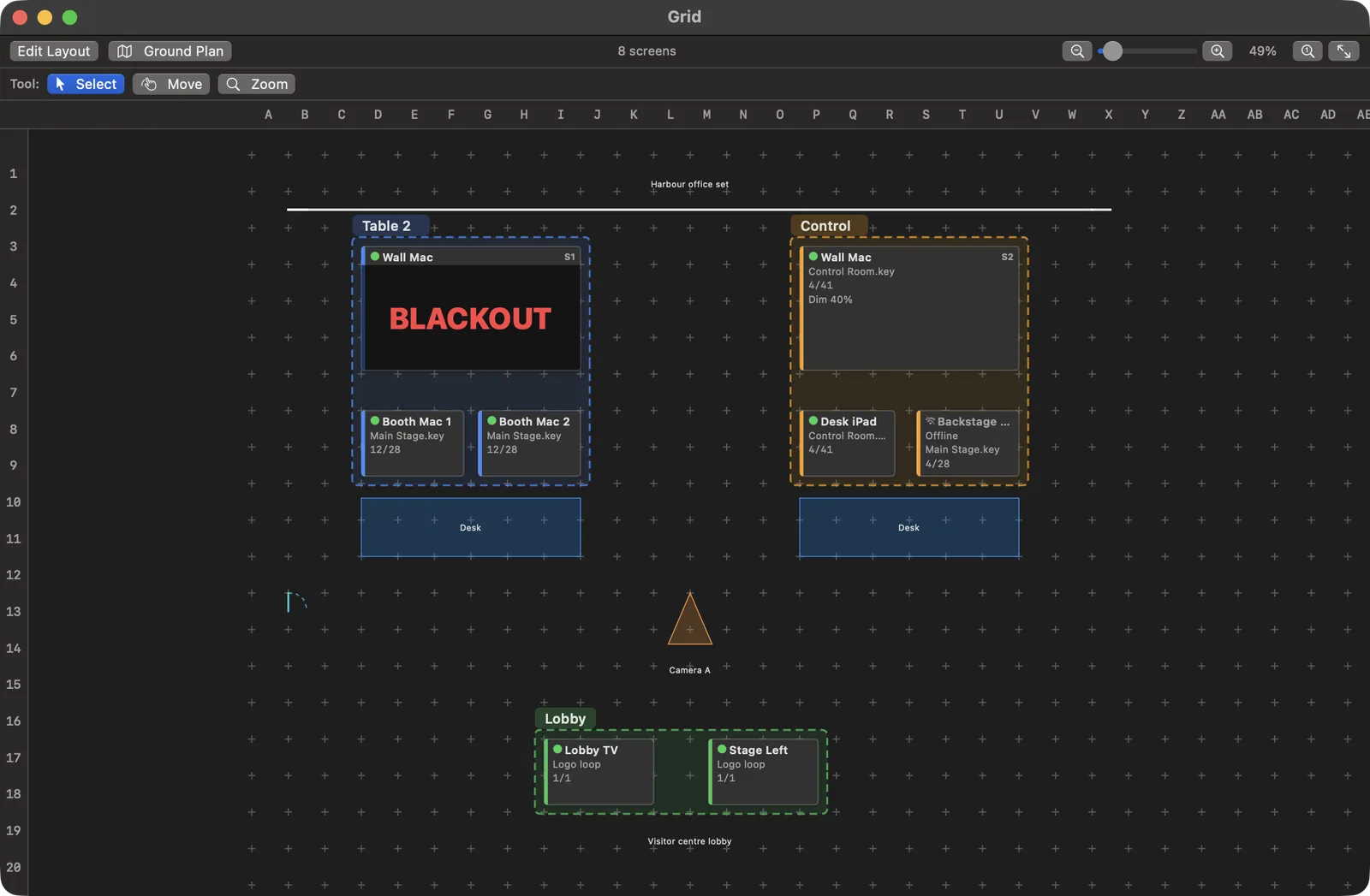
Clicking a screen on the Grid selects it, the same as clicking its card; the selection is shared both ways. Drag a box to select several, or click a group's name tab to select the group. Right-click a screen for Flash Screen, Aspect, Send Content Here…, Previous Content, Set Alias… and the group items.
#Laying out the Grid
- Press Edit Layout (⌘E). The bar reads EDITING.
- Drag screens from the Not on Grid tray onto the map.
- Draw the room with the Wall and Door tools, and add desks and markers with Add: rectangle, circle, triangles and text labels.
- Press Save & Exit (⌘E).
Esc backs out of one thing at a time (a drag, a tool) and never throws away your edits. Discard in the bar drops the whole editing session.
Ground Plan imports the art department's plan as a PDF, PNG or JPEG behind the Grid. Calibrate sets its scale from two points and a real distance in feet, and Position and Opacity line it up. The ground plan is for you; it never appears on a Player.
The Grid belongs to the Show, so every Controller sees the same one, and the Snapshot report can include it as a map page.
Chapter 04
Sending content
Content goes from your files to the screens in two steps. First you add it to the Library, which lives on the Server. Then you send it to the screens you choose. Scenic checks every screen before anything is sent, and tells you, screen by screen, whether the content will play exactly.
#What you can send
| Kind | Files | Notes |
|---|---|---|
| Scenic decks | .sgdeck | Made in Scenic Decorator. Plays the same on every kind of Player. |
| Keynote | .key | Read by Scenic itself, with builds, transitions, Magic Move and media. Keynote is not needed. |
| PowerPoint | .pptx, .ppsx, .potx, .pptm, .ppsm | Read by Scenic itself, with builds and transitions. PowerPoint is not needed. Macros never run. |
| Media | Images and video, or a folder of them (PNG, JPEG, MP4, MOV) | A folder plays as slides in name order, one file per slide, and holds on its last slide. |
Older PowerPoint files (.ppt, .pps, .pot) are refused with a note to save them as .pptx first. So are password-protected and damaged files, each with its own reason.
#Adding to the Library
Open the Library (⌘3, or the Library button in the toolbar) and press Add…, or use File ▸ Add Content to Library… (⇧⌘O). You can also drop files onto the Library.
The file is copied to the Server, so every Controller sees the same Library, and the Server sends each screen its own copy. The Library lists each item under Scenic decks, Keynote, PowerPoint or Media, with its slide count, size and the number of fonts it uses. A badge says In use when the open Show is showing it, and Changes on some screens when it will not play exactly everywhere.
When you add a Keynote or PowerPoint file, the Controller carries its fonts with it and the Server checks it against every kind of Player in the Show. You find out what will change while you are setting up, not when you cue.
Delete from Library removes an item. The Server refuses to delete something the open Show is using and says why.
#Sending to screens
- Select the screens in the Player List or on the Grid.
- In the Library, select the item and press Send to N Screens…. Or right-click a screen and choose Send Content Here…, then pick the item.
- Read the send sheet.
- Press the send button.
#The send sheet
The send sheet lists every selected screen with its verdict, checked against that screen's own Player: its kind, its version and its fonts.
| Verdict | Means |
|---|---|
| Plays exactly | This screen will show it as authored. |
| Plays with N changes | It plays, with differences you can open and read, such as "Slide 4: Magic Move plays as a dissolve" or a font that is not on that Player. |
| Cannot play | It will not play here, with the reason, such as "Player 1.1 is too old: update it in the Network window". |
| Offline · not sent | The screen cannot be reached now. |
The button names exactly what will happen: Send to 8 screens, or Send to 6 screens that can play it when some cannot. There is no "send anyway". A screen that cannot play the content keeps what it is showing.
The button wakes up a moment after the sheet opens, so an extra press of Return from a moment before cannot send by accident.
#What happens next
Each screen switches to the new content as soon as its own copy has arrived. A fast Player may show it while a slow one is still copying. On each card you see:
Preparing → Copying 43 % → Checking → Showing
If a copy fails, that screen keeps what it was showing and its card says "Copy failed" with the reason. The other screens are not affected. The Activity list (click the summary line in the dock) has the whole send, with Retry Failed and Cancel Send.
#"Sent" is not "shown"
Scenic keeps two things apart for every screen:
- What you asked for, and how far it got. Accepted means the Server took your command and sent it.
- What the Player reports it is showing. Observed means the Player has confirmed it.
The card's slide counter, thumbnail and state word only ever show what the Player reports. Scenic never shows a screen as changed because you pressed a button. If a card stays at Accepted and does not reach Observed, the Player has not confirmed it: look at that screen before you do anything else.
#Keynote and PowerPoint on every Player
Scenic plays Keynote and PowerPoint files natively on every Player, with their builds and transitions. Nothing on any show machine needs Keynote or PowerPoint installed.
- Mac, iPhone, iPad and Apple TV play the
.keyor.pptxdirectly. - A Windows PC plays the Server's prepared copy. When you send a
.keyor.pptxto a PC, the Server turns it into a Scenic deck and sends that, with the same slides, builds and transitions. You do nothing different.
Where Scenic cannot reproduce something exactly, it says so before you send: which slide, what changes, and what plays instead. It never drops an effect silently.
A deck saved by a newer Keynote than Scenic knows still opens; the send sheet warns you in plain words that it may contain things Scenic does not yet know.
#Changing a deck that is already on screen
To edit a Scenic deck, or a Keynote or PowerPoint file, that is already in the Show, select it in the Library (or a screen that shows it) and choose File ▸ Edit in Decorator (⇧⌘E). Scenic Decorator opens a working copy. The Library item and the screens are never changed in place: when you are done, Send to Show in the Decorator puts the new version in the Library, and you send it like any other content. See Scenic Decorator.
#Bringing back earlier content
Each Player keeps the 20 most recent things it was sent. To go back to one without sending it again, right-click a screen and choose Previous Content, or use Show ▸ Previous Content for the selected screens. If the Player no longer holds it, the item is greyed out with the reason.
#Players that are too old for a deck
When Scenic improves how it plays an effect, a deck prepared by a newer Server may look slightly different on an older Player. It still plays, with the older Player's motion, and you are told: the send sheet, the screen's health glyph and the Warnings list read Player too old for this deck, with Update Player.
Chapter 05
Cueing
Cueing is what Scenic is for: one press, and every screen you selected moves together, whether that is one laptop on a desk or forty monitors across a set, on Macs, iPads, Apple TVs and PCs at once.
This chapter covers the transport, blackout, video, the overlays, and how to tell whether a cue landed.
#The rules every cue follows
- A cue goes to the screens selected when you pressed. Change the selection a moment later and that cue still goes where it was aimed. Next carries a count, such as › 8, so you can see how many screens it will move.
- Live cues never ask. Next, Previous, Go to Slide, Blackout, Reveal, dim, picture changes, Shuffle and overlays fire at once, on one screen or a hundred. The selection you can see is the preview.
- Every press counts. Press Next twice quickly and the screens advance twice. While presses are on their way the button shows ×2. Scenic never drops a press because it is busy.
- Holding a key does not repeat a cue. Holding → sends one Next.
- Nothing is retried blindly. If the Server did not answer a press, Scenic says so and does not send it again for you. Look at the screens, then press again if you need to.
#Synchronized cues
When you press Next with screens on several Players selected, the Server sends the cue to every Player in the same instant, and each Player plays its build or transition from that moment. Video started on several screens at once begins on the same frame: the Server picks a start time a fraction of a second ahead and every Player starts then. A Player that joins late catches up to the others, and small drift between screens is corrected smoothly rather than with a visible jump.
If a projector or LED processor adds delay, set that Player's Output latency (see The Players) so its video lands with the rest.
#The transport
The transport row in the dock has, left to right: First, Previous, the slide counter, Next, Shuffle and the Overlays button.
| Control | Does | Keys |
|---|---|---|
| Next | Each selected screen moves one step: the next build, or the next slide. | ⌘→; in the Player List → Space Page Down |
| Previous | Each selected screen moves one step back. | ⌘←; ← Page Up |
| First | Back to slide 1. | ⌥⌘←; Home |
| Last slide | To the last slide. Every screen must be showing the same deck. | ⌥⌘→; End |
| Slide counter | Click it for Go to Slide. | ⌘J |
| Shuffle | Gives each selected screen a different slide of its deck, at random. | ⇧⌘Y |
#When screens are on different slides
If the selected screens are at different places, the counter reads mixed (12, 14). Next moves each screen one step from where it is: 12 and 14 become 13 and 15. It never lines them up for you.
To line them up, use Go to Slide (⌘J, or click the counter). It says "Every screen in this selection goes to the same slide", shows a grid of slides for short decks, and its button names the count: Go on 8 Screens.
#Previous at the very start
Previous on the first slide of a deck rewinds and pauses any video on it, which is a quick way to reset a video slide between takes.
#Blackout, Reveal and Whiteout
Blackout takes the selected screens to black. Reveal brings them back. They are two separate commands, not a toggle, so a selection where some screens are black and some are not behaves predictably: Blackout makes them all black, Reveal brings them all back.
| Do | Press |
|---|---|
| Black out the selected screens | ⇧⌘B; B in the Player List; or Blackout in the overlay row |
| Reveal them | ⌥⌘B; R in the Player List |
| Whiteout | Right-click Blackout in the overlay row and choose Whiteout, or Show ▸ Blackout ▸ Whiteout |
A blacked-out screen keeps its place in the deck, its grade and its overlays underneath. Its card shows a black thumbnail and leads with Blackout.
To fade rather than cut to black, set Blackout fade in Overlay Options… (0 to 1 second). Crossfade there adds a dissolve between slides that have no transition of their own; a transition built into the deck always wins.
#How do I black out every screen at once?
Press ⌥⇧⌘B: Panic: Blackout All. It blacks out every screen in the Show at once, whatever is selected, with no question. A notice then offers Reveal these N to bring back exactly the screens it blacked out.
It is the one wide action that never asks first, and it works even while the Controller's interface is locked.
#Video
When a selected screen is playing video, these keys work with the Player List focused:
| Key | Does |
|---|---|
| K | Play or pause |
| J | Slower, or step back |
| L | Faster |
| M | Mute or unmute |
The Transport window (⌥⌘T, or the Transport Controls button in the control row) lists every screen with video, each with play and pause, speed (0.5× to 2×), mute and a scrubber, plus Mute All.
#The overlay row
Overlays put something on top of the content: a pattern, a logo, a message, a VFX marker. Because each of them puts something visible on show screens, the overlay row is hidden until you open it, every time the Controller starts. Click the Overlays button at the right end of the transport (the stacked-layers icon) to show it.
While the row is hidden and an overlay is on any screen, the Overlays button turns red and shows how many screens have one, so an active overlay is never out of sight. An active overlay's button is filled in its colour.
The row has six buttons. A click turns the overlay on or off on the selected screens; the arrow or a right-click opens its menu. Overlay Options… under the row holds the settings for all of them.
#VFX
Tracking markers for the visual effects team: plus signs, circles or squares at the corners and centre of the screen, over a solid colour, for a screen replacement in post. Choose a preset from the VFX menu (Green, Blue and White to start with), or Next Preset and Previous Preset. In Overlay Options, VFX Presets sets each preset's background, marker shape, colour, opacity, size and inset, and Add Preset makes new ones. Presets belong to the Show. Reset All VFX Presets goes back to the defaults, with Undo.
#Test
Test patterns for lining up cameras and displays. Pick one from the Test menu; Turn Off Test Pattern ends it.
| Pattern | Use |
|---|---|
| SMPTE Color Bars, ARIB Bars, HDR Bars, Simple Bars | Colour and level checks |
| Camera Color Card | Matching the screen to a camera chart |
| Gamma Pattern, Grayscale Ramp | Gamma and banding |
| Crosshatch Grid | Geometry, focus and alignment |
| Full HDTV | Overall set-up |
| Audio Sync | Picture and sound sync, with a beep |
| LED Wall | LED processor and tile checks |
| SDI Pathological | Signal path stress test |
| Solid White, 50% Gray, Solid Red, Solid Green, Solid Blue | Uniformity and white balance |
The pattern options can be switched off one by one: labels, diagonals, circles, the audio beep, tile borders and positions, and the name and resolution caption. Others set the level (75, 100 or 109 %), the ramp's direction, and the frame rate for the sync pattern. Custom Patterns holds up to four of your own images.
A test pattern covers the content completely, and the screen's grade still applies to it, so you can grade on the pattern.
#Logo
Puts a logo on the screen: Still, or moving as Bounce, Mystify, Starfield or Flying Logos. Choose the image, its size (10 to 90 %) and a background colour or Aurora.
#Msg
Puts a line of text on the screen, such as "HOLDING FOR CAMERA". Compose Message… sets the text; Hide Message takes it down. A message stays visible over a blackout, so you can use it to talk to the floor on a black screen.
#Trigger
Plays a one-off graphic or video over the content: a pop-up alert on a hero laptop, a flash on a monitor. There are five slots. Set each one up under Trigger Config in the dock: choose an image or a video with transparency, and whether it should Loop or Hold its last frame. Then pick a slot and press Trigger, or ⌃⌥O; ⌃⌥1 to ⌃⌥5 choose the slot. Turn Off Trigger stops it.
#Computer Labels
Computer Labels shows each Player's name on its screens, so you can tell which machine drives which screen. It is a slide switch beside Gamma Controls, and it is deliberately awkward:
- To turn it on, drag the knob all the way across. Anything less does nothing.
- To turn it off, pull the knob back.
- A tap does nothing.
While it is on, the switch glows orange. It puts text on show screens, so it is built so you cannot turn it on by brushing it.
#Flash Screen
Flash Screen (beside Computer Labels, or ⌘I) flashes a coloured border on the selected screens for a few seconds, so you can find them on set. Set the colour and length in Overlay Options.
#Aspect
Aspect sets how content fits each selected screen: Fit shows the whole picture in its own shape, Fill crops it to fill the screen, Stretch fills the screen and distorts it.
#Did it land?
Every press is followed screen by screen:
| Word | Means |
|---|---|
| Pending | Pressed; the Server has not taken it yet. |
| Accepted | The Server took it and sent it. The Player has not confirmed yet. |
| Observed | The Player reports the result. |
| Failed | It was refused, or the Player reports something else. The reason is beside it. |
| Uncertain | The answer was lost, so it may or may not have happened. Look at the screen. |
The summary line at the top of the dock shows the last action and how it went, such as "Next · 7 observed · 1 not sent: Backstage Mac (offline)", and what needs attention ("1 offline · 1 failed"). Click it for Activity: every recent action with each screen's result, and Retry Failed and Mark Reviewed.
A failure is always per screen. In a recall to twelve screens with one offline, you read "11 observed · 1 failed: Backstage Mac (offline)", never just "Failed".
#Undo, not "are you sure?"
Scenic does not ask before live cues. Where an action can be taken back, it offers Undo instead: a notice at the bottom of the Controller for about ten seconds, and Edit ▸ Undo.
| You did | Undo |
|---|---|
| Panic: Blackout All | Reveal these N brings back exactly those screens |
| Recalled a Snapshot | Undo Last Recall (⌥⌘Z) recalls the "Before recall" Snapshot saved a moment before |
| Removed a Player from the Show | Undo puts it back in its groups |
| Deleted a group | Undo brings the group back |
| Reset all VFX presets | Undo restores them |
A few things do ask, because they cannot be undone or touch the whole Show: sending content (the send sheet), recalling a Snapshot, deleting a Snapshot, adopting a Player from another Server, and stopping the Server.
#Locking the Controller
Interface Lock (⌃⌘L, or the lock button in the control row) covers the Controller with a lock screen, so a bumped trackpad or a curious hand cannot cue anything. While locked, only two things work: Hold to Blackout for the selected screens, and Panic: Blackout All. To unlock, press and hold Hold to Unlock for one second.
Interface Lock is for this Controller only. To lock a Player's own keyboard and mouse, use the Network window (see The Players).
#Local changes
If someone uses a Player's own controls (Local Controls on a Mac, the two-finger panel on an iPad, the Siri Remote on an Apple TV), that screen's card shows Local. A local change never looks like one of your cues.
Chapter 06
Matching screens to camera
Screens in shot rarely look right straight out of the box. They are too bright for the exposure, too blue next to tungsten practicals, or two different models side by side that never match. Scenic grades the picture on each screen from the Controller, so you can fix it from the video village without touching a display's own menus.
The grade is applied by the Player to everything it draws on that screen: slides, video and test patterns.
#The picture controls
The dock has three sliders, each with a number you can type, a − and + stepper and a reset button.
| Control | Range | Neutral | Step | Keys |
|---|---|---|---|---|
| Brightness | 0 to 100 % | 100 % | 5 % | ⌘] / ⌘[ |
| Contrast | −50 to +50 % | 0 % | 5 % | ⇧⌘] / ⇧⌘[ |
| Colour temperature | 2000 to 12000 K | 6500 K | 100 K | ⌥⌘] cooler / ⌥⌘[ warmer |
Every change goes out at once to the selected screens, with no confirmation. A slider only moves when you drag its knob: clicking the track does nothing, so a stray click cannot jump a screen to full brightness.
Each card shows its current grade, such as 60% · 6500 K · C+0%.
#Colour temperature
6500 K is neutral daylight: no shift. Lower numbers warm the picture towards tungsten amber; higher numbers cool it towards overcast blue.
| Setting | Looks like |
|---|---|
| 3200 to 4500 K | Warm: tungsten, halogen, a screen in a lamp-lit room |
| 6500 K | Neutral |
| 7500 to 12000 K | Cool: daylight through a window, shade, a cold office |
If your crew thinks in warm and cool rather than Kelvin, Settings ▸ General ▸ Color temperature ▸ Percent shows the slider as −100 (warm) to +100 (cool).
#When the selected screens differ
If the screens you selected have different values, the slider reads Mixed · relative. Dragging it then moves each screen by the same amount from where it is: two screens at 60 % and 80 % brightness, dragged down 10, end at 50 % and 70 %. Typing a number instead sets every selected screen to that number.
#Gamma Controls
For finer matching, open Gamma Controls under the sliders. It shapes the picture in three ranges:
- Black: where black sits. Lift it so a screen's blacks match the set, or crush it to hide a backlight.
- Middle: the midtones (gamma).
- White: where white tops out.
Choose a range, then use the sliders for all channels together or for red, green and blue separately. Tick Apply Gamma to turn the curve on; untick it to compare with and without, without losing your settings.
Gamma presets keep a curve you like, such as "Camera A tungsten" or "Booth LCDs". Choose Custom in the preset menu, adjust, then press the save button and name it. Presets belong to the Show, so every Controller can apply them.
RGB Gains, in the same section, set each channel's level from 0 to 2, for a display with a colour cast. Reset Grading puts brightness, contrast, colour temperature and gains back to neutral and leaves gamma alone; the gamma reset button resets the curve.
#A matching workflow
- Send a pattern. Put Camera Color Card or Grayscale Ramp on the screens (overlay row ▸ Test). The grade applies to the pattern, so you grade what the camera sees.
- Set brightness per group first. Select a group and bring its brightness down until it sits in the exposure. Most screens in shot want far less than 100 %.
- Set the colour temperature per group to match the practicals and the lighting.
- Then fine-tune single screens. Select one screen and nudge it to match its neighbours in the monitor.
- Use Gamma Controls last, for blacks, midtones and a stubborn cast.
- Save a gamma preset for each kind of display, so the next setup on the same monitors is one choice.
- Turn the pattern off and save a Snapshot. The grade is part of it.
#Grading and Snapshots
A Snapshot saves each screen's grade, including gamma and gains. Recalling it puts the grade back with the content. If you recall a Snapshot to reset a scene, the grade comes back exactly as it was at the take you saved.
Chapter 07
Snapshots
A Snapshot saves what every screen is showing at one moment, so you can put it all back later: for the next take, after lunch, after a company move, or when the script supervisor asks what was on the wall in scene 71A.
#What a Snapshot keeps
For each screen:
- the content, the slide and the build;
- blackout, whiteout and dim;
- the grade: brightness, colour temperature, contrast, gamma and gains;
- the overlays: VFX and its preset, test pattern, logo, message and trigger, with their settings;
- the aspect.
It does not keep Computer Labels, aliases or fade settings. Those belong to the Show, not to a moment in it.
#Saving a Snapshot
Press ⌥⌘E, or Save Snapshot… in the Snapshots window.
- Type the Scene (such as 71A) and the Take (such as Wide master). Add Notes if you like: "match to plate 71A-3".
- Tick Also export PDF report if you want a continuity sheet now, and Include map to add the Grid to it.
- Press Return.
The Snapshot is named from the scene and take, "71A · Wide master". It captures every screen in the Show. If some screens could not be captured (offline, for instance), Scenic says which, and recalling that Snapshot later leaves those screens as they are.
#The Snapshots window
Open it with ⌘4 or the Snapshots button in the toolbar.
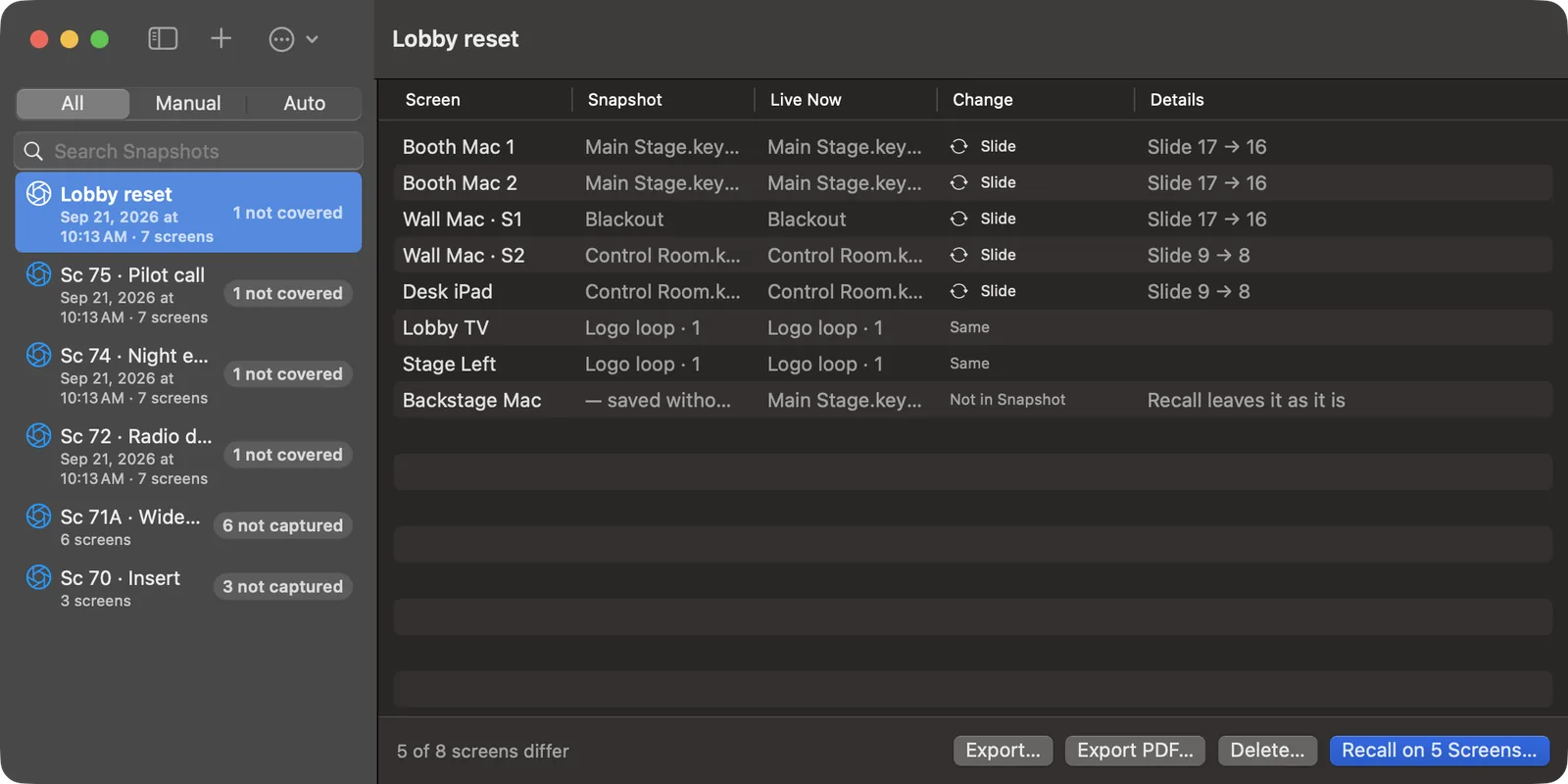
The list on the left can show All, Manual or Auto Snapshots, and has a search field. Select a Snapshot and the right side compares it with what is live now, screen by screen:
| Column | Shows |
|---|---|
| Screen | The screen. |
| Snapshot | What it showed when the Snapshot was saved. |
| Live Now | What it shows now. |
| Change | What a recall would change: Slide, Blackout, Grade, or Same. |
| Details | The specifics: "Slide 17 → 16". |
The foot of the window reads, for example, "5 of 8 screens differ".
#Recalling a Snapshot
- Select the Snapshot.
- Press Recall on N Screens… (or Return).
- The confirmation lists only the screens that will change. Press Recall.
Only the screens that differ are touched: a screen already showing the right thing does not flash or reload. A screen that is offline is listed as not reached, with the reason, and the rest go ahead.
Recall restores everything the Snapshot holds, overlays and grade included. If a deck the Snapshot needs is no longer on a Player, the Server sends it again; a Windows PC gets the Server's prepared copy as usual.
#Undo a recall
Just before every recall, Scenic saves a Snapshot called Before recall. If the recall was the wrong one, press Undo on the notice, or ⌥⌘Z (Undo Last Recall). Every screen goes back to how it was a moment before.
#Automatic Snapshots
Automatic Snapshots… (⇧⌥⌘A) saves a Snapshot on a schedule, every hour by default, but only when something has changed. They are marked AUTO in the list.
The Show keeps the newest 200 automatic Snapshots and removes older ones. Change the number in Settings ▸ General ▸ Automatic Snapshots kept. Snapshots you save yourself are never removed.
#Continuity reports
Export PDF… makes a continuity sheet from the selected Snapshot: every screen with what it showed, its slide and its grade, a picture of each screen, and your notes. With Include Map in PDF Report on (Snapshots menu), the last page is the Grid, so anyone can see which screen was where. Use Export Continuity Report (PDF)… (⇧⌥⌘P) from the menu.
Export… (⇧⌥⌘E) saves a Snapshot as a file, and Import Snapshot… (⇧⌥⌘I) brings one in, for example into the same Show on another Server. Screens that are not in this Show are listed and left out.
#Tips for continuity
- Before lunch or a long reset, save one. After, recall it and read the comparison before rolling.
- A Snapshot picture is kept only while the screen still shows what was saved, so the thumbnails in a report are never from a later moment.
- Snapshots belong to the Show. Moving the Server or restoring a backup brings them with it.
Snapshots can also be saved and recalled from a console or a Stream Deck (see Timecode and OSC), and from a timecode cue.
Chapter 08
Timecode, OSC and Stream Deck
Scenic can take cues from outside: timecode from the sound cart or a playback track, and OSC from a lighting desk, QLab or a Stream Deck. Both go into the Server by the same road as a Controller's cue, so they are checked, logged and reported on each screen in exactly the same way.
#Timecode
The Timecode window (⌘5, or Window ▸ Timecode, ⌥⌘C) holds a timeline of cues that fire at set times: slide changes, blackouts, dims, grades, Snapshots, VFX, triggers and video.
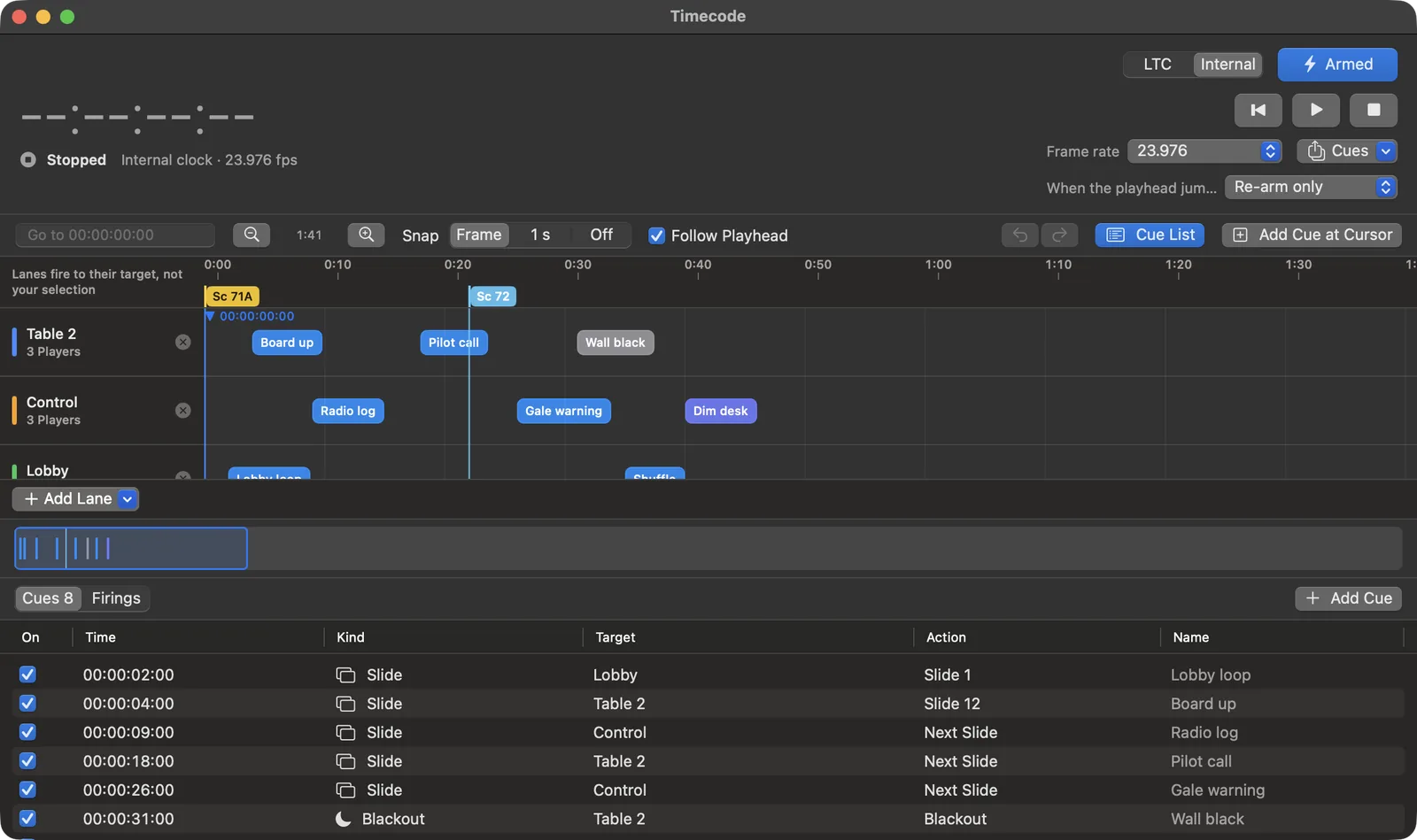
Cues are run by the Server, not by a Controller, so they fire whether or not any Controller is open.
#The clock
Choose the source at the top right:
- LTC: Scenic chases linear timecode coming into an audio input on the Server Mac. Choose the input and channel from the input menu. The first time, macOS asks to let Scenic Server use the microphone; allow it. If it was refused, the window says so and Open Privacy & Security… takes you to the setting.
- Internal: Scenic runs its own clock. Use the transport buttons: return to start (↩), play and pause (Space), and stop, which returns to the last locate point.
Frame rate: 23.976, 24, 25, 29.97 DF, 30 or 60 (60 is internal only). Stop the transport to change it.
The big readout and the state beside it are the first thing to look at: Locked or Chasing while LTC is coming in, Freewheel for a moment after it drops, No Signal, or Running, Paused and Stopped on the internal clock. When LTC drops, nothing fires until it comes back.
#Arming
The Armed button decides whether cues fire at all. Disarmed, the window says "Cues are disarmed. Nothing will fire." Each cue can also be switched off on its own with the checkbox in the cue list.
When the playhead jumps decides what happens when timecode jumps (a locate, a new take): Re-arm only just gets ready for the next cue; Restore screens puts the screens into the state they should be in at the new time.
#Lanes and cues
A cue sits on a lane, and a lane is a target: a group, a Player or a single screen. Add Lane chooses which. A cue always fires at its lane's target, never at whatever happens to be selected in a Controller.
To add a cue, click the timeline where you want it and press Add Cue at Cursor, or press Add Cue under the cue list, or right-click the timeline. Then set:
| Action | Choices |
|---|---|
| Slide | Go to slide #, Next, Previous, Shuffle |
| Blackout | On or off |
| Dim | A level |
| Grade | Brightness, colour temperature, contrast |
| Snapshot | Recall a Snapshot |
| VFX | A preset, or off |
| Trigger | A slot, with Loop or Hold last frame |
| Video | Play, Pause, Faster, Slower |
Give each cue a Name ("Board up", "Pilot call") so the timeline reads like the script.
Snap (Frame, 1 s or Off) lines cues up as you drag them. Follow Playhead keeps the playhead in view. Cue List shows every cue as a table; Firings lists what fired, when, and how it went: Fired, Blocked by lock, Disarmed, or Not sent. The Cues menu exports and imports a cue list.
#Follow Timecode: a video that follows the timecode
Follow Timecode locks the video on one screen to the timecode coming in, so a sound department's Pro Tools can play, stop, jump and scrub a lyric video. It is off for every screen until you switch it on, and it is a switch on the screen's card.
The timecode comes into this Mac (the Controller), the one that runs the Server, not into the Player. Use Timecode ▸ Input Setup to choose the audio device and channel. It shows a level meter for the channel (and small meters for the others), the timecode it reads, its frame rate and one state: Receiving, No signal, Too low, Clipping or Audio but no readable timecode. If it hears timecode on another channel it says "Signal found on Channel 2 — switch?".
- Send the video to the screen and let it play.
- On the screen's card, switch Follow Timecode on. This also starts the timecode input.
- Line the video up: with the timecode parked on a moment you can recognise in the video, open Window ▸ Transport (⌥⌘T), scrub the video to the matching frame with its scrubber and press Sync Here. It sets the line-up from the timecode now and the video's position now, so extra seconds at the start of the video, or of the song, are both handled. The line-up reads as a sentence: "Timecode 01:00:00:00 = video 0:05.00". −1 frame and +1 frame nudge it, and Type the line-up… takes both values.
The card says what the screen is doing:
| The card says | Meaning |
|---|---|
| Following · TC 01:00:12:14 | The video is locked to the timecode. |
| Seeking… | The timecode jumped or is being scrubbed; the video is going to each new position. |
| No timecode · holding | No fresh timecode for half a second. The picture holds its frame. It does not say Pro Tools stopped, because a stopped transport and a pulled cable look the same. |
| Before video start · holding first frame | The timecode is before the line-up's start. |
| Past video end · holding last frame | The video has ended. It never loops and never moves the slide on. |
| Manual · Follow suspended | You pressed Play, Pause, Seek, Next or Previous on that screen. Resume Following goes back to the timecode. |
| Blackout · following underneath | Blackout always wins; the picture stays black while following continues, so a reveal is on the right frame. |
| Following · no video on this slide | The slide has no video. |
The card and the Transport window show both where the Server aimed the video and where the Player last reported it, with how old that report is. A frame-rate mismatch between the timecode and the video is shown as a warning; the video still follows by time.
#OSC
OSC (Open Sound Control) lets a lighting console, QLab, Bitfocus Companion, TouchOSC or any other OSC sender cue Scenic over the network. The Server receives it; Controllers and Players never do.
#Turning OSC on
Open Settings ▸ OSC on any Mac Controller.
- Turn on Enable OSC. The status line reads "Listening on UDP port 8000."
- Leave Port at 8000 unless your console needs another.
- Listen on: Show network lets any console on the show network send. This Mac only refuses everyone else.
- Optional: list Allowed Sources, such as
192.168.1.0/24or one console's address, to accept only those.
The settings belong to the Server's Mac, not to a Show.
More options in the same pane:
- Send feedback sends status (blackout, slide, dim, each screen's delivery) to a Destination address and port, for a console that shows it.
- OSC over TCP also listens for TCP on the same port, for consoles that prefer it.
- Discoverable (OSCQuery) publishes the whole address space, with the open Show's Player, group and Snapshot names, so an OSCQuery-aware app can browse it (port 8001).
- Duplicate window (0.1 seconds) ignores the same command twice from the same sender within that time, which tames bouncing buttons. A different value or target always goes through.
- Log lists every message with its time, sender, address and outcome: Done, Refused, Locked, Duplicate or Not understood.
- Address Catalog lists every address Scenic understands.
#What a command acts on
/scenic/next with no target acts on the OSC selection: All Players, until a console sends a /scenic/select/.... Add a target to the address to be exact:
| Address | Acts on |
|---|---|
/scenic/next | The OSC selection (All Players by default) |
/scenic/all/next | Every Player in the Show |
/scenic/group/Office_Wall/next | Every screen in the group "Office Wall" |
/scenic/player/Booth_Mac_1/next | One Player |
/scenic/player/Wall_Mac/screen/2/next | One screen of a Player |
/scenic/alias/Hero_Laptop/next | A Player or screen by its alias |
Names use underscores for spaces and ignore case. A name that matches nothing, or more than one thing, is refused and logged, never guessed. To copy an exact address, right-click a screen or group in the Player List and choose Copy OSC Address.
Settings ▸ General ▸ OSC follows the Player List selection changes the default: an untargeted command then acts on what is selected in a Controller's Player List. Use it when the console operator and the Scenic operator are working the same screens together.
While the Show's input lock is on, every OSC command is refused and logged. A Controller's Interface Lock does not stop OSC.
#Common cues
| Do | Send |
|---|---|
| Next | /scenic/next |
| Previous | /scenic/previous |
| Go to slide 12 | /scenic/goto 12 |
| Black out | /scenic/blackout/on |
| Reveal | /scenic/blackout/off |
| Dim to 40 % | /scenic/dim 40 |
| Recall the Snapshot for scene 71A | /scenic/snapshot/recall "71A" |
| Fire trigger slot 2 | /scenic/overlay/trigger/2 |
| SMPTE bars on / off | /scenic/testpattern/smpte_bars / /scenic/testpattern/off |
| Roll the internal timecode | /scenic/timecode/play |
#Stream Deck through Companion
Bitfocus Companion turns an Elgato Stream Deck into a button panel. Scenic has a Companion module, StageGlass Scenic.
- On the Server's Mac, turn on OSC (above). If Companion runs on another computer, leave Listen on at Show network.
- In Companion, add a StageGlass Scenic connection.
- Set Server address to the Server Mac's IP address, OSC port to 8000, and Transport to UDP (or TCP if you turned on OSC over TCP).
- Drag the presets onto buttons: Next (All Players), Previous (All Players), Blackout toggle (All Players), Computer Labels toggle (All Players) and Server status.
Actions include Next slide, Previous slide, Go to slide, Blackout (toggle, on or off), Computer Labels, Recall Snapshot, Select target for OSC and a Custom OSC command. Each can target the OSC selection, All Players, a Player, one screen, a group or an alias. Refresh Player, group and Snapshot names reloads the lists after you change the Show.
Buttons can show what happened: a screen's feedback lights amber when the Server has accepted a cue and green when the Player reports it on screen. Other feedbacks show when blackout is on and whether the Server is answering. Variables carry the slide, slide count, connected Players, blackout, dim and timecode for button labels.
#OSC address reference
This is the Server's own address table.
#Connection
| Setting | Value |
|---|---|
| Transport | UDP, OSC 1.0 (messages and bundles). Optionally TCP with SLIP framing (OSC 1.1) on the same port number. |
| Default port | 8000 |
| Discovery | Optional OSCQuery: the address space as JSON over HTTP (default port 8001), advertised as _oscjson._tcp. |
| Default listener | The show network: any console on it can send once OSC is on. Listing allowed sources narrows it to those addresses; This Mac only refuses everyone else and names them in the log. |
| Argument types | int32 int64 float32 float64 string blob true false nil impulse |
Numeric arguments accept any numeric type or a numeric string: 20, 20.0 and "20" all mean 20. Values outside a range are clamped to it, except slide numbers, which must be 1 or more. Extra trailing arguments are ignored. A command that cannot be understood is rejected and logged in the Network window.
#Address spaces
Every address starts with /scenic. Where a command has a shorter form, both are listed.
| Form | Targets |
|---|---|
/scenic/<command> | the OSC selection: All Players until a /scenic/select/... |
/scenic/player/<name>/<command> | one Player |
/scenic/player/<name>/screen/<n>/<command> | one screen of a Player (n starts at 1, as in the Network window) |
/scenic/group/<name>/<command> | every member of a group |
/scenic/all/<command> | every Player in the show |
/scenic/alias/<alias>[/screen/<n>]/<command> | a Player by alias |
Names use underscores for spaces and ignore case: Stage_Left is "Stage Left". A name that matches more than one Player is refused, never guessed. Commands marked show apply to the whole show and take no target prefix. Commands marked Player cannot be sent to a single screen. The same command sent twice within the duplicate window (default 0.1 s) is delivered once; a different value or target is always delivered.
#Replies and updates
These follow QLab's conventions. They describe the conversation with one console and never change what the screens show. Each also works under /scenic (/scenic/thump).
| Message | Arguments | Reply |
|---|---|---|
/thump | none | /reply/thump at once. A heartbeat: send one at least every 60 seconds to stay known. |
/alwaysReply | int 1 or 0 (no argument means 1) | Turns replies to action messages on or off for this sender. Queries are always answered. |
/updates | int 1 or 0 (no argument means 1) | Subscribes this sender to status: every /scenic/status/... value at once, then each change. |
A reply goes back to the sender, the way the message came (UDP or TCP), at /reply followed by the address it answers, for example /reply/scenic/next. Its one argument is a JSON string: {"address": "/scenic/next", "status": "ok", "data": ...}. The status is ok when the Server accepted the command or answered the query, denied when the Show's input lock or a takeover stopped it, and error otherwise; data then holds the reason. A query's data is its answer, and a Snapshot recall or capture's data is its outcome.
A sender the Server has not heard from for 60 seconds is forgotten: it must send /alwaysReply and /updates again. A sender that is not allowed is never answered.
#Slide & Build
| Address | Arguments | Meaning | Targets |
|---|---|---|---|
/scenic/slide/next /scenic/next | none | Advance to the next slide or build. | screen |
/scenic/slide/prev /scenic/slide/previous /scenic/previous /scenic/prev | none | Go back one slide or build. | screen |
/scenic/slide/goto /scenic/goto | int slide number, 1-based | Jump to a slide. 0 and below are rejected, never clamped. | screen |
/scenic/build/next | none | Next build (same as next slide). | screen |
/scenic/build/prev | none | Previous build (same as previous slide). | screen |
/scenic/shuffle | none | Assign slides at random across the targeted Players. | Player |
#Blackout & Dim
| Address | Arguments | Meaning | Targets |
|---|---|---|---|
/scenic/blackout /scenic/blackout/toggle | none | Toggle blackout. | screen |
/scenic/blackout/on | none | Black out. | screen |
/scenic/blackout/off | none | Clear blackout. | screen |
/scenic/dim | int or float percent, 0-100 | Set the dim level. | screen |
/scenic/brightness/adjust | int delta, -100...100 | Change brightness relative to the current dim. | screen |
#Video
| Address | Arguments | Meaning | Targets |
|---|---|---|---|
/scenic/video/play | none | Play video. | screen |
/scenic/video/pause | none | Pause video. | screen |
/scenic/video/toggle | none | Toggle play and pause. | Player |
/scenic/video/speedup | none | Increase playback speed. | screen |
/scenic/video/slowdown | none | Decrease playback speed. | screen |
#Audio
| Address | Arguments | Meaning | Targets |
|---|---|---|---|
/scenic/audio/mute | none | Mute video audio. | Player |
/scenic/audio/unmute | none | Unmute video audio. | Player |
/scenic/audio/volume | float 0.0-1.0 | Set video volume. | Player |
#Color & Grading
| Address | Arguments | Meaning | Targets |
|---|---|---|---|
/scenic/kelvin | int 1800-12000 | Set color temperature in Kelvin. | screen |
/scenic/temp | int or float -100...100 | Nudge the warm/cool bias from the current Kelvin. | screen |
/scenic/temp/reset | none | Reset color temperature to 6500 K. | screen |
/scenic/contrast | float 0.0-2.0 (1.0 is neutral) | Set contrast. | screen |
/scenic/contrast/adjust | float delta, -2.0...2.0 | Change contrast relative to the current value. | screen |
/scenic/rgb | float red, float green, float blue, each 0.0-1.0 | Set per-channel gain. | screen |
/scenic/gamma | 9 numbers (blackR gammaR whiteR blackG gammaG whiteG blackB gammaB whiteB), then int apply 0/1 | Set black, midtone gamma and white per channel. Black and white are -0.5...1.5, gamma 0.1-3.0. | screen |
/scenic/gamma/reset | none | Reset gamma to identity. | screen |
/scenic/gamma/apply | int 0/1 | Turn the current gamma settings on or off. | screen |
/scenic/grading/reset | none | Reset dim, Kelvin and contrast to 0%, 6500 K and 1.0. | screen |
#Overlays
| Address | Arguments | Meaning | Targets |
|---|---|---|---|
/scenic/names/show | none | Show Player name overlays. | screen |
/scenic/names/hide | none | Hide Player name overlays. | screen |
/scenic/names/toggle | none | Toggle Player name overlays. | screen |
/scenic/vfx /scenic/vfx/toggle | none | Toggle the VFX overlay. | screen |
/scenic/vfx/on | none | Enable the VFX overlay. | screen |
/scenic/vfx/off | none | Disable the VFX overlay. | screen |
/scenic/vfx/cycle | int direction, optional (negative goes back; default forward) | Step through the VFX presets. | screen |
/scenic/vfx/preset | string preset name (case-insensitive, underscores read as spaces) | Enable VFX with a named preset. Deterministic; prefer it to cycle in cue lists. | screen |
/scenic/logo /scenic/logo/toggle | none | Toggle the logo overlay. | screen |
/scenic/logo/on | none | Show the logo overlay. | screen |
/scenic/logo/off | none | Hide the logo overlay. | screen |
/scenic/message | string text (first 500 characters) | Show a message. | screen |
/scenic/message/show | none | Show the current message. | screen |
/scenic/message/hide | none | Hide the current message. | screen |
/scenic/message/clear | none | Clear the message text and hide it. | screen |
#Trigger Overlays
| Address | Arguments | Meaning | Targets |
|---|---|---|---|
/scenic/overlay/trigger/<slot> | none | Fire trigger overlay slot <slot> (1-based, 1 to the configured slot count; default 5). Last wins. | screen |
/scenic/overlay/off | none | Stop the playing trigger overlay. | screen |
/scenic/overlay/toggle | none | Toggle the active slot's trigger overlay. | screen |
#Test Patterns
| Address | Arguments | Meaning | Targets |
|---|---|---|---|
/scenic/testpattern/off | none | Turn the test pattern off. | screen |
/scenic/testpattern/<name> | none | Show a test pattern. Names are listed below. | screen |
#Aspect
| Address | Arguments | Meaning | Targets |
|---|---|---|---|
/scenic/aspect/<mode> | none | Set the aspect mode: fit, fill or stretch. | screen |
#Snapshots
| Address | Arguments | Meaning | Targets |
|---|---|---|---|
/scenic/snapshot/capture | string name, optional | Capture a Snapshot. With no name it is filed under a timestamp label, like the capture sheet. | show |
/scenic/snapshot/recall | string name | Recall a Snapshot by exact name (case-insensitive, underscores read as spaces). When no name matches, by its scene number, or its scene and take with any separator between them (71A, 71A_Wide). The newest match wins; no partial matching. | show |
#Timecode Transport
| Address | Arguments | Meaning | Targets |
|---|---|---|---|
/scenic/timecode/play | none | Roll from the current position. | show |
/scenic/timecode/pause | none | Hold at the current position. | show |
/scenic/timecode/toggle | none | Toggle play and pause. | show |
/scenic/timecode/stop | none | Halt and return to the last locate point. | show |
/scenic/timecode/rtz | none | Return to zero. | show |
/scenic/timecode/locate | string HH:MM:SS:FF, or int/float seconds | Jump to a position. Timecode strings resolve at the project rate. | show |
#Selection
| Address | Arguments | Meaning | Targets |
|---|---|---|---|
/scenic/select/player | string Player name | Make one Player the OSC selection. | show |
/scenic/select/group | string group name | Make a group the OSC selection. | show |
/scenic/select/alias | string alias | Make the Player or screen with this alias the OSC selection. | show |
/scenic/select/screen | string Player name, int screen number (1-based) | Make one screen of a Player the OSC selection. | show |
/scenic/select/all | none | Make All Players the OSC selection. | show |
/scenic/select/clear | none | Return the OSC selection to All Players. | show |
#Queries
| Address | Arguments | Meaning | Targets |
|---|---|---|---|
/scenic/query/players | none | Reply on /status/players to the feedback destinations. | show |
/scenic/query/groups | none | Reply on /status/groups to the feedback destinations. | show |
/scenic/query/selection | none | Reply on /status/selection to the feedback destinations. | show |
/scenic/query/timecode | none | Reply on /status/timecode to the feedback destinations. | show |
/scenic/query/snapshots | none | Reply on /status/snapshots to the feedback destinations. | show |
#Test pattern names
solid_white (Solid White), gray50 (50% Gray), solid_red (Solid Red), solid_green (Solid Green), solid_blue (Solid Blue), simple_bars (Simple Bars), smpte_bars (SMPTE Color Bars), camera_color_card (Camera Color Card), gamma_pattern (Gamma Pattern), ramp (Grayscale Ramp), crosshatch (Crosshatch Grid), full_hdtv (Full HDTV), audio_sync (Audio Sync), led_wall (LED Wall), arib_bars (ARIB Bars), hdr_bars (HDR Bars), sdi_bars (SDI Pathological)
Names ignore case and underscores, so SMPTE_Bars and smptebars also work.
#On the Server
OSC is received by the Scenic Server, not by a Controller or a Player. It is off until you turn it on in Settings, and the setting belongs to the Server Mac, not to a Show. If the port is in use the Network window says so; the Server never moves to another port.
An OSC command goes down the same path as a Controller's: it is accepted or refused by the Server, sent to each screen once, and shown in the operation history as coming from OSC. Once OSC is on, any console on the show network can send; Allowed Sources narrows that, and This Mac only refuses everyone else and names them.
| Rule | What happens |
|---|---|
| Target names | A Player is named by its name or its alias, a group by its name. The Server resolves the name when the command arrives. A name that matches nothing, or more than one thing, is refused and logged; it is never sent to a guess. |
| Selection | /scenic/<command> acts on the OSC selection: All Players until a /scenic/select/.... The Server keeps one OSC selection for every console; it is not a Controller's selection, and every Controller shows it in Settings ▸ OSC. /scenic/select/clear returns it to All Players. A chosen Player, group or screen is fixed when the select arrives; if those screens leave the Show, a bare command is refused rather than sent elsewhere. |
| Follow the Controller | The Show setting "Follow the Controller's Player List selection" (Settings ▸ OSC) changes that: /scenic/<command> then acts on whatever is selected in a Controller's Player List, as the Controller last told the Server, and All Players until a Controller has. With nothing selected there, a bare command is refused. A console's /scenic/select/... is still remembered and applies again when the setting is turned off. |
| Screen numbers | screen/<n> counts a Player's screens in Network window order, from 1. |
| Whole-Player commands | A command marked Player is refused if the target holds only some of a Player's screens. |
| Toggles | A toggle acts on each screen from that screen's own state. |
| Duplicates | The same command from the same sender inside the duplicate window is delivered once. |
| Input lock | While the Show's input lock is on, every OSC command is dropped and logged as blocked. It is not queued. A Controller's own Lock Interface does not stop OSC. |
| Video on several screens | A Play or Pause for more than one screen is started on every screen at the same instant, about a third of a second after it arrives, when every Player in scope supports it. Otherwise all act at once. |
| Volume | /scenic/audio/volume is refused, naming the Player, when a Player in scope cannot set a volume. |
| Offline screens | The command goes to the screens that are reachable, and the log names the screens it did not reach. If none is reachable, it is refused. /scenic/all/... reaches only the Players in the Show, never another Player on the network. |
| Log | Settings ▸ OSC ▸ Log lists each message with its time, sender, address, outcome and reason: done, refused, blocked, duplicate or not understood. |
| Feedback | Status goes to the feedback destinations from what the Players report, on change and at most every 200 ms per address. A query or a Snapshot from a console is answered at once. |
| Replies | A query is always answered to its sender at /reply/.... After /alwaysReply 1, every command is answered once the Server has handled it: ok when accepted, denied when the input lock or a takeover stopped it, error with the reason otherwise. |
| Updates | After /updates 1, the sender receives every status value at once and then each change, like a feedback destination, without being listed in Settings. It is forgotten after 60 seconds without a message; a /thump keeps it. |
| OSC over TCP | Off by default. When on, the Server also listens for TCP on the OSC port, with SLIP framing (OSC 1.1). A TCP console is answered on its connection. |
| OSCQuery | Off by default. When on, the Server serves its whole address space as JSON over HTTP (port 8001 unless changed) and advertises it on the show network as _oscjson._tcp, named Scenic Server. Each command has its type, range and description; the dim level, slide numbers and status carry their current values; Player, screen and group branches and the Snapshot and VFX preset choices use the open Show's names. ?HOST_INFO names the OSC port. |
#Feedback
With feedback on, the Server sends status to each destination as UDP OSC under /scenic/status/: blackout, slide (index from 0, count), connected, overlay (active, slot from 1), dim, testpattern, timecode (state, position) and one screen row per screen (Player, screen from 1, delivery, slide from 0, slide count, blackout). A screen's delivery is sent until the Player acknowledges the Server's last command to it, accepted once it has, and observed only when the Player reports the result; offline, differs and failed say what went wrong. A Companion button shows accepted in amber and observed in green. Values are what the Players report: blackout is 1 when every connected screen is black, and dim is the deepest dim. A change goes out at once and then at most every 200 ms per address, ending on the newest value. Every value is sent again when the listener starts, when a destination is added and when another Show opens.
A console's query/players, query/groups, query/selection, query/timecode and query/snapshots are answered on the matching status/ address. A Snapshot recalled or captured from a console is answered on status/snapshot with captured, recalled (with screens reached and total), notfound, nomatch or failed. When names repeat, the newest capture wins.
Chapter 09
The Network window and fleet maintenance
The Network window is where you look after the machines rather than the picture. It lists every Scenic Player the Server can see, in the Show or not, and lets you install, update, restart, rename and configure them without walking to each one.
Open it with Window ▸ Network (⌥⌘N), with ⌘6, or from the Network button in the control row. On an iPhone or iPad it opens as a sheet with the status list, Add to Show and the Controllers list; installs and remote maintenance run from a Mac.
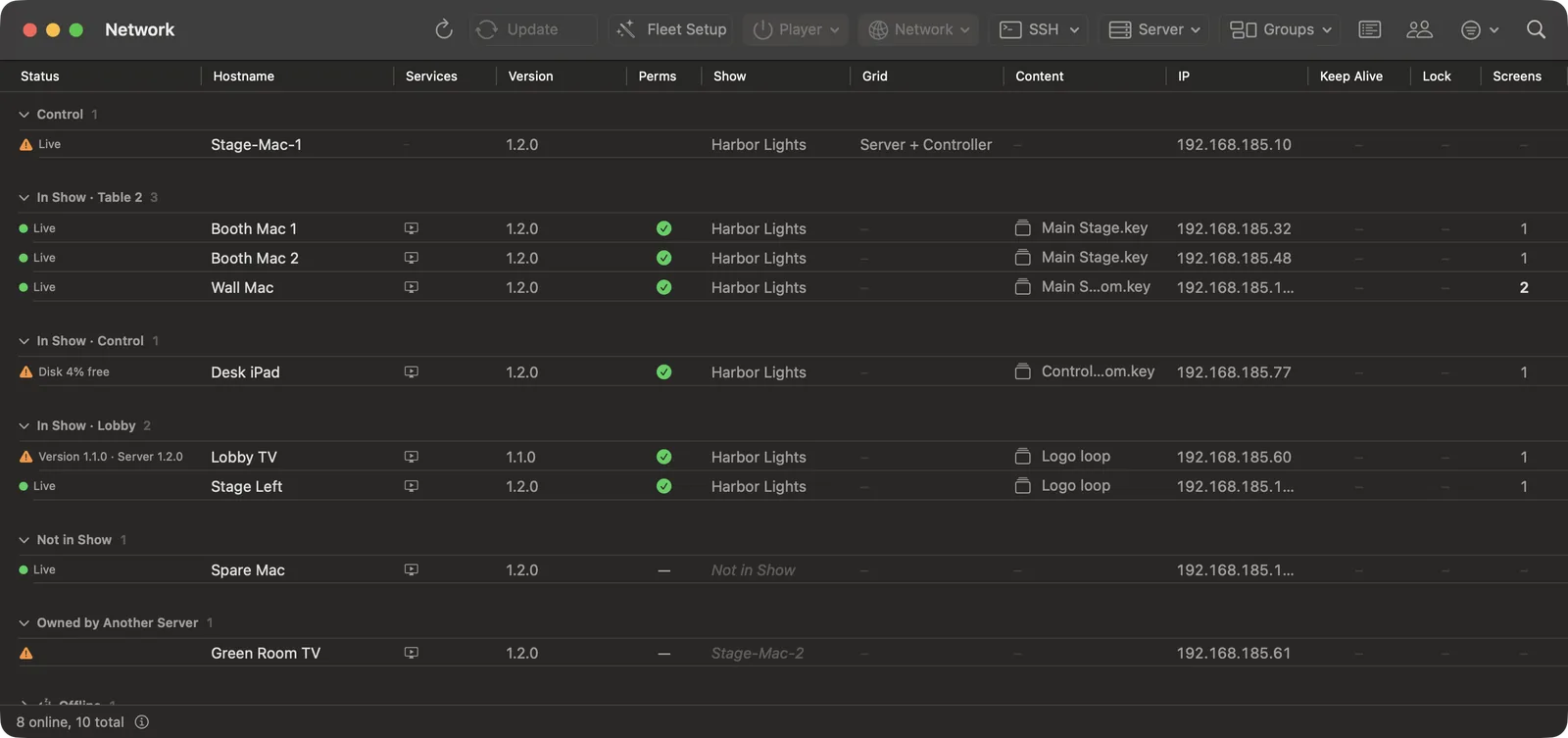
Live cueing never lives here. Nothing in the Network window changes what a screen shows, except the Display items you choose on purpose.
#Reading the table
| Column | Shows |
|---|---|
| Status | Live, or the reason the machine needs attention: "Disk 4% free", "Version 1.1.0 · Server 1.2.0", Offline. |
| Hostname | The machine's name. |
| Services | What the Mac offers: Screen Sharing, Remote Login, and the Server-ready mark. |
| Version | The Scenic Player version. |
| Perms | Whether the Player has the macOS permissions it needs. Perms Legend at the foot explains the marks. |
| Show | The Show it belongs to, "Not in Show", or the other Server that owns it. |
| Grid | Where it sits on the Grid. |
| Content | What it is showing. |
| IP | Its address. |
| Keep Alive, Lock, Screens | Whether it relaunches by itself, whether its keyboard and mouse are locked, and how many screens it drives. |
| Progress | An install, copy or send in progress. |
Rows are grouped into sections: the Server and Controller rows under Control, then In Show by group, Not in Show, Owned by Another Server and Offline. Filter narrows the table to Online, Needs Attention or Out of Date machines.
Select rows, then choose from the toolbar menus or right-click. Every item stays in its menu; one that cannot run right now is greyed out and its tooltip says why.
#Adding Players to the Show
A Player that is running on the show network appears by itself. To bring it into your Show:
- Select it in the Not in Show section. Select several with ⌘-click or ⇧-click.
- Choose Show ▸ Add to Show from the Player menu or the right-click menu.
That is all. There is no code to type on the Player and nothing to approve on it. Its screens appear in the Player List straight away.
A Player that belongs to another Server is listed under Owned by Another Server. The item then reads Adopt into Show… and asks once, naming the Server it is leaving. A Player takes cues from one Server only, so a second rig on the same network can never cue your screens by accident, and you can never take theirs without saying so.
Remove from Show happens at once, with no question. A notice at the bottom of the Controller says "Removed Booth Mac 1 from the Show" with Undo, which puts it back in its groups.
#Groups and aliases
The Groups menu puts the selected Players into a group, takes them out, makes a New Group from Selection…, a New Empty Group… or a New Subgroup from Selection…. Right-click a group's section header to rename or delete it. Deleting a group goes ahead with an Undo notice; its Players stay in the Show.
Set Alias… (Player menu) gives a Player or screen the name you want to see in the Player List, such as "Hero laptop" or "Lobby left". With several rows selected it becomes Batch Set Alias. An alias changes nothing on the machine itself.
#Fleet Setup: installing Players on Macs
Fleet Setup in the toolbar (also Maintenance ▸ Set Up Players…) walks you through putting Scenic Player on a set of Macs in one pass.
- Welcome. Press Get Started.
- Sign In. Enter the user name and password (or SSH key) for the Player Macs. Test Connection checks them against one machine. Each Mac needs Remote Login turned on (System Settings ▸ General ▸ Sharing).
- Select Machines. Turn on Player for each Mac that should run Scenic Player. Turn on Server-ready for a Mac you might later run the Server on.
- Installing. Press Deploy. Each Mac shows its own progress.
- Verification. Fleet Setup waits for each new Player to appear on the network. You can Skip it.
- Options. Apply Disable Sleep, Turn Wi-Fi Off (for wired Players), and set Multi-Screen and Keep Alive.
When it finishes, add the new Players to the Show from the strip that appears.
For other kinds of Player, see The Players.
#Updating
When a Player runs an older version than the Server, its row says so and the toolbar's Update button reads Update (N). Press it to update every out-of-date Player. Players update in waves, so the whole wall never restarts at once; the Server is offered its own update last.
A single Player's update is in the SSH menu as Update Player…. A Player that is too old for a deck is also flagged on its card and in the Warnings list with Update Player.
#Maintenance menus
Select the Players first. Each command acts on exactly the Players you selected when you chose it.
#Player
| Item | Does | Asks first? |
|---|---|---|
| Collect Diagnostic Logs | Gathers the Player, Server and Controller logs into one dated report. | No |
| Relaunch… | Quits Scenic Player and opens it again. The screens come back with what they showed. | Once |
| Force Quit… | Stops Scenic Player at once. With Keep Alive on, it relaunches. | Once |
| Reboot… | Restarts the computer. | Twice |
| Shut Down… | Turns the computer off. Someone has to switch it on again by hand. | Twice |
| Display ▸ | Flash, Aspect, Reset Resize, Multi-Screen on or off, Full Screen on or off. | No |
| Content ▸ | Send Content…, Send to Screen, and Previous Content, which brings back something the Player still holds without sending it again. | Send asks |
| Thumbnail Mode ▸ | Cached, Live or Off for the Player's picture in the Player List. | No |
#Network
| Item | Does |
|---|---|
| IP Config… | Sets DHCP or a static address on a chosen adapter. Check the numbers twice: a wrong address can strand the machine. |
| Rename Player… | Changes the name Scenic shows. Nothing restarts. |
| Rename Host… | Changes the Mac's own computer name. The Mac restarts, and it asks twice. |
| Cycle Wi-Fi…, Turn Wi-Fi On…, Turn Wi-Fi Off… | Wi-Fi off and on (about five seconds offline), or on or off for good. |
IP Config, Wi-Fi changes and Rename Host need the Player Mac's user to be an administrator.
#SSH
These use Remote Login on the Mac and the sign-in from Fleet Setup.
| Item | Does |
|---|---|
| Share Screen | Opens Screen Sharing to that Mac (⌃⌥S). Each Mac Player row in the Player List has a Screen Sharing button too. |
| Launch Player… | Opens Scenic Player on a Mac where it is installed but not running. |
| Deploy Player… / Update Player… | Installs or updates Scenic Player from the copy inside Scenic Controller. |
| Install Package… | Installs any .pkg you choose. |
| Copy File or Folder… | Copies a file or folder to the same place on every selected Mac. |
| Disable Sleep… | Stops the Mac sleeping, turns on Wake on LAN and restart after a power cut. Do this once on every Player Mac. |
| Sign In… / Sign Out | Changes the account the SSH items use. |
#Input Lock and Power
Right-click a row for Input Lock (lock or unlock the Player's own keyboard and mouse, Lock All…, Unlock All) and Power (Disable Sleep, Keep Alive on or off, Reboot, Shut Down).
Lock a Player's keyboard and mouse when it sits where crew or cast can touch it. Your cues still reach it. Someone at the machine can always unlock it with ⌃⌥⌘L.
#Run from the Server
When the Server runs on another Mac, it can do the installing, updating, relaunching and log collecting itself, from its own network. Turn on Server ▸ Run from the Server in the Network window. An iPhone or iPad Controller always works this way, because it cannot reach the Macs directly. The Server also lists Macs that only it can see, so you can maintain machines on a network your laptop is not on.
#Static Players: when discovery is blocked
Some venue networks block the discovery Scenic uses to find Players. Static Players in the toolbar lets you list them by address instead:
- Set Discovery to Static.
- Add each Player's Hostname, IP Address and port (47811 unless you changed it), or use the Range Generator or Import CSV/JSON….
- Press Probe All. Each row reads Reachable or Not reachable.
#Controllers that want to join
When an iPhone, iPad or another Mac asks to join the Show for the first time, a strip appears in the Network window and the request is listed in the Warnings list: "<name> wants to join this Show".
- Allow lets it cue. It reconnects without asking from then on.
- View only lets it watch but not cue.
- Forget turns it away.
The Controllers button lists every Controller the Server knows, whether it can cue or view only, and which are attached right now.
#Remove offline Players
Maintenance ▸ Remove Offline Players (N)… clears machines that have been retired or sent back to rental. Server ▸ Remove All Players from Show… empties the Show completely and asks first.
Chapter 10
Moving the Server, and rescue
The Server is the part of Scenic that owns the Show. This chapter covers where it runs, how to move it to a location Mac and back, how the Show is backed up, and what to do if the Server's Mac dies mid-day.
The rule that makes all of this safe: Players keep their picture. If a Controller quits, the Server stops or the network drops, every screen keeps showing what it showed. Nothing goes black because something upstream went away.
#Where the Server runs
On your Controller Mac (the default). Open Scenic Controller and it starts the Server in the background. What happens when you close the Controller is set in Server ▸ Server Status…, under When the last Controller closes:
| Choice | What happens |
|---|---|
| Stop when idle (30 min) (the default) | The Server keeps going for 30 minutes with no Controller attached, then stops. Open a Controller in that time and the countdown is cancelled. A running timecode timeline or chase keeps it going. |
| Keep running in the background | The Server runs until you stop it, with a Server item in the menu bar showing the Show, the Players and the Controllers attached. |
| Stop with Controller | Quitting the Controller stops the Server. |
On a location Mac. On a bigger show, or one where the operator's laptop comes and goes, give the Server its own Mac: a Mac mini on the cart or in the rack. It runs headless, starts again by itself after a restart, and every Controller joins it over the network. Operators can come and go; the Show stays put.
The Server Status… window shows the Server, its Show, when it last backed up, how many Players and Controllers it has, and its health. Stop Server… stops it; it asks first, and the screens keep their last picture.
#Making a location Mac the Server
- Install Scenic on the location Mac. Fleet Setup's Server-ready option does this for you (see The Network window).
- Open the Network window and select that Mac.
- Choose Server ▸ Make This Mac the Server….
- Read the sheet and press Make It the Server.
Scenic shows each step as it goes:
- Start the Server on the location Mac.
- Check the backup.
- Move the Show and its content.
- Take over the Players.
- Point every Controller at the new Server.
The screens keep their picture throughout. When it says Finished, the Players take their cues from the new Server and your Controller is attached to it.
If a step fails, the sheet says where it stopped. Steps already done stay done, and nothing is retried behind your back. If it fails before it starts, the Show is where it was.
#Bringing the Show back to your Mac
At wrap, or when the location Mac is going back to rental, open Server Status… and choose Bring the Show Back to This Mac…. It is the same move in the other direction.
#Backups
Three kinds of copy keep the Show safe. You do not have to set up the first two.
A copy on every Mac Controller. While the Server runs on another Mac, each Mac Controller keeps a recent copy of the Show, every five minutes by default. Change how often in Settings ▸ General ▸ Backup copy on this Controller. This copy is what Take Over as Server uses.
Automatic backups on the Server's Mac. Turn on Automatic backups on the Server's Mac in Server ▸ Shows…. The Server then saves the Show at most once an hour, only when something changed, and keeps 24 hourly, 7 daily and 4 weekly copies. The newest are listed in the Shows window with Restore. These hold the Show (Players, groups, Snapshots, cues and settings) but not the decks and media, which stay in the Server's Library on that Mac.
Back Up Now. Server ▸ Back Up Now… writes a full backup to a folder you choose, ~/Documents/Scenic Backups unless you change it. Leave Include content (decks, videos, images) on, and the backup can rebuild the Show on any Mac. It is checked after it is written. Make one at the end of every shoot day and keep it off the Server Mac.
To restore, use Server ▸ Restore from Backup…, or double-click a .scenicbackup file. Restoring never overwrites a Show that is already on the Server; the restored Show appears beside it, ready to open.
#When the Server Mac is gone: Take Over as Server
If the Server's Mac crashes, loses power or leaves the building, every Controller shows a red bar: Server unreachable, with a timer. The screens keep their picture.
If the Server cannot come back in time, take over from a Mac Controller:
- On the red bar, or in Server Status…, choose Take Over as Server…. The bar tells you how recent this Mac's copy of the Show is.
- Read the sheet and press Take Over.
- This Mac starts a Server from its copy and takes the Show's Players.
From that moment the Players answer only to the new Server. If the old Server comes back, the Players refuse it, so two Servers can never fight over the same screens.
What you can lose: anything changed on the old Server after this Mac's last copy, such as a Snapshot saved seconds before the crash. The screens themselves lose nothing.
After a Take Over:
- Check that every screen reads Live.
- Select your current Snapshot and look at what differs before the next cue.
- When the old Server Mac is back, do not reopen its Show to run cues. Move the Server back in an orderly way with Make This Mac the Server….
Rescue onto Another Mac… does the same onto a third Mac you name, using its Remote Login account and password once. Use it when the Controller you are holding should not become the Server, such as an operator's laptop that is about to leave.
#Phones during an outage
While the Server is unreachable, live controls are off on every Controller and read "Waiting for Server". One exception can be switched on beforehand: Allow emergency blackout from phones, in Server ▸ Shows…. With it on, an iPhone or iPad Controller shows a Hold to Blackout button for each screen it can reach directly. Hold it for just over half a second to black that screen out.
Emergency blackout can only black out. Revealing needs the Server, and a screen blacked out this way shows EMERGENCY BLACKOUT on every card until someone presses Reveal. It is off unless you turn it on, because it is the only command that does not go through the Server.
#Updating the Server
When a newer Scenic Controller is installed, Server ▸ Update Server… updates the Server to match. It is the same Server afterwards, with the same Show, and the Players stay with it. The Network window's Update (N) offers the Server last, after the Players.
Chapter 11
The Players
Scenic Player runs on Mac, iPhone, iPad, Apple TV and Windows PCs. Every kind of Player takes the same cues, reports what it shows the same way, and appears in the same Player List. This chapter covers what is particular to each one.
Three rules hold on every Player:
- A show output shows content or black, nothing else. An idle Player, one not yet in a Show, or one that has lost the Server shows black on its show outputs, never a logo, a spinner or an error. That screen may be in shot.
- Players keep their picture. If the Server or the network goes away, each Player holds what it is showing until told otherwise.
- Local changes are reported. Anything someone does at the Player itself is reported to the Server and shown on the screen's card.
#Which content each Player plays
| Content | Mac | iPhone, iPad | Apple TV | Windows |
|---|---|---|---|---|
Scenic decks (.sgdeck) | Yes | Yes | Yes | Yes |
Keynote (.key) | Yes | Yes | Yes | Yes, as the Server's prepared copy |
PowerPoint (.pptx, .ppsx, .potx, .pptm) | Yes | Yes | Yes | Yes, as the Server's prepared copy |
| Media folders (PNG, JPEG, MP4, MOV) | Yes | Yes | From the Server | Yes, from the Server |
| Video with alpha (ProRes 4444, HEVC with alpha) | Yes | Yes | Yes | Yes |
A Windows PC never opens a Keynote or PowerPoint file itself. When you send one to a PC, the Server prepares a Scenic copy of the deck and sends that, with the same slides, builds and transitions. You send the .key or .pptx as usual; the Server does the rest. A Mac Server is always part of a Scenic show, so this is always available.
Each Player keeps the 20 most recent things it was sent. Previous Content, in a screen's menu in the Player List, brings one of them back without sending it again. Content pinned by a Snapshot is kept for as long as the Snapshot needs it.
#Mac
Scenic Player needs macOS 13 or later. Install it from the Network window with Fleet Setup, or double-click Scenic Player.pkg on the Mac (see The Network window).
The installed Player starts at login and relaunches by itself if it crashes. Use an administrator account on Player Macs: IP Config, Wi-Fi changes and renaming the Mac need it.
#Screens
A Mac drives one screen per display. A Mac mini with two monitors is one Player with two screens, Wall Mac · S1 and Wall Mac · S2, and you can send each its own content, grade and overlays. Show outputs go first to displays without the menu bar. If a display is unplugged, its screen is held back and never moved onto another display.
#Full screen
A show output is borderless and full screen, with the pointer hidden. To leave full screen at the machine, use View ▸ Leave Full Screen (⌃⌘F); the same key goes back. Esc and ⌘F do nothing on a show output, so a bumped keyboard cannot drop a screen out of full screen mid-take. From the Controller, the Network window's Display ▸ Full Screen does the same.
Quit asks first while the Player is in a show: its screens go dark until it is opened again.
#Local Controls
Window ▸ Local Controls (⌃⌥Space) opens the Player's own console on the Mac, above its show outputs. Use it when you are standing at the machine and need to check or fix something there:
- what is open, the slide and build, and the Player's health ("Live", "Server not connected", "Disk 4% free", or a missing permission);
- which Server it is connected to and when it last heard from it;
- Previous, Next and Blackout, and brightness, colour temperature and contrast;
- test pattern, logo, name overlay, whiteout, VFX and Flash Screen;
- aspect (Fit, Fill, Stretch) and how many screens it drives;
- Output latency: if a projector or LED processor shows frames later than the other screens, enter its delay in milliseconds here. Video on this Player starts that much earlier, so it lands with the others.
- the keyboard and mouse lock, Focus Guard and Keep Alive.
With more than one screen, Controls act on chooses all screens or one.
#Show safety on a Mac
- Keyboard and mouse lock. Lock the Player's input from the Network window, or from Local Controls, when the machine is where cast or crew can touch it. Your cues still reach it. ⌃⌥⌘L at the machine always unlocks it.
- Focus Guard keeps other apps and system pop-ups from coming in front of a full-screen output. Pause it from Local Controls when you need to work on the Mac.
- Keep Alive opens Scenic Player again by itself if it quits or crashes, and when the Mac starts up.
- Sleep. The Player keeps the Mac and its displays awake while it runs. Also run Disable Sleep from the Network window once on every Player Mac.
#Permissions
Scenic Player ▸ Permissions… lists what macOS needs to allow, such as Local Network, and lets you grant it. The Network window's Perms column and the screen's health glyph show a Player that is missing one.
#iPhone and iPad
Scenic Player needs iOS or iPadOS 16 or later. Install it, open it, and leave it open: it keeps the screen awake while it is in a Show.
Until it is added to a Show, the welcome screen shows its name, address and version, and "Add this Player from any Server's Network window." It goes black after 10 minutes. In a Show, the whole screen is the output.
A second display. Connect an iPad or iPhone to a monitor or TV by HDMI, USB-C or AirPlay, and the external display becomes the show output while the device itself shows the controls.
Local Controls. Hold two fingers on the screen for 1.5 seconds. A panel appears at the bottom with Previous and Next, Blackout and Reveal, dim, colour temperature and contrast, and video controls when a video is on screen. It hides itself after 5 seconds. Its More menu has Open Deck…, Open Media Folder…, Go to Slide…, Rename Player…, Restart Player…, Player Log and Leave Show…. While the panel is used, the screen's card on every Controller reads LOCAL.
#Apple TV
Scenic Player needs tvOS 16 or later. Install it on the Apple TV, set the Apple TV never to sleep, and open the app.
Until it is in a Show, the TV shows its name, address and version, and "Add me from any Server's Network window." In a Show it shows content or black.
With the Siri Remote:
| Remote | Does |
|---|---|
| Click left / right | Previous / Next |
| Play/Pause | Play or pause video. With no video, it asks whether to black out (or reveal) the screen. |
| Select, Menu, Up or Down | Local Controls: Previous, Next, Play/Pause, Blackout or Reveal, Dim − and +, Reset Picture, the Library of kept content, Rename…, Restart… and Leave Show… |
| Menu, while Local Controls is open | Hide Local Controls |
Anything done on the remote shows as LOCAL on the Controllers.
#Windows
Scenic Player needs Windows 11. It runs on ordinary PCs with one or more monitors.
#Installing
Run the Scenic Player installer on the PC. It installs for the current user and needs no administrator account, except for one option:
- Start Scenic Player when I sign in (recommended for show computers).
- Allow Scenic Player on the show network. This adds a Windows Firewall rule and asks for administrator approval. Without it, the Server cannot reach the PC.
Set the PC to sign in automatically and never to sleep, and turn off Windows notifications and update restarts during the shoot. The Player keeps the PC and its displays awake while it runs, and relaunches itself if it crashes.
#Screens
Each monitor is one screen. The Server chooses which monitors carry show output, and each can have its own content and grade, as on a Mac.
#Keys and the Player window
A Windows show PC is meant to be left alone, so its keys are few and hard to hit by accident:
| Key | Does |
|---|---|
| Esc or Ctrl+Alt+Shift+F | Leave full screen and show the Player window |
| Ctrl+Alt+Shift+F | Go back to full screen |
| Ctrl+Alt+Shift+Q | Quit |
| Ctrl+Alt+Win+L | Release the input lock |
The Player window has the same essentials as Local Controls on a Mac: which screen, Previous, Next, Blackout, brightness, temperature and contrast, the Player's name overlay, Output latency, recent decks, Leave Show… and Enter Full Screen.
#Taking a Player out of a Show
To release a Player, choose Remove from Show in the Network window, with Undo if you change your mind. At the Player itself, iPhone, iPad, Apple TV and Windows offer Leave Show…. A Player that has left goes black on its outputs and waits to be added to a Show again.
Chapter 12
Scenic Decorator
Scenic Decorator is the Mac app for building what goes on your screens: a fake desktop for a hero laptop, a bank of security monitors, a departures board, a lobby sign. It works like Keynote, with slides, builds and transitions, and it adds Photoshop-style layers, because a fake desktop is a wallpaper, a menu bar, a dock and a stack of overlapping windows.
What you see on the Decorator canvas is drawn by the same engine the Players use, so a deck looks the same in the Decorator as it does on set.
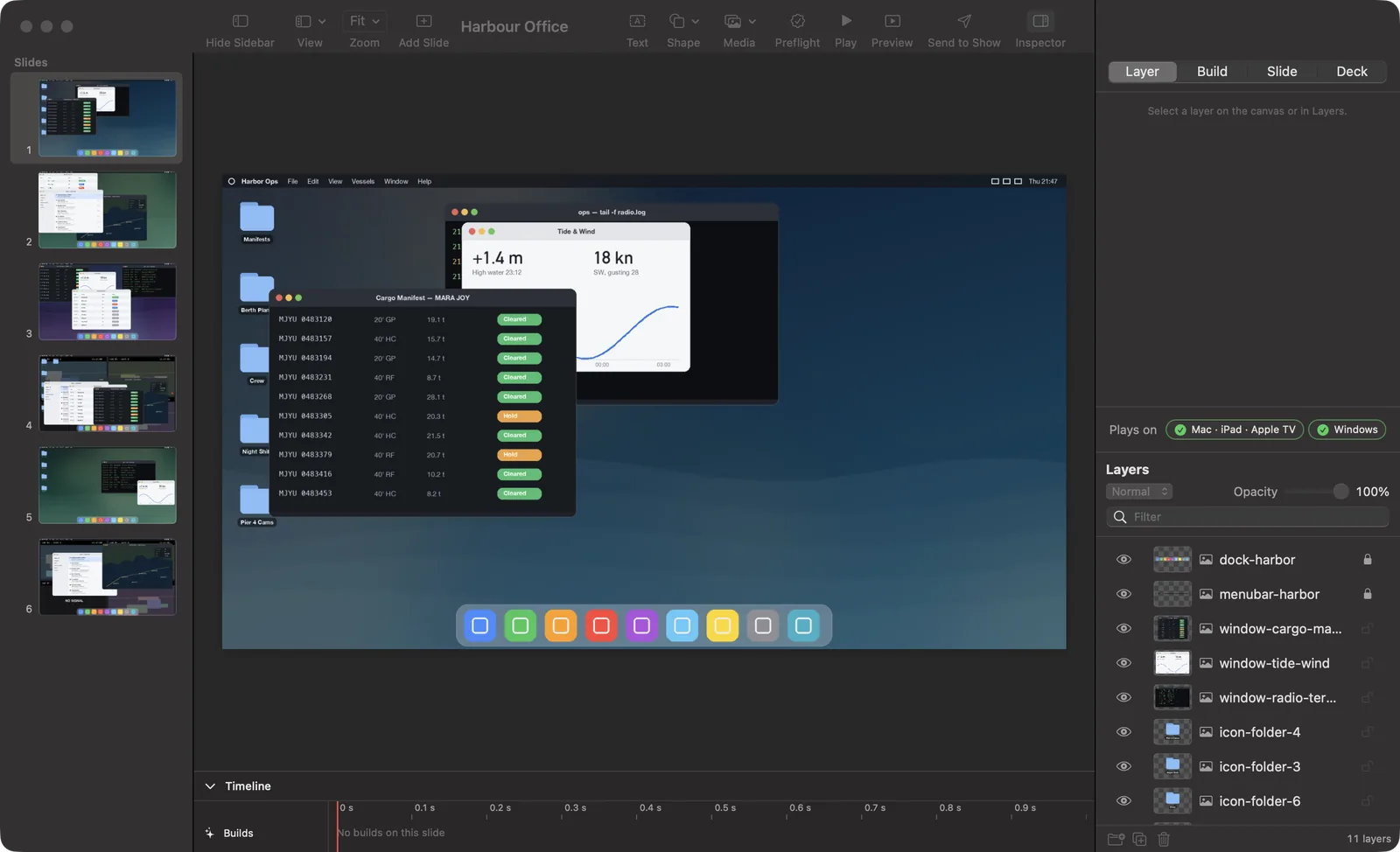
#The window
When Scenic Decorator opens, the welcome window offers New Deck, Open… and your Recent Decks. Window ▸ Welcome to Scenic Decorator (⇧⌘1) brings it back.
A deck window has four parts:
- Slides: every slide, numbered, drawn as it will play.
- The canvas: the slide you are editing.
- The inspector, with four tabs: Layer, Build, Slide and Deck. Selecting a layer opens the Layer tab; clicking empty canvas opens the Slide tab.
- Layers: every layer on the slide, front first.
View ▸ Layout chooses between two arrangements, and the Decorator remembers your choice:
| Layout | Arrangement |
|---|---|
| Slides Left, Layers Right (the default) | Slides in the sidebar; the inspector above Layers on the right. Drag the divider between them. |
| Layers Left, Slides Bottom | Layers in the sidebar; a filmstrip of slides and the timeline under the canvas. |
The toolbar has View (rulers, guides, timeline and layout), Zoom, Add Slide, Text, Shape, Media, Preflight, Play, Preview, Send to Show and the Inspector button. A Deck Issue button appears only while something in the deck needs your attention.
#Plays on
At the bottom of the inspector, Plays on shows one badge per kind of Player: Mac · iPad · Apple TV and Windows. A green check means the selected layer plays exactly there. If something plays differently, open What changes to see what and why. You find out while you build, not on set.
#Layers
Each row in Layers has an eye to hide the layer, a thumbnail, its kind, its name and a lock. A row can carry a badge such as B2, which means it builds in second.
- Reorder: drag rows up and down, into a group and out of one.
- Group: select layers and press the Group button at the foot of the list, or Arrange ▸ Group (⌥⌘G). Groups fold open and closed.
- Opacity and blend: the slider and the blend menu (Normal, Multiply, Screen, Overlay, Add) above the list act on the selected layers.
- Find a layer: type in Filter. While the list is filtered it is flat; you can still drag a layer onto another to reorder it within its group.
- Right-click a row for Duplicate, Group, Ungroup, Delete, Lock, Hide, the four stacking orders and Rename.
The Arrange menu uses Keynote's keys: Bring to Front ⇧⌘F, Bring Forward ⌥⇧⌘F, Send Backward ⌥⇧⌘B, Send to Back ⇧⌘B.
#Adding text, shapes and media
- Text (⇧⌘T) and Shape arm a drawing tool. Drag on the canvas to draw the layer at that size, or click to place it at its default size. Esc puts the tool away. Shapes include rectangle, rounded rectangle, ellipse, line, triangle, diamond, arrow and star.
- Media ▸ Image… takes PNG, JPEG, TIFF, HEIC, GIF and WebP. Video… takes MP4 and MOV. Audio… takes MP3, M4A, WAV and AIFF. You can also drag files onto the canvas.
- Insert ▸ Slide Background Image… puts an image behind the whole slide.
For a video or audio layer, the inspector has a trim scrubber with In and Out, Volume, Mute, Loop and a volume envelope. Trim ▸ Reset puts In back to the start and Out back to the end, on every selected clip, as one Undo step.
#Builds and transitions
Builds bring layers on one at a time, the way a scripted action plays out on a monitor.
- Select a layer and open the Build tab.
- Under Build in, choose a Style: Appear or Fade. A fade starts at half a second; change Duration if you need.
- Choose when it starts: On click, With previous build or After previous build, with an optional Delay.
- Layers with the same Order build together.
A transition plays when you leave a slide. Open the Slide tab and choose an Effect under Transition: Cut, Crossfade, Push or Wipe, with a duration and, for Push and Wipe, a direction.
The Slide tab also has Timing, to advance automatically after a number of seconds or when a video ends, and Cue, where you can give the slide a cue name and notes. The cue name and notes appear on the screen's card in the Controller while that slide is up, so whoever runs the show knows what the slide is for.
The Timeline (⌥⌘B) shows the slide's builds and every clip. Drag across it to scrub.
#Playing a deck
- Play (⌥⌘↩) plays the deck in the canvas with every panel hidden. Space or a click advances, ← goes back, Esc stops. While Play is on the deck cannot be edited.
- Preview (⌥⌘P) opens a separate window that plays the deck from the current slide exactly as a Player would, with builds, transitions, sound and automatic advance. Restart compiles it again from your latest edits.
#Preflight
The Preflight button counts what will not play exactly on each kind of Player: "2 items do not play on Windows; 3 are approximated." Click a row to jump to that slide and layer. A deck with a clean Preflight plays the same on every kind of Player.
#Importing Keynote and PowerPoint
File ▸ Import ▸ Keynote… or PowerPoint… turns a presentation into an editable Scenic deck, with every slide's layers broken out.
An import never refuses a file because of one thing it cannot handle. Every object is imported, approximated or reported. When the import finishes you get a report that counts what was imported, approximated and dropped, with the slide each item came from. File ▸ Import ▸ Show Keynote Import Report… (or the PowerPoint one) opens it again later; it is saved with the deck.
What to expect:
- Imported: shapes, text, pictures, video and audio, build-ins, and the slide order.
- Approximated: build effects the Decorator does not author become a fade; word-by-word and line-by-line text builds bring the whole box on at once; Keynote's Move In and Reveal transitions become Push, and other transitions become Crossfade; some shadows, reflections and gradients.
- Dropped, and listed in the report: build-outs (the object stays on screen), action builds, tables and charts. From PowerPoint, also emphasis effects, motion paths and click triggers.
#New from Assets: fake desktops in bulk
The art department hands you a folder of wallpapers, menu bars, docks, windows and icons. File ▸ New from Assets… turns it into a deck of believable, varied desktops.
- Choose the folder.
- In New from Assets, pick a Canvas size (Match wallpaper, HD, 4K, portrait or custom). Leave Read text in images to help sort them on.
- Press Create Deck. The new deck replaces the open one in this window; your saved file is not changed.
- Check the Bucket. Scenic sorts every asset into a role: Wallpaper, Menu bar, Taskbar, Dock, Windows (grouped by app), Icons or Cursor. Drag an asset to change its role, or press Sort Again.
- Set the Rules per role if you need to: on every desktop, how many, how likely, which layer band, pinned to an edge.
- Under Desktops, choose the Busyness (Low, Medium, High), how many Desktops, and press Generate.
- Lock the desktops you like, re-roll or delete the rest, and press Generate Again to refill. A locked desktop is kept.
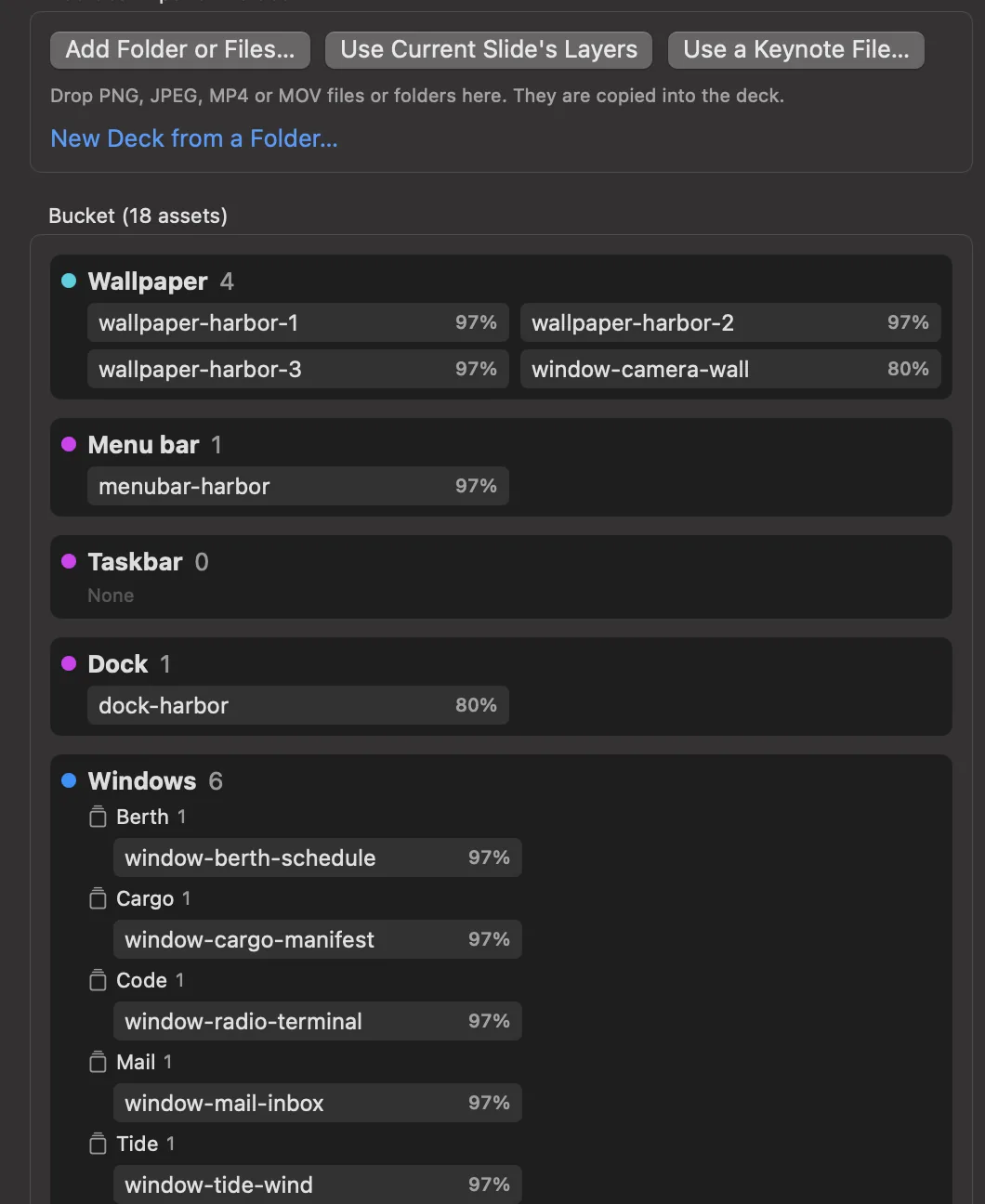
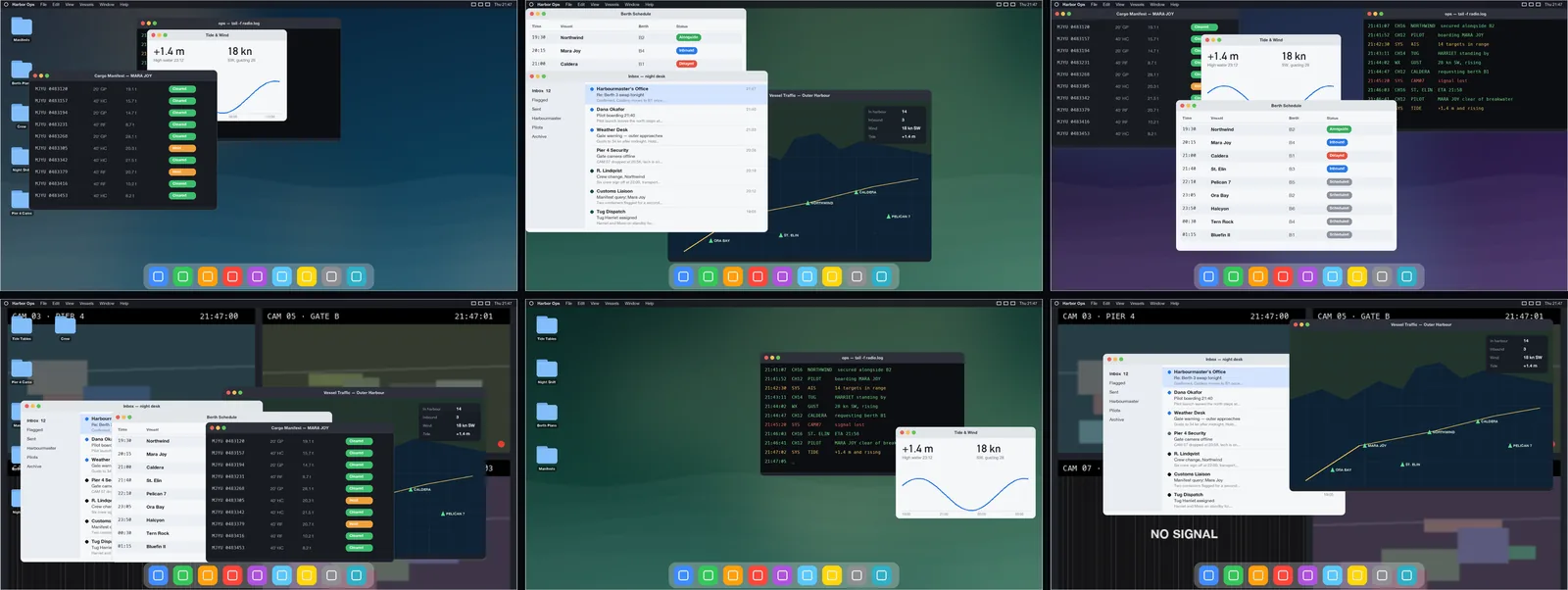
Edit Desktops… in the File menu reopens the same panel later. You can also add assets from Use Current Slide's Layers or Use a Keynote File….
#Shuffle: variations of one slide
File ▸ Shuffle… (⇧⌘Y) makes many variations of one slide by moving, hiding and resizing its layers within rules you set.
- Choose the Template slide.
- Make Groups of layers that behave together, or press Auto-group layers.
- For each group, set its Visibility (Always shown, Sometimes hidden, Often hidden…), its Layer band (Back, Middle, Front), whether its position is locked and whether it may resize.
- Set Randomization, the number of Variations and a Seed. The Randomization menu estimates how many different variations the rules allow.
- Press Generate and add slides, or Export to New File…. One Undo removes everything Generate added.
Each group card has three more controls:
- Show Only This Group shows just that group's layers in the template picture. It changes only the picture.
- Layers lists the group's layers front to back. Move forward and Move back set the order every variation uses.
- Shuffle stacking stacks the group's layers in a different order in each variation, so a different window ends up on top. The same seed always gives the same result.
#Sending a deck to the show
File ▸ Send to Show (also in the toolbar) is how a deck gets from the Decorator to the screens.
- The Decorator saves the deck, asking for a name the first time.
- It keeps a read-only copy of that exact version and hands it to Scenic Controller, opening the Controller if needed.
- The Controller checks the copy's fingerprint and adds it to the Library. A deck that changed after it was saved is refused, and nothing is sent.
- A banner under the canvas follows it: handed over, in the Library, accepted by the Server, and showing on how many screens.
Nothing on set changes until someone presses Send in the Controller's send sheet. See Sending content.
#Edit in Decorator
To change a deck that is already in the show, select it in the Controller's Library (or select a screen showing it) and choose File ▸ Edit in Decorator (⇧⌘E). The Decorator opens a working copy. The Library copy and whatever is on screen are never edited in place: your changes reach the screens only when you Send to Show again and send the new version.
#Saving, recovery and PDF
- The Decorator copies unsaved edits aside every 30 seconds. After a crash it offers to recover them at launch, or use File ▸ Recover Unsaved Deck….
- File ▸ Export PDF… makes a PDF of the deck for approvals, with an option to include Each stage of builds. The PDF ends with a page listing anything a PDF cannot show, such as video.
#Canvas sizes
Set the deck's size in the inspector's Deck tab, under Canvas:
| Size | Use |
|---|---|
| 1920 × 1080 (HD 16:9) | Most monitors and TVs |
| 3840 × 2160 (4K UHD 16:9) | 4K displays |
| 1280 × 720 (720p 16:9) | Small or older displays |
| 2560 × 1440 (QHD 16:9) | 1440p monitors |
| 1920 × 1200 (WUXGA 16:10) | 16:10 monitors and many laptops |
| 1024 × 768 (XGA 4:3), 1400 × 1050 (SXGA+ 4:3), 1600 × 1200 (UXGA 4:3) | Period and 4:3 displays |
| 1080 × 1920 (Portrait 9:16) | Monitors on their side, signage |
| 430 × 932 (iPhone portrait) | A phone on set |
Type a Width and Height for anything else. The Deck tab also sets the colour space (sRGB, Display P3 or Rec. 709) and whether the deck loops after its last slide.
Chapter 13
Keyboard shortcuts
Every shortcut in Scenic Controller is also a menu item, so if you forget a key, find the command in the menu bar and the key is next to it. Help ▸ Keyboard Shortcuts (⌘/ or F1) lists the keys that work where you are. On an iPad with a keyboard, the same keys work unless the table says otherwise.
#Clicker keys in the Player List
When the Player List has focus and you are not typing in a field, these single keys work without ⌘, so a presenter clicker or a Stream Deck sending keystrokes can drive the show:
| Key | Does |
|---|---|
| → Space Page Down | Next |
| ← Page Up | Previous |
| Home / End | First slide / last slide |
| B | Blackout the selected screens |
| R | Reveal the selected screens |
| K | Play or pause video |
| J / L | Slower or step back / faster |
| M | Mute or unmute video |
| ↑ ↓ | Move the selection |
| ⇧↑ ⇧↓ | Extend the selection |
| ⌥← / ⌥→ | Collapse or expand the selected group |
| ⌘A | Select all screens |
| Esc | Clear the selection |
Holding a key down does not repeat a cue: holding → sends one Next, not twenty. Picture nudges (brightness and the like) do repeat while held.
⌘→ and ⌘← always cue, even while you are typing in a field.
#Scenic Controller
#Show and file
| Command | Key |
|---|---|
| New Show… | ⌘N |
| Open Show… | ⌘O |
| Close Show | ⇧⌘W |
| Add Content to Library… | ⇧⌘O |
| Edit in Decorator (Mac only) | ⇧⌘E |
| Settings… | ⌘, |
#Slides and visibility (Show menu)
| Command | Key |
|---|---|
| Next (slide or build) | ⌘→ |
| Previous | ⌘← |
| First slide | ⌥⌘← |
| Last slide | ⌥⌘→ |
| Go to Slide… | ⌘J |
| Shuffle… | ⇧⌘Y |
| Blackout the selected screens | ⇧⌘B |
| Reveal the selected screens | ⌥⌘B |
| Panic: Blackout All | ⌥⇧⌘B |
| Interface Lock (hold 1 second to unlock) | ⌃⌘L |
Blackout and Reveal are separate commands, not a toggle, so pressing Blackout twice never brings a screen back by mistake. Whiteout is in Show ▸ Blackout and has no key.
#Picture
| Command | Key |
|---|---|
| Brightness up / down 5 % | ⌘] / ⌘[ |
| Colour temperature cooler / warmer 100 K | ⌥⌘] / ⌥⌘[ |
| Contrast up / down | ⇧⌘] / ⇧⌘[ |
| Identify (Flash Screen) | ⌘I |
#Video (Show ▸ Video)
| Command | Key (Player List focused) |
|---|---|
| Play / Pause | K |
| Slower / step back | J |
| Faster | L |
| Mute / unmute | M |
#Overlays
| Command | Key |
|---|---|
| Computer Labels (names) on or off | ⇧⌘I |
| Test Pattern on or off | ⌥⌘P |
| Logo on or off | ⌥⇧⌘L |
| Fire Trigger Overlay | ⌃⌥O |
| Select Trigger Slot 1 to 5 | ⌃⌥1 … ⌃⌥5 |
#Snapshots
| Command | Key |
|---|---|
| Capture Snapshot… | ⌥⌘E |
| Recall the selected Snapshot… (in the Snapshots list) | ↩ |
| Undo Last Recall | ⌥⌘Z |
| Import Snapshot… | ⇧⌥⌘I |
| Export Snapshot… | ⇧⌥⌘E |
| Export Continuity Report (PDF)… | ⇧⌥⌘P |
| Automatic Snapshots… | ⇧⌥⌘A |
#Selection (Edit menu)
| Command | Key |
|---|---|
| Select All screens | ⌘A |
| Clear selection | Esc |
| Select group 1 to 9 | ⌥⌘1 … ⌥⌘9 |
| Hold selection (clicks inspect only) | ⌃⌘H |
| Find screens | ⌘F |
#View and windows
| Command | Key |
|---|---|
| Player List, Grid, Library, Snapshots, Timecode, Network, Logs | ⌘1 … ⌘7 |
| Player List as Cards / List / Map | ⌃⌘1 / ⌃⌘2 / ⌃⌘3 |
| Zoom in / out / to fit (Grid) | ⌘+ / ⌘− / ⌘0 |
| Enter or leave full screen | ⌃⌘F |
| Main show window | ⌥⌘0 |
| Grid window | ⌥⌘G |
| Network window | ⌥⌘N |
| Logs window | ⌥⌘L |
| Transport window | ⌥⌘T |
| Timecode window | ⌥⌘C |
| Server window | ⌥⌘S |
#Grid
| Command | Key |
|---|---|
| Edit Layout / Save and exit | ⌘E |
| Select, Move, Zoom, Wall and Door tools (while editing) | V H Z W D |
| Back to the Select tool | Esc |
| Add Rectangle, Circle, Right Triangle, Triangle, Text | ⌥1 … ⌥5 |
| Delete the selected element | ⌘⌫ |
Esc in the Grid never throws away your edits. Discarding them is a menu item that asks first.
#Timecode window
| Command | Key |
|---|---|
| Chase, or play and pause the internal clock | Space |
| Return to start | ↩ |
| Add cue at the playhead | ⌥↩ |
#Maintenance (Mac)
Each of these opens a confirmation that names the Players first.
| Command | Key |
|---|---|
| Relaunch Player | ⌃⌥R |
| Force Quit Player | ⌃⌥Q |
| Player input lock on or off | ⌃⌥L |
| Cycle Wi-Fi | ⌃⌥W |
| Screen Sharing (one Player) | ⌃⌥S |
#Logs
| Command | Key |
|---|---|
| Copy all | ⇧⌘C |
| Export logs… | ⇧⌘S |
| Clear the view | ⌘K |
#Help
| Command | Key |
|---|---|
| Scenic User Guide | ⌘? |
| Keyboard Shortcuts | ⌘/ or F1 |
#Scenic Player on a Mac
These work on the Player itself, for when you are standing at the machine. Anything you do here shows as LOCAL on every Controller.
| Command | Key |
|---|---|
| Next slide or build | → Space Page Down |
| Previous | ← Page Up |
| First slide | Home or ⌥⌘← |
| Go to Slide… | ⌘J |
| Blackout on or off | ⇧⌘B, B or . |
| Whiteout on or off | ⌥⇧⌘B or W |
| VFX overlay on or off | ⇧⌘V |
| Play or pause video | K |
| Slower / faster | J / L |
| Brightness, colour temperature, contrast | as in the Controller: ⌘] ⌘[, ⌥⌘] ⌥⌘[, ⇧⌘] ⇧⌘[ |
| Local Controls | ⌃⌥Space |
| Leave or enter full screen | ⌃⌘F |
| Escape the Player's input lock | ⌃⌥⌘L |
| Logs window | ⌥⌘L |
| Quit (asks while it is in a show) | ⌘Q |
#Scenic Player on Windows
A Windows show PC is meant to be left alone, so it has only a few keys, all deliberately awkward to hit by accident:
| Command | Key |
|---|---|
| Leave full screen (shows the Player window) | Esc or Ctrl+Alt+Shift+F |
| Go back to full screen | Ctrl+Alt+Shift+F, or Enter Full Screen in the Player window |
| Quit Scenic Player | Ctrl+Alt+Shift+Q |
| Release the Player's input lock | Ctrl+Alt+Win+L |
#Scenic Player on iPhone, iPad and Apple TV
| Device | Gesture | Does |
|---|---|---|
| iPhone, iPad | Two fingers held on the screen for 1.5 seconds | Local Controls |
| Apple TV | Click left / right on the remote | Previous / Next |
| Apple TV | Play/Pause | Play or pause video. With no video on screen it offers to black out (or reveal) the screen. |
| Apple TV | Select, Menu, Up or Down | Local Controls |
| Apple TV | Menu while Local Controls is open | Hide Local Controls |
#Scenic Decorator
Scenic Decorator follows Keynote's keys for arranging and grouping.
| Command | Key |
|---|---|
| New / Open… / Close | ⌘N / ⌘O / ⌘W |
| Save / Save As… | ⌘S / ⇧⌘S |
| Shuffle… | ⇧⌘Y |
| Undo / Redo | ⌘Z / ⇧⌘Z |
| Cut / Copy / Paste | ⌘X / ⌘C / ⌘V |
| Paste in Place | ⇧⌘V |
| Paste and Scale to Fit | ⌥⌘V |
| Duplicate | ⌘D |
| Select All | ⌘A |
| Insert Text | ⇧⌘T |
| New Slide | ⇧⌘N |
| Bold / Italic / Underline | ⌘B / ⌘I / ⌘U |
| Bring to Front / Bring Forward | ⇧⌘F / ⌥⇧⌘F |
| Send Backward / Send to Back | ⌥⇧⌘B / ⇧⌘B |
| Group / Ungroup | ⌥⌘G / ⌥⇧⌘G |
| Lock / Unlock | ⌘L / ⌥⌘L |
| Show Sidebar | ⌃⌘S |
| Hide Inspector | ⌥⌘I |
| Zoom In / Zoom Out / Zoom to Fit | ⌘+ / ⌘− / ⌘0 |
| Actual Size | ⌥⌘1 |
| Rulers / Guides | ⌘R / ⌘; |
| Timeline | ⌥⌘B |
| Play in the canvas | ⌥⌘↩ |
| Preview window | ⌥⌘P |
| Next / previous while playing | Space or → / ← |
| Stop playing | Esc |
| Enter Full Screen | ⌃⌘F |
| Welcome to Scenic Decorator | ⇧⌘1 |
Chapter 14
Best practices on set
Habits that keep a Scenic show calm, gathered from how playback crews work.
#Before load-in
- Plan the network. A dedicated show network with no internet is best. Wired Ethernet for every Player you can cable; Wi-Fi only where you must. Ask for a network without client isolation (guest Wi-Fi blocks devices from seeing each other) and with discovery (Bonjour, also called mDNS) allowed. See Troubleshooting.
- Reserve addresses for the Server Mac and every Player in the router's DHCP, rather than typing static addresses into each machine.
- One version everywhere. Controller, Players and Decorator from the same release. The Network window flags any Player that is behind.
- Open every deck once in the Library or the Decorator and read what it says will change, days before the shoot, not on the day.
#Setting up the rig
- Install Players with Fleet Setup, and in its last step turn on Disable Sleep and Keep Alive for every Player Mac.
- Use an administrator account on Player Macs, so IP Config, Wi-Fi and renaming work from the Network window.
- Name things for the set. Group screens by where they are or what they are ("Office wall", "Hero laptop"), and give screens aliases the crew uses. Names carry into the Grid, Snapshots, timecode lanes and OSC addresses.
- Lay out the Grid with the art department's ground plan. When the director asks for "the one by the door", you can find it.
- Use Computer Labels to match machines to screens, then turn them off. Never leave them on when the camera might roll.
- Lock what people can touch. Turn on input lock for any Player within reach of cast or crew, especially a Windows PC, where Esc leaves full screen.
- Decide where the Server lives. For a long or large show, put it on a location Mac with Make This Mac the Server…, so operators' laptops can come and go.
#Before the first shot
- Every screen reads Live in the Player List.
- Send the day's content to every screen and check that each card reaches its slide with Observed.
- Match the screens to camera on a pattern, then save gamma presets.
- Save a Snapshot of the opening look, named by scene and take.
- Press Blackout, Next and Previous from each Controller you will use.
- Fire any timecode or OSC cues once in rehearsal and read the Firings list or the OSC Log.
- Back Up Now… with content included, to a drive that leaves with you.
#During takes
- Select, then cue. Look at the selection chip before you press. Use group buttons rather than clicking screens one by one.
- Hold the selection (⌃⌘H) when you need to check a screen mid-take without retargeting.
- Send between takes. Each screen switches when its own copy lands, so send ahead and cue the change with Next or Go to Slide.
- Watch for Observed, not just Accepted. A screen that stays at Accepted needs a look.
- Do not press again on a hunch. If a press is Uncertain, look at the screen first; every press counts.
- Know your panic key. ⌥⇧⌘B blacks out every screen at once, and the notice brings back exactly those screens.
- Lock the Controller (⌃⌘L) when you step away. Blackout still works through the lock.
#Continuity
- Save a Snapshot for every setup that may be shot again, named by scene and take, with a note.
- Let automatic Snapshots run; they cost nothing and catch the moment you forgot to save.
- Before a reset, select the Snapshot and read the comparison. Recall changes only the screens that differ, and Undo Last Recall is always there.
- Export a continuity PDF with the map at the end of the day for the script supervisor.
#Wrap
- Save a final Snapshot.
- Back Up Now… with content included, and keep the backup off the Server Mac.
- If the Server ran on a location Mac you are returning, Bring the Show Back to This Mac… first.
- Shut down Player Macs from the Network window only if someone can switch them on again by hand.
Chapter 15
Troubleshooting
Start with the first rule: Players keep their picture. If a Controller, the Server or the network fails, every screen holds what it was showing. You have time to fix things calmly.
The quickest place to look is the Warnings list: click the warning count in the footer of the Controller. It lists everything that needs attention, by Player, with a button to fix it where there is one: Update Player, Show Card, Open Network Window.
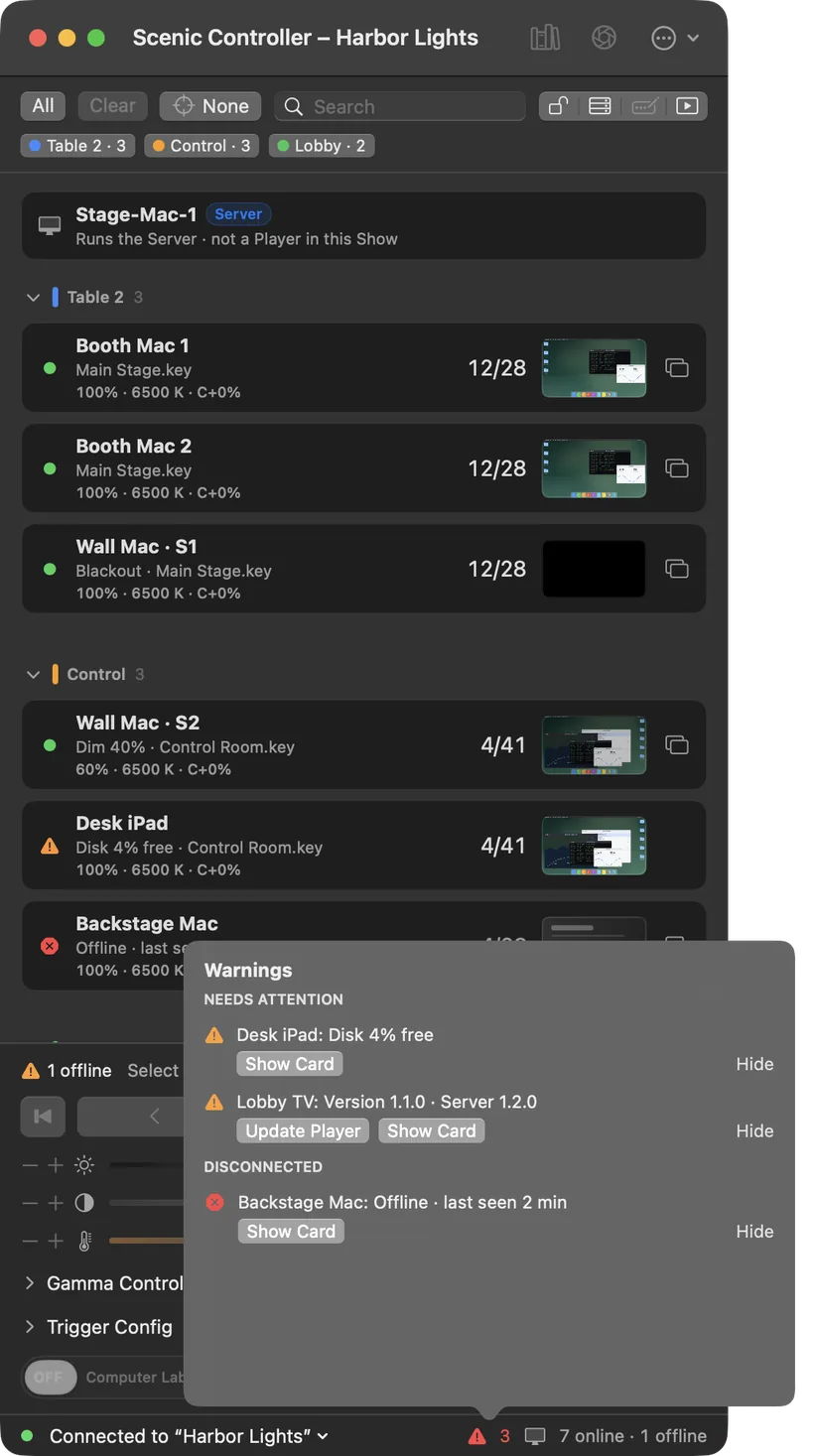
#Quick fixes
| Problem | What to do |
|---|---|
| A Player does not appear in the Network window | Check it is on the show network and Scenic Player is open. On a Mac, check System Settings ▸ Privacy & Security ▸ Local Network allows Scenic Player. On Windows, check the installer's firewall option was allowed. If the network blocks discovery, add the Player under Static Players. |
| Everything reads "Connecting" right after installing a new version | macOS can quietly withdraw the Local Network permission from a newly installed app. In System Settings ▸ Privacy & Security ▸ Local Network, turn Scenic off and on again, then reopen it. |
| A screen's card reads Offline · last seen 2 min | The Player cannot be reached. Its screen keeps its last picture. Check its cable or Wi-Fi. A Mac Player relaunches itself after a crash; if not, Relaunch… from the Network window, or open it at the machine. When it returns it reports what it shows; send or recall to it if it differs. |
| A card stays at Accepted and never reaches Observed | The Server sent the command, but the Player has not confirmed it. Look at that screen. Check it is Live and that it can play that content. |
| A press reads Uncertain | The answer was lost; the command may or may not have run. Look at the screen, then press again only if you need to. Mark Reviewed in Activity clears it. |
| Cues go to the wrong screens | Check the selection chip. Press Clear, then select again. Use Hold selection during takes. |
| The live controls are greyed out | Nothing is selected ("Select screens to use the live controls"), the Controller is locked (hold Hold to Unlock for a second), the Controller is View only, or the Server is unreachable. The dock says which. |
| The send sheet says Cannot play | Read the reason on that row. Usually the Player is too old (update it from the Network window) or the content needs something that Player does not have. |
| A screen reads Player too old for this deck | It still plays, with the older Player's motion. Press Update Player in the Warnings list between takes. |
| A card reads Disk 4% free | The Player is nearly full. It keeps fewer earlier decks automatically; clear space on the machine when you can. |
| A card reads Local | Someone used that Player's own controls. Check the screen, then cue it from the Controller as usual. |
| A card reads Emergency blackout | A phone blacked it out while the Server was unreachable. Press Reveal to bring it back. |
| Video is out of step between screens | Pause (K) and play again on all of them together. If one display always lags, set that Player's Output latency. |
| A screen dropped out of full screen | On a Mac, press ⌃⌘F at the machine, or use Display ▸ Full Screen in the Network window. On Windows, Ctrl+Alt+Shift+F. |
| Reboot or Shut Down does nothing on a Mac | Allow restart in Scenic Player ▸ Permissions… on that Mac, or turn on Remote Login so the Network window can use SSH. |
| IP Config, Wi-Fi or Rename Host fails | The Player Mac's account must be an administrator. |
| A Player is unreachable after IP Config | The new address is probably wrong or on another subnet. Fix it at the machine in System Settings ▸ Network, or switch it back to DHCP. |
| A Mac Player went to sleep | Run Disable Sleep… from the Network window. If the Mac runs without a monitor, use a display adapter that reports a display (EDID). |
| A Controller asks to join and nobody answers | On a Controller already attached, open the Network window and press Allow on the request. |
| OSC commands do nothing | Check Enable OSC in Settings ▸ OSC and the port. Open the OSC Log: it says whether each message was refused, locked, a duplicate or not understood. If Listen on is This Mac only, other computers are refused. |
| Timecode cues do not fire | Check the window reads Locked or Chasing, that Armed is on, and that each cue is ticked. Check the Server has microphone permission for LTC. |
#The Server is unreachable
A red bar on every Controller reads Server unreachable, with a timer, and the live controls read "Waiting for Server". The screens keep their picture.
- Wait a moment: the Controller reconnects by itself when the Server or network comes back.
- Check the Server Mac: is it on, awake and on the show network?
- If the Server cannot come back in time, choose Take Over as Server… on the bar. This Mac starts a Server from its copy of the Show and takes the Players. See Moving the Server, and rescue.
While the Server is gone, the only way to change a screen is a phone's Hold to Blackout (if the Show allows emergency blackout from phones) or the Player's own Local Controls.
#The Controller quit or froze
Open it again. It reattaches to the Server and the Show. Commands that were waiting for an answer are listed with what the Server recorded for each; they are not sent again. Check those screens, then carry on.
#The Server keeps stopping
The Controller restarts the Server by itself and says so. If it keeps stopping, the notice offers Show Log and Retry. If it will not start at all, take over from another Mac Controller.
#Scenic Decorator crashed
Open it again. It offers to recover the unsaved deck, with your edits from up to 30 seconds before. The deck file on disk is untouched.
#The network
Scenic needs very little from a network, but it does need these:
- Every machine on one network that lets devices talk to each other. Guest Wi-Fi and "client isolation" block this.
- Discovery (Bonjour, also called mDNS) allowed. If the venue blocks it, list Players by address under Static Players, and join the Server by address.
- No internet needed. Scenic never needs to reach an outside service during a show.
Wired Players are steadier than Wi-Fi. A Player that cannot be heard from for 15 seconds is shown as offline; change this under Settings ▸ General ▸ Player offline timeout on a slow network.
#Collecting logs
When something went wrong and you want to report it, select the Players involved in the Network window and choose Player ▸ Collect Diagnostic Logs. Scenic gathers the Controller, Server and Player logs into one dated report. Send it with the time it happened and what you saw to support@stageglass.app.
The Logs window (⌘7) shows this Controller's events, the Server's, and each Player's, and filters by cues, Snapshots, content, Players or the Server, and by warnings and failures.
Chapter 16
Glossary
| Term | Meaning |
|---|---|
| Accepted | The Server took your command and sent it to the Player. The Player has not confirmed the result yet. |
| Activity | The list of recent actions and how each screen answered. Click the summary line in the dock. |
| Adopt into Show | Take a Player that belongs to another Server into your Show. Asks once and names the other Server. |
| Alias | The name you give a Player or screen in the Show, such as "Hero laptop". It does not rename the machine. |
| All | Select every screen in the Show. Never assumed; always chosen. |
| Aspect | How content fits a screen: Fit, Fill or Stretch. |
| Blackout | Take a screen to black. Reveal brings it back. |
| Build | One step within a slide: an object appearing, a line of text arriving. Next plays the next build before moving to the next slide. |
| Computer Labels | Each Player's name shown on its screens, for finding machines. A slide-to-arm switch. |
| Controller | Scenic Controller on a Mac, iPhone or iPad: where you run the show. |
| Crossfade | A dissolve between slides that have no transition of their own. Set in Overlay Options. |
| Decorator | Scenic Decorator, the Mac app for building decks. |
| Deck | Content with slides: a Scenic deck (.sgdeck), a Keynote file or a PowerPoint file. |
| Emergency blackout | A blackout sent by a phone straight to a Player while the Server is unreachable. Off unless the Show allows it. |
| Fleet Setup | The Network window's guided install of Scenic Player on a set of Macs. |
| Flash Screen | A coloured border flashed on a screen so you can find it. |
| Gamma Controls | Fine picture controls for blacks, midtones and whites, per colour channel. |
| Grid | A floor plan of the set with each screen placed where it is. |
| Group | A named, coloured set of screens, such as "Office wall". |
| Health glyph | The dot on a screen's card: green when Live, amber or red with a reason when not. |
| Hold selection | Freeze the selection so clicks only show details. |
| Input lock | A Player's own keyboard and mouse locked so nobody at the machine can change it. Your cues still reach it. |
| Interface Lock | The Controller locked against stray presses. Hold to unlock. |
| Keep Alive | A Player relaunching itself after a crash, and at startup. |
| Library | The decks and media on the Server, ready to send. |
| Live | A screen whose Player is connected and reporting. Also, on a thumbnail, a picture taken from the Player. |
| Local | A screen changed by someone at the Player itself. |
| Local Controls | A Player's own controls, at the machine. |
| Location Mac | A Mac that stays with the set and runs the Server. |
| LTC | Linear timecode, an audio signal carrying time of day or a show clock. |
| Media folder | A folder of images and videos sent as slides. |
| Not in Show | A Player on the network that is not in any Show. |
| Observed | The Player reports that your command's result is on screen. |
| OSC | Open Sound Control: messages from a console, QLab or Companion that cue Scenic. |
| OSC selection | What an OSC command with no target acts on: All Players unless a console has selected something else. |
| Output latency | How much later a projector or LED processor shows frames, so video can start early and land in step. |
| Overlay row | Blackout, VFX, Test, Logo, Msg and Trigger. Hidden until you open it with the Overlays button. |
| Panic: Blackout All | ⌥⇧⌘B: every screen to black at once, with Reveal these N to undo. |
| Player | A computer or device running Scenic Player. |
| Player List | The cards of every screen in the Controller's main window. |
| Preflight | The check of a deck against each kind of Player: in the Decorator as you build, and in the send sheet before you send. |
| Previous Content | Something a Player still holds, brought back without sending it again. |
| Scene and take | How a Snapshot is named, such as "71A · Wide master". |
| Screen | One display output of a Player. Every cue targets screens. |
| Selection chip | The control that shows how many screens are selected, and lists them. |
| Send sheet | The check before sending: each screen with Plays exactly, Plays with changes or Cannot play. |
| Server | The background process that owns the Show and sends every command to the Players. |
| Show | Everything the Server keeps for one production: Players, groups, Grid, Library, Snapshots, cues and settings. |
| Shuffle | In the Controller, a different random slide on each selected screen. In the Decorator, variations of a slide. |
| Snapshot | What every screen showed at one moment, saved to bring back. |
| Static Players | Players listed by address, for networks where discovery is blocked. |
| Take Over as Server | Start a Server on this Mac from its copy of the Show when the old Server is gone. |
| Test pattern | Bars, ramps, grids and colour fields for lining up cameras and displays. |
| Trigger | A one-off graphic or video played over the content from one of five slots. |
| Uncertain | The answer to a command was lost; it may or may not have happened. |
| VFX | Tracking markers over a solid colour for screen replacement in post. |
| View only | A Controller that can watch the Show but not cue it. |
| Warnings | The list of everything that needs attention, from the footer's warning count. |
| Whiteout | Take a screen to white. |