

Chapter 09
The Network window and fleet maintenance
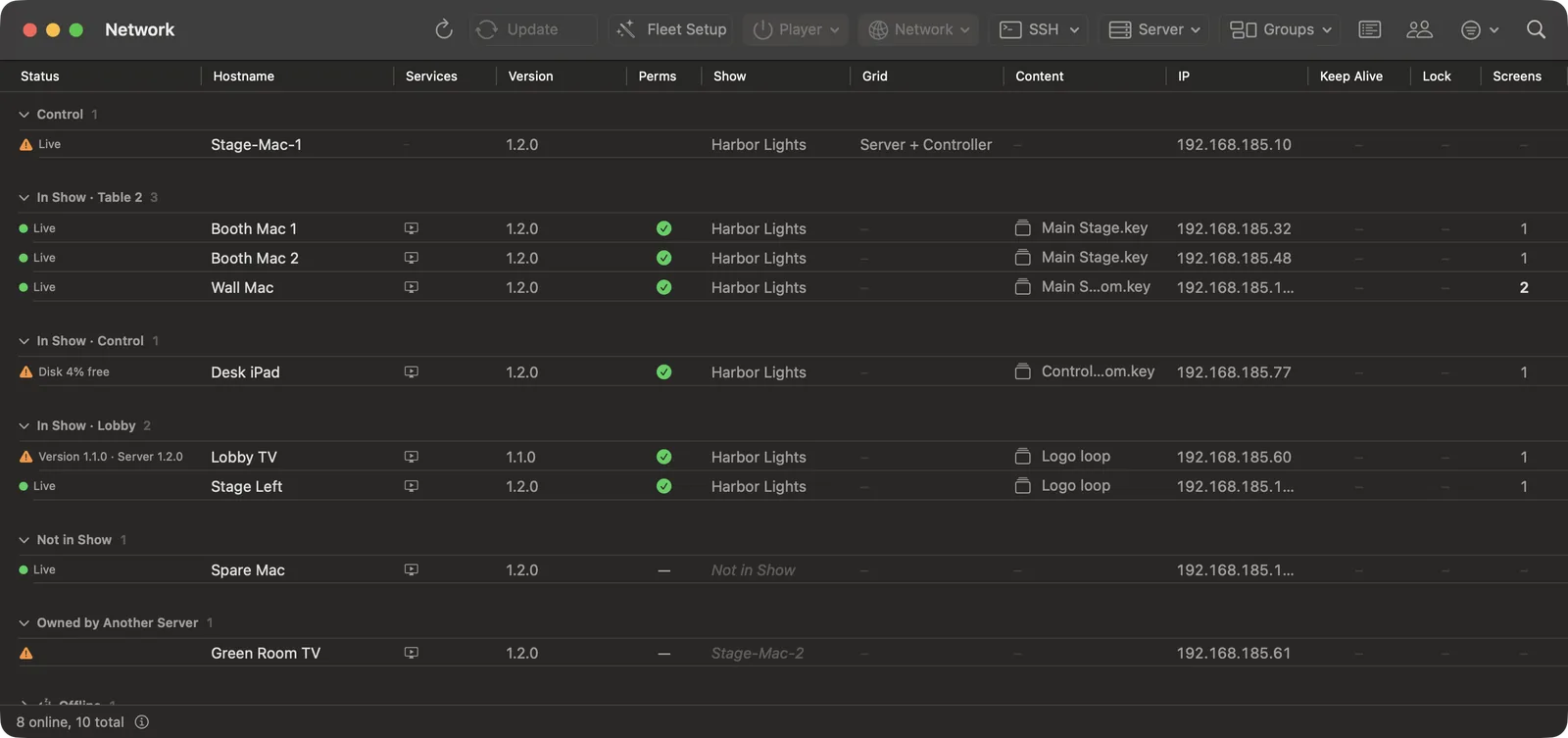
The Network window is where you look after the machines rather than the picture. It lists every Scenic Player the Server can see, in the Show or not, and lets you install, update, restart, rename and configure them without walking to each one.
Open it with Window ▸ Network (⌥⌘N), with ⌘6, or from the Network button in the control row. On an iPhone or iPad it opens as a sheet with the status list, Add to Show and the Controllers list; installs and remote maintenance run from a Mac.
Live cueing never lives here. Nothing in the Network window changes what a screen shows, except the Display items you choose on purpose.
Reading the table
| Column | Shows |
|---|---|
| Status | Live, or the reason the machine needs attention: "Disk 4% free", "Version 1.1.0 · Server 1.2.0", Offline. |
| Hostname | The machine's name. |
| Services | What the Mac offers: Screen Sharing, Remote Login, and the Server-ready mark. |
| Version | The Scenic Player version. |
| Perms | Whether the Player has the macOS permissions it needs. Perms Legend at the foot explains the marks. |
| Show | The Show it belongs to, "Not in Show", or the other Server that owns it. |
| Grid | Where it sits on the Grid. |
| Content | What it is showing. |
| IP | Its address. |
| Keep Alive, Lock, Screens | Whether it relaunches by itself, whether its keyboard and mouse are locked, and how many screens it drives. |
| Progress | An install, copy or send in progress. |
Rows are grouped into sections: the Server and Controller rows under Control, then In Show by group, Not in Show, Owned by Another Server and Offline. Filter narrows the table to Online, Needs Attention or Out of Date machines.
Select rows, then choose from the toolbar menus or right-click. Every item stays in its menu; one that cannot run right now is greyed out and its tooltip says why.
Adding Players to the Show
A Player that is running on the show network appears by itself. To bring it into your Show:
- Select it in the Not in Show section. Select several with ⌘-click or ⇧-click.
- Choose Show ▸ Add to Show from the Player menu or the right-click menu.
That is all. There is no code to type on the Player and nothing to approve on it. Its screens appear in the Player List straight away.
A Player that belongs to another Server is listed under Owned by Another Server. The item then reads Adopt into Show… and asks once, naming the Server it is leaving. A Player takes cues from one Server only, so a second rig on the same network can never cue your screens by accident, and you can never take theirs without saying so.
Remove from Show happens at once, with no question. A notice at the bottom of the Controller says "Removed Booth Mac 1 from the Show" with Undo, which puts it back in its groups.
Groups and aliases
The Groups menu puts the selected Players into a group, takes them out, makes a New Group from Selection…, a New Empty Group… or a New Subgroup from Selection…. Right-click a group's section header to rename or delete it. Deleting a group goes ahead with an Undo notice; its Players stay in the Show.
Set Alias… (Player menu) gives a Player or screen the name you want to see in the Player List, such as "Hero laptop" or "Lobby left". With several rows selected it becomes Batch Set Alias. An alias changes nothing on the machine itself.
Fleet Setup: installing Players on Macs
Fleet Setup in the toolbar (also Maintenance ▸ Set Up Players…) walks you through putting Scenic Player on a set of Macs in one pass.
- Welcome. Press Get Started.
- Sign In. Enter the user name and password (or SSH key) for the Player Macs. Test Connection checks them against one machine. Each Mac needs Remote Login turned on (System Settings ▸ General ▸ Sharing).
- Select Machines. Turn on Player for each Mac that should run Scenic Player. Turn on Server-ready for a Mac you might later run the Server on.
- Installing. Press Deploy. Each Mac shows its own progress.
- Verification. Fleet Setup waits for each new Player to appear on the network. You can Skip it.
- Options. Apply Disable Sleep, Turn Wi-Fi Off (for wired Players), and set Multi-Screen and Keep Alive.
When it finishes, add the new Players to the Show from the strip that appears.
For other kinds of Player, see The Players.
Updating
When a Player runs an older version than the Server, its row says so and the toolbar's Update button reads Update (N). Press it to update every out-of-date Player. Players update in waves, so the whole wall never restarts at once; the Server is offered its own update last.
A single Player's update is in the SSH menu as Update Player…. A Player that is too old for a deck is also flagged on its card and in the Warnings list with Update Player.
Maintenance menus
Select the Players first. Each command acts on exactly the Players you selected when you chose it.
Player
| Item | Does | Asks first? |
|---|---|---|
| Collect Diagnostic Logs | Gathers the Player, Server and Controller logs into one dated report. | No |
| Relaunch… | Quits Scenic Player and opens it again. The screens come back with what they showed. | Once |
| Force Quit… | Stops Scenic Player at once. With Keep Alive on, it relaunches. | Once |
| Reboot… | Restarts the computer. | Twice |
| Shut Down… | Turns the computer off. Someone has to switch it on again by hand. | Twice |
| Display ▸ | Flash, Aspect, Reset Resize, Multi-Screen on or off, Full Screen on or off. | No |
| Content ▸ | Send Content…, Send to Screen, and Previous Content, which brings back something the Player still holds without sending it again. | Send asks |
| Thumbnail Mode ▸ | Cached, Live or Off for the Player's picture in the Player List. | No |
Network
| Item | Does |
|---|---|
| IP Config… | Sets DHCP or a static address on a chosen adapter. Check the numbers twice: a wrong address can strand the machine. |
| Rename Player… | Changes the name Scenic shows. Nothing restarts. |
| Rename Host… | Changes the Mac's own computer name. The Mac restarts, and it asks twice. |
| Cycle Wi-Fi…, Turn Wi-Fi On…, Turn Wi-Fi Off… | Wi-Fi off and on (about five seconds offline), or on or off for good. |
IP Config, Wi-Fi changes and Rename Host need the Player Mac's user to be an administrator.
SSH
These use Remote Login on the Mac and the sign-in from Fleet Setup.
| Item | Does |
|---|---|
| Share Screen | Opens Screen Sharing to that Mac (⌃⌥S). Each Mac Player row in the Player List has a Screen Sharing button too. |
| Launch Player… | Opens Scenic Player on a Mac where it is installed but not running. |
| Deploy Player… / Update Player… | Installs or updates Scenic Player from the copy inside Scenic Controller. |
| Install Package… | Installs any .pkg you choose. |
| Copy File or Folder… | Copies a file or folder to the same place on every selected Mac. |
| Disable Sleep… | Stops the Mac sleeping, turns on Wake on LAN and restart after a power cut. Do this once on every Player Mac. |
| Sign In… / Sign Out | Changes the account the SSH items use. |
Input Lock and Power
Right-click a row for Input Lock (lock or unlock the Player's own keyboard and mouse, Lock All…, Unlock All) and Power (Disable Sleep, Keep Alive on or off, Reboot, Shut Down).
Lock a Player's keyboard and mouse when it sits where crew or cast can touch it. Your cues still reach it. Someone at the machine can always unlock it with ⌃⌥⌘L.
Run from the Server
When the Server runs on another Mac, it can do the installing, updating, relaunching and log collecting itself, from its own network. Turn on Server ▸ Run from the Server in the Network window. An iPhone or iPad Controller always works this way, because it cannot reach the Macs directly. The Server also lists Macs that only it can see, so you can maintain machines on a network your laptop is not on.
Static Players: when discovery is blocked
Some venue networks block the discovery Scenic uses to find Players. Static Players in the toolbar lets you list them by address instead:
- Set Discovery to Static.
- Add each Player's Hostname, IP Address and port (47811 unless you changed it), or use the Range Generator or Import CSV/JSON….
- Press Probe All. Each row reads Reachable or Not reachable.
Controllers that want to join
When an iPhone, iPad or another Mac asks to join the Show for the first time, a strip appears in the Network window and the request is listed in the Warnings list: "<name> wants to join this Show".
- Allow lets it cue. It reconnects without asking from then on.
- View only lets it watch but not cue.
- Forget turns it away.
The Controllers button lists every Controller the Server knows, whether it can cue or view only, and which are attached right now.
Remove offline Players
Maintenance ▸ Remove Offline Players (N)… clears machines that have been retired or sent back to rental. Server ▸ Remove All Players from Show… empties the Show completely and asks first.