

Chapter 12
Scenic Decorator
Scenic Decorator is the Mac app for building what goes on your screens: a fake desktop for a hero laptop, a bank of security monitors, a departures board, a lobby sign. It works like Keynote, with slides, builds and transitions, and it adds Photoshop-style layers, because a fake desktop is a wallpaper, a menu bar, a dock and a stack of overlapping windows.
What you see on the Decorator canvas is drawn by the same engine the Players use, so a deck looks the same in the Decorator as it does on set.
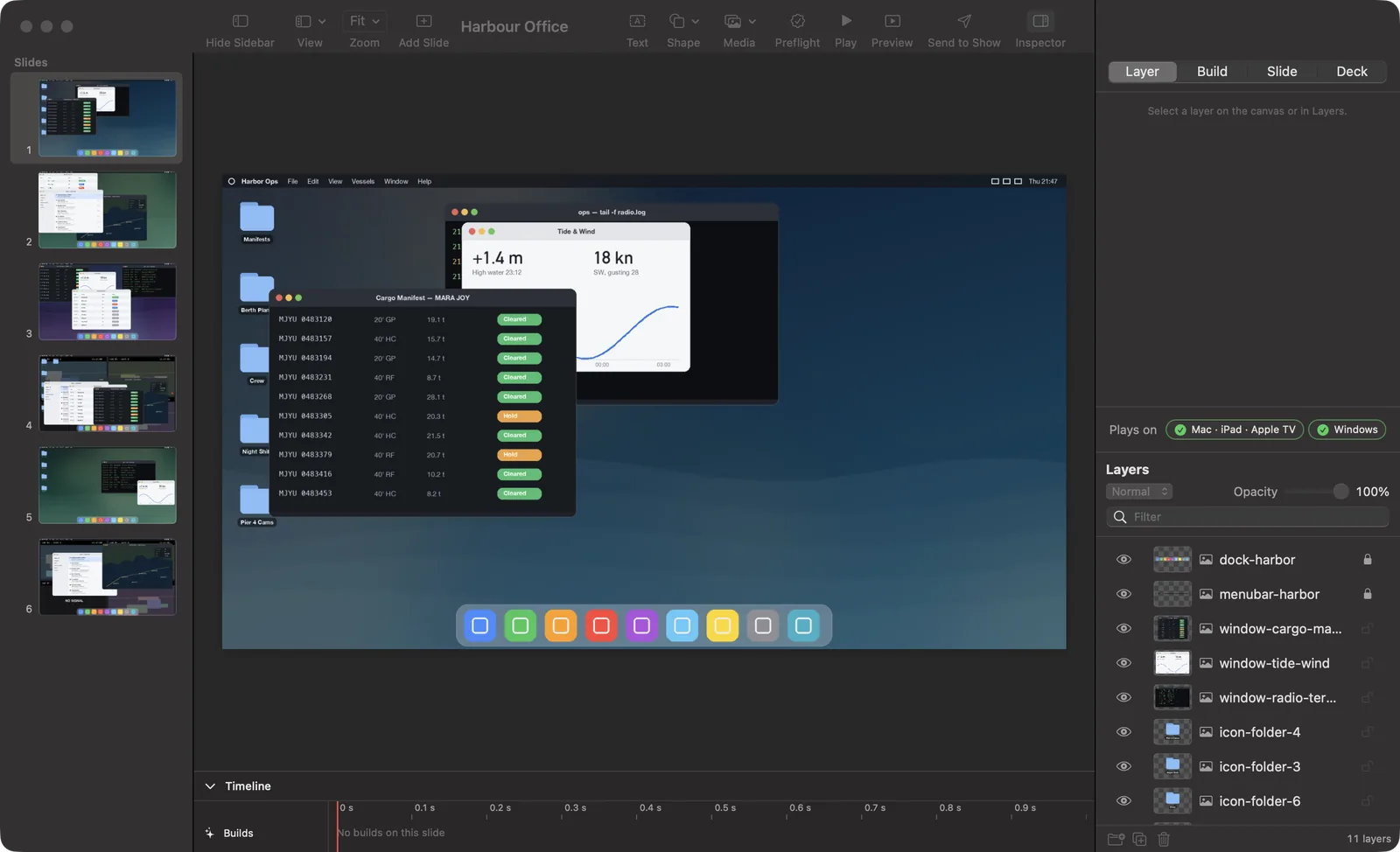
The window
When Scenic Decorator opens, the welcome window offers New Deck, Open… and your Recent Decks. Window ▸ Welcome to Scenic Decorator (⇧⌘1) brings it back.
A deck window has four parts:
- Slides: every slide, numbered, drawn as it will play.
- The canvas: the slide you are editing.
- The inspector, with four tabs: Layer, Build, Slide and Deck. Selecting a layer opens the Layer tab; clicking empty canvas opens the Slide tab.
- Layers: every layer on the slide, front first.
View ▸ Layout chooses between two arrangements, and the Decorator remembers your choice:
| Layout | Arrangement |
|---|---|
| Slides Left, Layers Right (the default) | Slides in the sidebar; the inspector above Layers on the right. Drag the divider between them. |
| Layers Left, Slides Bottom | Layers in the sidebar; a filmstrip of slides and the timeline under the canvas. |
The toolbar has View (rulers, guides, timeline and layout), Zoom, Add Slide, Text, Shape, Media, Preflight, Play, Preview, Send to Show and the Inspector button. A Deck Issue button appears only while something in the deck needs your attention.
Plays on
At the bottom of the inspector, Plays on shows one badge per kind of Player: Mac · iPad · Apple TV and Windows. A green check means the selected layer plays exactly there. If something plays differently, open What changes to see what and why. You find out while you build, not on set.
Layers
Each row in Layers has an eye to hide the layer, a thumbnail, its kind, its name and a lock. A row can carry a badge such as B2, which means it builds in second.
- Reorder: drag rows up and down, into a group and out of one.
- Group: select layers and press the Group button at the foot of the list, or Arrange ▸ Group (⌥⌘G). Groups fold open and closed.
- Opacity and blend: the slider and the blend menu (Normal, Multiply, Screen, Overlay, Add) above the list act on the selected layers.
- Find a layer: type in Filter. While the list is filtered it is flat; you can still drag a layer onto another to reorder it within its group.
- Right-click a row for Duplicate, Group, Ungroup, Delete, Lock, Hide, the four stacking orders and Rename.
The Arrange menu uses Keynote's keys: Bring to Front ⇧⌘F, Bring Forward ⌥⇧⌘F, Send Backward ⌥⇧⌘B, Send to Back ⇧⌘B.
Adding text, shapes and media
- Text (⇧⌘T) and Shape arm a drawing tool. Drag on the canvas to draw the layer at that size, or click to place it at its default size. Esc puts the tool away. Shapes include rectangle, rounded rectangle, ellipse, line, triangle, diamond, arrow and star.
- Media ▸ Image… takes PNG, JPEG, TIFF, HEIC, GIF and WebP. Video… takes MP4 and MOV. Audio… takes MP3, M4A, WAV and AIFF. You can also drag files onto the canvas.
- Insert ▸ Slide Background Image… puts an image behind the whole slide.
For a video or audio layer, the inspector has a trim scrubber with In and Out, Volume, Mute, Loop and a volume envelope. Trim ▸ Reset puts In back to the start and Out back to the end, on every selected clip, as one Undo step.
Builds and transitions
Builds bring layers on one at a time, the way a scripted action plays out on a monitor.
- Select a layer and open the Build tab.
- Under Build in, choose a Style: Appear or Fade. A fade starts at half a second; change Duration if you need.
- Choose when it starts: On click, With previous build or After previous build, with an optional Delay.
- Layers with the same Order build together.
A transition plays when you leave a slide. Open the Slide tab and choose an Effect under Transition: Cut, Crossfade, Push or Wipe, with a duration and, for Push and Wipe, a direction.
The Slide tab also has Timing, to advance automatically after a number of seconds or when a video ends, and Cue, where you can give the slide a cue name and notes. The cue name and notes appear on the screen's card in the Controller while that slide is up, so whoever runs the show knows what the slide is for.
The Timeline (⌥⌘B) shows the slide's builds and every clip. Drag across it to scrub.
Playing a deck
- Play (⌥⌘↩) plays the deck in the canvas with every panel hidden. Space or a click advances, ← goes back, Esc stops. While Play is on the deck cannot be edited.
- Preview (⌥⌘P) opens a separate window that plays the deck from the current slide exactly as a Player would, with builds, transitions, sound and automatic advance. Restart compiles it again from your latest edits.
Preflight
The Preflight button counts what will not play exactly on each kind of Player: "2 items do not play on Windows; 3 are approximated." Click a row to jump to that slide and layer. A deck with a clean Preflight plays the same on every kind of Player.
Importing Keynote and PowerPoint
File ▸ Import ▸ Keynote… or PowerPoint… turns a presentation into an editable Scenic deck, with every slide's layers broken out.
An import never refuses a file because of one thing it cannot handle. Every object is imported, approximated or reported. When the import finishes you get a report that counts what was imported, approximated and dropped, with the slide each item came from. File ▸ Import ▸ Show Keynote Import Report… (or the PowerPoint one) opens it again later; it is saved with the deck.
What to expect:
- Imported: shapes, text, pictures, video and audio, build-ins, and the slide order.
- Approximated: build effects the Decorator does not author become a fade; word-by-word and line-by-line text builds bring the whole box on at once; Keynote's Move In and Reveal transitions become Push, and other transitions become Crossfade; some shadows, reflections and gradients.
- Dropped, and listed in the report: build-outs (the object stays on screen), action builds, tables and charts. From PowerPoint, also emphasis effects, motion paths and click triggers.
New from Assets: fake desktops in bulk
The art department hands you a folder of wallpapers, menu bars, docks, windows and icons. File ▸ New from Assets… turns it into a deck of believable, varied desktops.
- Choose the folder.
- In New from Assets, pick a Canvas size (Match wallpaper, HD, 4K, portrait or custom). Leave Read text in images to help sort them on.
- Press Create Deck. The new deck replaces the open one in this window; your saved file is not changed.
- Check the Bucket. Scenic sorts every asset into a role: Wallpaper, Menu bar, Taskbar, Dock, Windows (grouped by app), Icons or Cursor. Drag an asset to change its role, or press Sort Again.
- Set the Rules per role if you need to: on every desktop, how many, how likely, which layer band, pinned to an edge.
- Under Desktops, choose the Busyness (Low, Medium, High), how many Desktops, and press Generate.
- Lock the desktops you like, re-roll or delete the rest, and press Generate Again to refill. A locked desktop is kept.
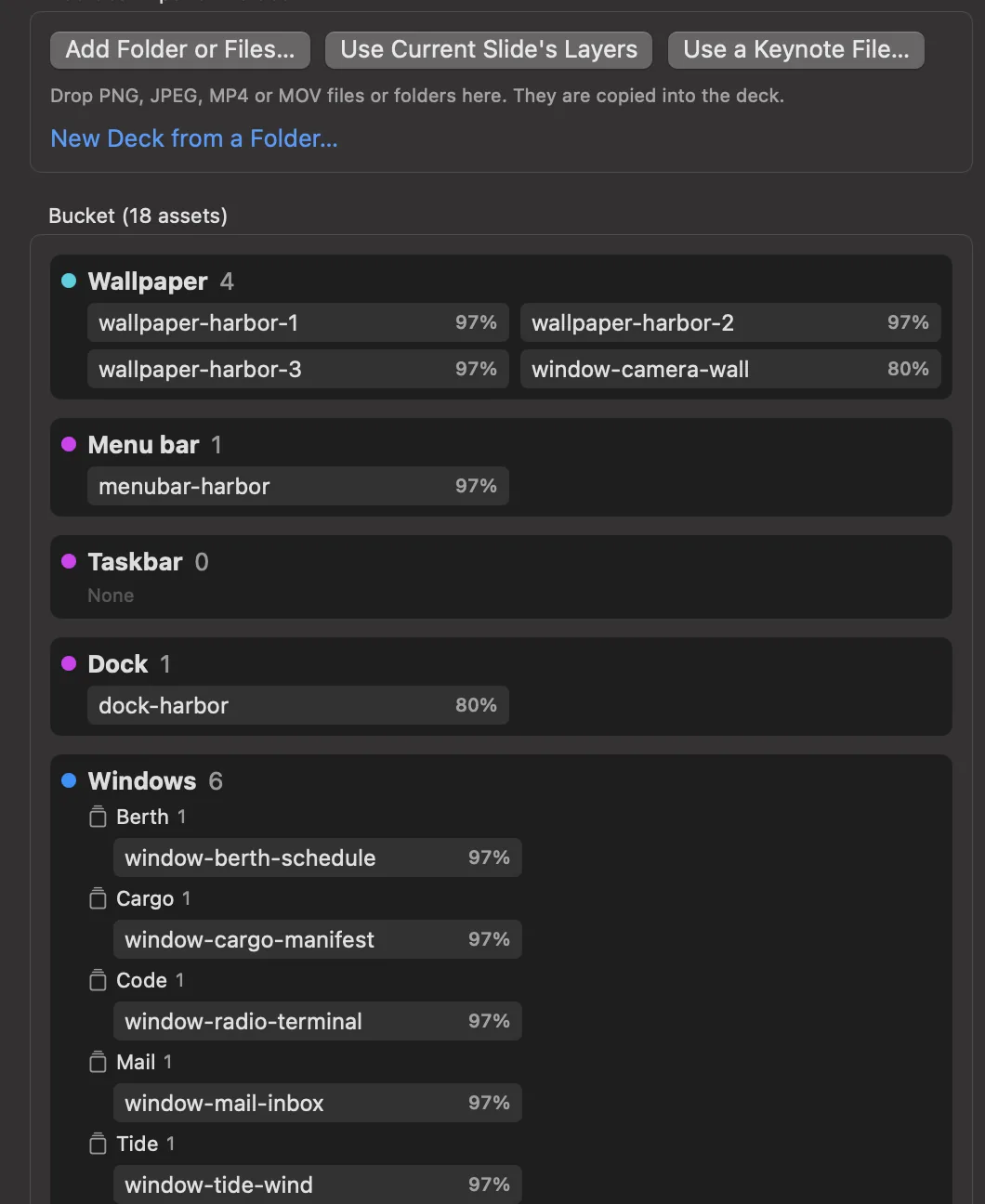
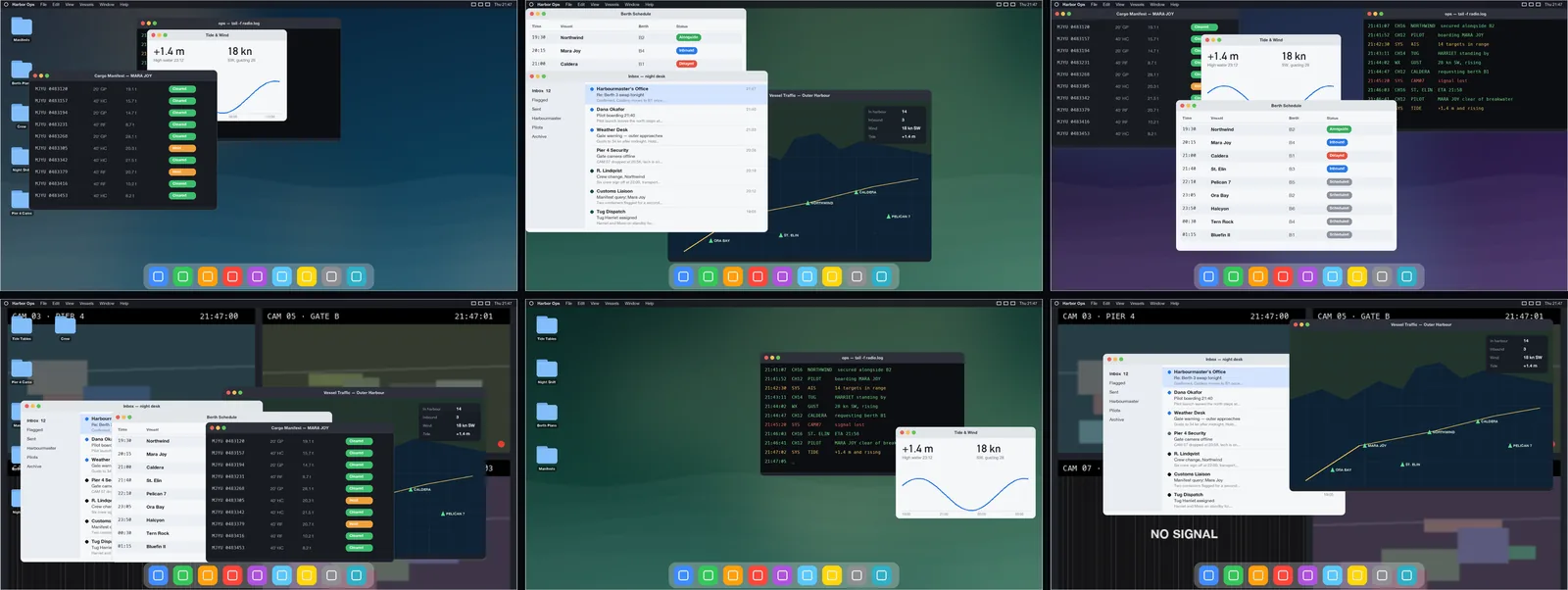
Edit Desktops… in the File menu reopens the same panel later. You can also add assets from Use Current Slide's Layers or Use a Keynote File….
Shuffle: variations of one slide
File ▸ Shuffle… (⇧⌘Y) makes many variations of one slide by moving, hiding and resizing its layers within rules you set.
- Choose the Template slide.
- Make Groups of layers that behave together, or press Auto-group layers.
- For each group, set its Visibility (Always shown, Sometimes hidden, Often hidden…), its Layer band (Back, Middle, Front), whether its position is locked and whether it may resize.
- Set Randomization, the number of Variations and a Seed. The Randomization menu estimates how many different variations the rules allow.
- Press Generate and add slides, or Export to New File…. One Undo removes everything Generate added.
Each group card has three more controls:
- Show Only This Group shows just that group's layers in the template picture. It changes only the picture.
- Layers lists the group's layers front to back. Move forward and Move back set the order every variation uses.
- Shuffle stacking stacks the group's layers in a different order in each variation, so a different window ends up on top. The same seed always gives the same result.
Sending a deck to the show
File ▸ Send to Show (also in the toolbar) is how a deck gets from the Decorator to the screens.
- The Decorator saves the deck, asking for a name the first time.
- It keeps a read-only copy of that exact version and hands it to Scenic Controller, opening the Controller if needed.
- The Controller checks the copy's fingerprint and adds it to the Library. A deck that changed after it was saved is refused, and nothing is sent.
- A banner under the canvas follows it: handed over, in the Library, accepted by the Server, and showing on how many screens.
Nothing on set changes until someone presses Send in the Controller's send sheet. See Sending content.
Edit in Decorator
To change a deck that is already in the show, select it in the Controller's Library (or select a screen showing it) and choose File ▸ Edit in Decorator (⇧⌘E). The Decorator opens a working copy. The Library copy and whatever is on screen are never edited in place: your changes reach the screens only when you Send to Show again and send the new version.
Saving, recovery and PDF
- The Decorator copies unsaved edits aside every 30 seconds. After a crash it offers to recover them at launch, or use File ▸ Recover Unsaved Deck….
- File ▸ Export PDF… makes a PDF of the deck for approvals, with an option to include Each stage of builds. The PDF ends with a page listing anything a PDF cannot show, such as video.
Canvas sizes
Set the deck's size in the inspector's Deck tab, under Canvas:
| Size | Use |
|---|---|
| 1920 × 1080 (HD 16:9) | Most monitors and TVs |
| 3840 × 2160 (4K UHD 16:9) | 4K displays |
| 1280 × 720 (720p 16:9) | Small or older displays |
| 2560 × 1440 (QHD 16:9) | 1440p monitors |
| 1920 × 1200 (WUXGA 16:10) | 16:10 monitors and many laptops |
| 1024 × 768 (XGA 4:3), 1400 × 1050 (SXGA+ 4:3), 1600 × 1200 (UXGA 4:3) | Period and 4:3 displays |
| 1080 × 1920 (Portrait 9:16) | Monitors on their side, signage |
| 430 × 932 (iPhone portrait) | A phone on set |
Type a Width and Height for anything else. The Deck tab also sets the colour space (sRGB, Display P3 or Rec. 709) and whether the deck loops after its last slide.