

Chapter 05
Cueing
Cueing is what Scenic is for: one press, and every screen you selected moves together, whether that is one laptop on a desk or forty monitors across a set, on Macs, iPads, Apple TVs and PCs at once.
This chapter covers the transport, blackout, video, the overlays, and how to tell whether a cue landed.
The rules every cue follows
- A cue goes to the screens selected when you pressed. Change the selection a moment later and that cue still goes where it was aimed. Next carries a count, such as › 8, so you can see how many screens it will move.
- Live cues never ask. Next, Previous, Go to Slide, Blackout, Reveal, dim, picture changes, Shuffle and overlays fire at once, on one screen or a hundred. The selection you can see is the preview.
- Every press counts. Press Next twice quickly and the screens advance twice. While presses are on their way the button shows ×2. Scenic never drops a press because it is busy.
- Holding a key does not repeat a cue. Holding → sends one Next.
- Nothing is retried blindly. If the Server did not answer a press, Scenic says so and does not send it again for you. Look at the screens, then press again if you need to.
Synchronized cues
When you press Next with screens on several Players selected, the Server sends the cue to every Player in the same instant, and each Player plays its build or transition from that moment. Video started on several screens at once begins on the same frame: the Server picks a start time a fraction of a second ahead and every Player starts then. A Player that joins late catches up to the others, and small drift between screens is corrected smoothly rather than with a visible jump.
If a projector or LED processor adds delay, set that Player's Output latency (see The Players) so its video lands with the rest.
The transport
The transport row in the dock has, left to right: First, Previous, the slide counter, Next, Shuffle and the Overlays button.
| Control | Does | Keys |
|---|---|---|
| Next | Each selected screen moves one step: the next build, or the next slide. | ⌘→; in the Player List → Space Page Down |
| Previous | Each selected screen moves one step back. | ⌘←; ← Page Up |
| First | Back to slide 1. | ⌥⌘←; Home |
| Last slide | To the last slide. Every screen must be showing the same deck. | ⌥⌘→; End |
| Slide counter | Click it for Go to Slide. | ⌘J |
| Shuffle | Gives each selected screen a different slide of its deck, at random. | ⇧⌘Y |
When screens are on different slides
If the selected screens are at different places, the counter reads mixed (12, 14). Next moves each screen one step from where it is: 12 and 14 become 13 and 15. It never lines them up for you.
To line them up, use Go to Slide (⌘J, or click the counter). It says "Every screen in this selection goes to the same slide", shows a grid of slides for short decks, and its button names the count: Go on 8 Screens.
Previous at the very start
Previous on the first slide of a deck rewinds and pauses any video on it, which is a quick way to reset a video slide between takes.
Blackout, Reveal and Whiteout
Blackout takes the selected screens to black. Reveal brings them back. They are two separate commands, not a toggle, so a selection where some screens are black and some are not behaves predictably: Blackout makes them all black, Reveal brings them all back.
| Do | Press |
|---|---|
| Black out the selected screens | ⇧⌘B; B in the Player List; or Blackout in the overlay row |
| Reveal them | ⌥⌘B; R in the Player List |
| Whiteout | Right-click Blackout in the overlay row and choose Whiteout, or Show ▸ Blackout ▸ Whiteout |
A blacked-out screen keeps its place in the deck, its grade and its overlays underneath. Its card shows a black thumbnail and leads with Blackout.
To fade rather than cut to black, set Blackout fade in Overlay Options… (0 to 1 second). Crossfade there adds a dissolve between slides that have no transition of their own; a transition built into the deck always wins.
How do I black out every screen at once?
Press ⌥⇧⌘B: Panic: Blackout All. It blacks out every screen in the Show at once, whatever is selected, with no question. A notice then offers Reveal these N to bring back exactly the screens it blacked out.
It is the one wide action that never asks first, and it works even while the Controller's interface is locked.
Video
When a selected screen is playing video, these keys work with the Player List focused:
| Key | Does |
|---|---|
| K | Play or pause |
| J | Slower, or step back |
| L | Faster |
| M | Mute or unmute |
The Transport window (⌥⌘T, or the Transport Controls button in the control row) lists every screen with video, each with play and pause, speed (0.5× to 2×), mute and a scrubber, plus Mute All.
The overlay row
Overlays put something on top of the content: a pattern, a logo, a message, a VFX marker. Because each of them puts something visible on show screens, the overlay row is hidden until you open it, every time the Controller starts. Click the Overlays button at the right end of the transport (the stacked-layers icon) to show it.
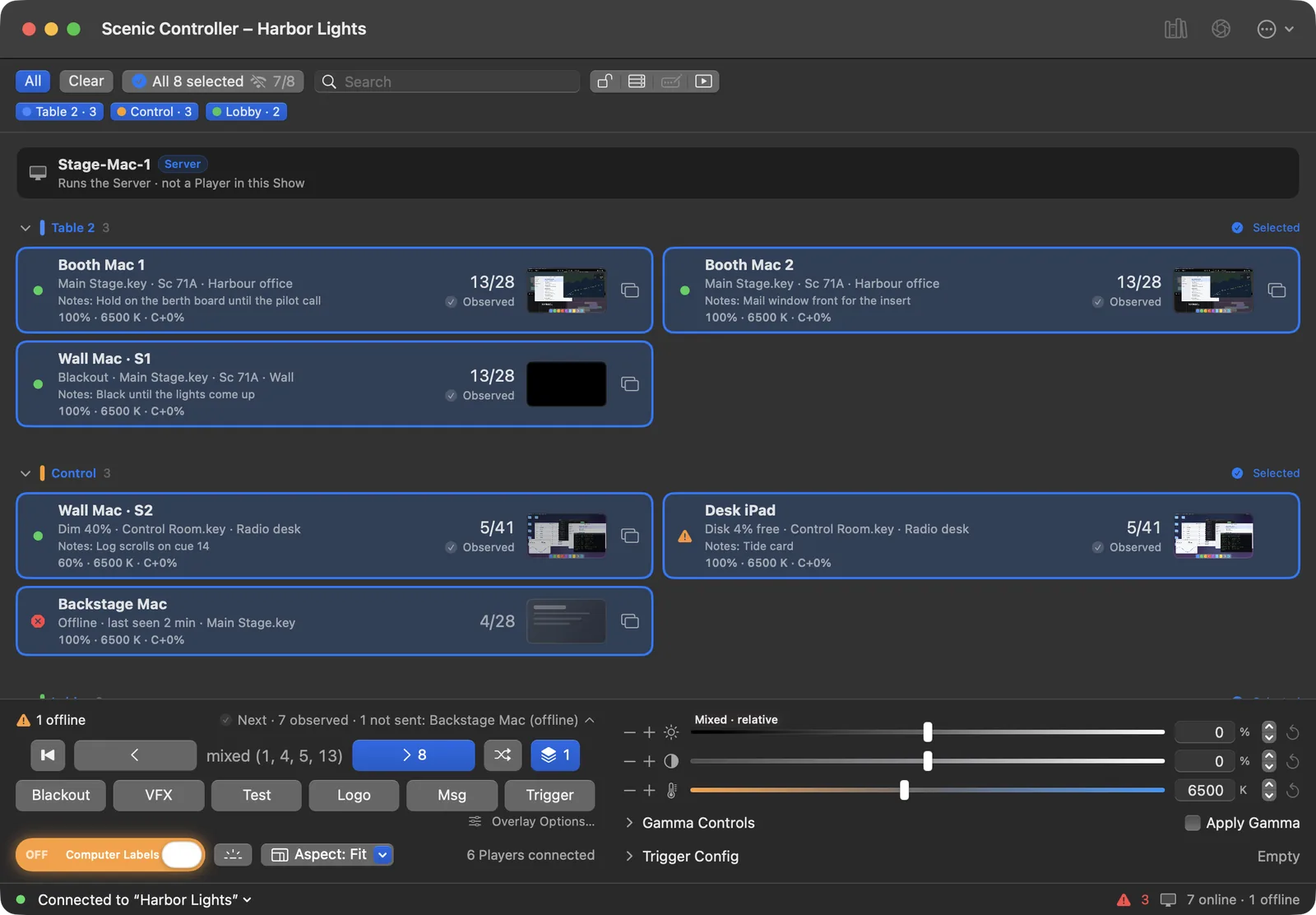
While the row is hidden and an overlay is on any screen, the Overlays button turns red and shows how many screens have one, so an active overlay is never out of sight. An active overlay's button is filled in its colour.
The row has six buttons. A click turns the overlay on or off on the selected screens; the arrow or a right-click opens its menu. Overlay Options… under the row holds the settings for all of them.
VFX
Tracking markers for the visual effects team: plus signs, circles or squares at the corners and centre of the screen, over a solid colour, for a screen replacement in post. Choose a preset from the VFX menu (Green, Blue and White to start with), or Next Preset and Previous Preset. In Overlay Options, VFX Presets sets each preset's background, marker shape, colour, opacity, size and inset, and Add Preset makes new ones. Presets belong to the Show. Reset All VFX Presets goes back to the defaults, with Undo.
Test
Test patterns for lining up cameras and displays. Pick one from the Test menu; Turn Off Test Pattern ends it.
| Pattern | Use |
|---|---|
| SMPTE Color Bars, ARIB Bars, HDR Bars, Simple Bars | Colour and level checks |
| Camera Color Card | Matching the screen to a camera chart |
| Gamma Pattern, Grayscale Ramp | Gamma and banding |
| Crosshatch Grid | Geometry, focus and alignment |
| Full HDTV | Overall set-up |
| Audio Sync | Picture and sound sync, with a beep |
| LED Wall | LED processor and tile checks |
| SDI Pathological | Signal path stress test |
| Solid White, 50% Gray, Solid Red, Solid Green, Solid Blue | Uniformity and white balance |
The pattern options can be switched off one by one: labels, diagonals, circles, the audio beep, tile borders and positions, and the name and resolution caption. Others set the level (75, 100 or 109 %), the ramp's direction, and the frame rate for the sync pattern. Custom Patterns holds up to four of your own images.
A test pattern covers the content completely, and the screen's grade still applies to it, so you can grade on the pattern.
Logo
Puts a logo on the screen: Still, or moving as Bounce, Mystify, Starfield or Flying Logos. Choose the image, its size (10 to 90 %) and a background colour or Aurora.
Msg
Puts a line of text on the screen, such as "HOLDING FOR CAMERA". Compose Message… sets the text; Hide Message takes it down. A message stays visible over a blackout, so you can use it to talk to the floor on a black screen.
Trigger
Plays a one-off graphic or video over the content: a pop-up alert on a hero laptop, a flash on a monitor. There are five slots. Set each one up under Trigger Config in the dock: choose an image or a video with transparency, and whether it should Loop or Hold its last frame. Then pick a slot and press Trigger, or ⌃⌥O; ⌃⌥1 to ⌃⌥5 choose the slot. Turn Off Trigger stops it.
Computer Labels
Computer Labels shows each Player's name on its screens, so you can tell which machine drives which screen. It is a slide switch beside Gamma Controls, and it is deliberately awkward:
- To turn it on, drag the knob all the way across. Anything less does nothing.
- To turn it off, pull the knob back.
- A tap does nothing.
While it is on, the switch glows orange. It puts text on show screens, so it is built so you cannot turn it on by brushing it.
Flash Screen
Flash Screen (beside Computer Labels, or ⌘I) flashes a coloured border on the selected screens for a few seconds, so you can find them on set. Set the colour and length in Overlay Options.
Aspect
Aspect sets how content fits each selected screen: Fit shows the whole picture in its own shape, Fill crops it to fill the screen, Stretch fills the screen and distorts it.
Did it land?
Every press is followed screen by screen:
| Word | Means |
|---|---|
| Pending | Pressed; the Server has not taken it yet. |
| Accepted | The Server took it and sent it. The Player has not confirmed yet. |
| Observed | The Player reports the result. |
| Failed | It was refused, or the Player reports something else. The reason is beside it. |
| Uncertain | The answer was lost, so it may or may not have happened. Look at the screen. |
The summary line at the top of the dock shows the last action and how it went, such as "Next · 7 observed · 1 not sent: Backstage Mac (offline)", and what needs attention ("1 offline · 1 failed"). Click it for Activity: every recent action with each screen's result, and Retry Failed and Mark Reviewed.
A failure is always per screen. In a recall to twelve screens with one offline, you read "11 observed · 1 failed: Backstage Mac (offline)", never just "Failed".
Undo, not "are you sure?"
Scenic does not ask before live cues. Where an action can be taken back, it offers Undo instead: a notice at the bottom of the Controller for about ten seconds, and Edit ▸ Undo.
| You did | Undo |
|---|---|
| Panic: Blackout All | Reveal these N brings back exactly those screens |
| Recalled a Snapshot | Undo Last Recall (⌥⌘Z) recalls the "Before recall" Snapshot saved a moment before |
| Removed a Player from the Show | Undo puts it back in its groups |
| Deleted a group | Undo brings the group back |
| Reset all VFX presets | Undo restores them |
A few things do ask, because they cannot be undone or touch the whole Show: sending content (the send sheet), recalling a Snapshot, deleting a Snapshot, adopting a Player from another Server, and stopping the Server.
Locking the Controller
Interface Lock (⌃⌘L, or the lock button in the control row) covers the Controller with a lock screen, so a bumped trackpad or a curious hand cannot cue anything. While locked, only two things work: Hold to Blackout for the selected screens, and Panic: Blackout All. To unlock, press and hold Hold to Unlock for one second.
Interface Lock is for this Controller only. To lock a Player's own keyboard and mouse, use the Network window (see The Players).
Local changes
If someone uses a Player's own controls (Local Controls on a Mac, the two-finger panel on an iPad, the Siri Remote on an Apple TV), that screen's card shows Local. A local change never looks like one of your cues.