

Chapter 07
Snapshots
A Snapshot saves what every screen is showing at one moment, so you can put it all back later: for the next take, after lunch, after a company move, or when the script supervisor asks what was on the wall in scene 71A.
What a Snapshot keeps
For each screen:
- the content, the slide and the build;
- blackout, whiteout and dim;
- the grade: brightness, colour temperature, contrast, gamma and gains;
- the overlays: VFX and its preset, test pattern, logo, message and trigger, with their settings;
- the aspect.
It does not keep Computer Labels, aliases or fade settings. Those belong to the Show, not to a moment in it.
Saving a Snapshot
Press ⌥⌘E, or Save Snapshot… in the Snapshots window.
- Type the Scene (such as 71A) and the Take (such as Wide master). Add Notes if you like: "match to plate 71A-3".
- Tick Also export PDF report if you want a continuity sheet now, and Include map to add the Grid to it.
- Press Return.
The Snapshot is named from the scene and take, "71A · Wide master". It captures every screen in the Show. If some screens could not be captured (offline, for instance), Scenic says which, and recalling that Snapshot later leaves those screens as they are.
The Snapshots window
Open it with ⌘4 or the Snapshots button in the toolbar.
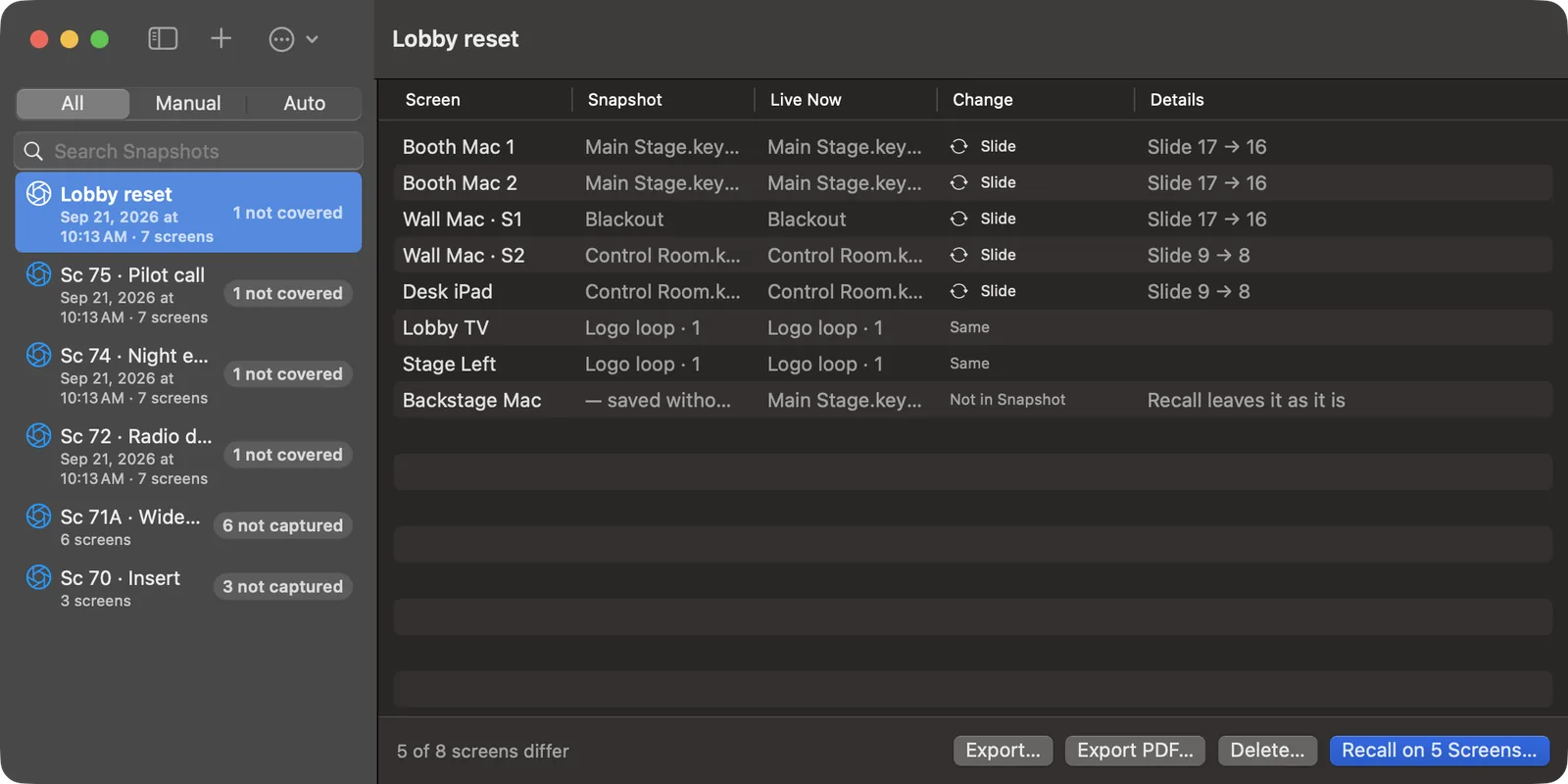
The list on the left can show All, Manual or Auto Snapshots, and has a search field. Select a Snapshot and the right side compares it with what is live now, screen by screen:
| Column | Shows |
|---|---|
| Screen | The screen. |
| Snapshot | What it showed when the Snapshot was saved. |
| Live Now | What it shows now. |
| Change | What a recall would change: Slide, Blackout, Grade, or Same. |
| Details | The specifics: "Slide 17 → 16". |
The foot of the window reads, for example, "5 of 8 screens differ".
Recalling a Snapshot
- Select the Snapshot.
- Press Recall on N Screens… (or Return).
- The confirmation lists only the screens that will change. Press Recall.
Only the screens that differ are touched: a screen already showing the right thing does not flash or reload. A screen that is offline is listed as not reached, with the reason, and the rest go ahead.
Recall restores everything the Snapshot holds, overlays and grade included. If a deck the Snapshot needs is no longer on a Player, the Server sends it again; a Windows PC gets the Server's prepared copy as usual.
Undo a recall
Just before every recall, Scenic saves a Snapshot called Before recall. If the recall was the wrong one, press Undo on the notice, or ⌥⌘Z (Undo Last Recall). Every screen goes back to how it was a moment before.
Automatic Snapshots
Automatic Snapshots… (⇧⌥⌘A) saves a Snapshot on a schedule, every hour by default, but only when something has changed. They are marked AUTO in the list.
The Show keeps the newest 200 automatic Snapshots and removes older ones. Change the number in Settings ▸ General ▸ Automatic Snapshots kept. Snapshots you save yourself are never removed.
Continuity reports
Export PDF… makes a continuity sheet from the selected Snapshot: every screen with what it showed, its slide and its grade, a picture of each screen, and your notes. With Include Map in PDF Report on (Snapshots menu), the last page is the Grid, so anyone can see which screen was where. Use Export Continuity Report (PDF)… (⇧⌥⌘P) from the menu.
Export… (⇧⌥⌘E) saves a Snapshot as a file, and Import Snapshot… (⇧⌥⌘I) brings one in, for example into the same Show on another Server. Screens that are not in this Show are listed and left out.
Tips for continuity
- Before lunch or a long reset, save one. After, recall it and read the comparison before rolling.
- A Snapshot picture is kept only while the screen still shows what was saved, so the thumbnails in a report are never from a later moment.
- Snapshots belong to the Show. Moving the Server or restoring a backup brings them with it.
Snapshots can also be saved and recalled from a console or a Stream Deck (see Timecode and OSC), and from a timecode cue.