

Chapter 03
Setting up a Show and Players
A Show is everything the Server keeps for one production: the Players in it, their groups and aliases, the Grid, the Library, the Snapshots, the timecode cues and the settings. This chapter takes you from an empty Show to a set of named, grouped screens on a floor plan.
Shows
When you open Scenic Controller on a Mac, it starts the Server on that Mac and opens the Show it had open last.
Server ▸ Shows… lists every Show on this Server:
- New Show: type a name and press Create and Open.
- Open another Show. Every Controller attached to the Server moves to it. Screens keep their picture until the new Show cues them.
- Rename or delete a Show. A deleted Show goes to Recently Deleted, where Put Back returns it.
- Close the Show, leaving the Server with none open. Screens keep their picture.
The same window holds the Show's backups, the emergency blackout setting and the Server's name. See Moving the Server, and rescue.
Joining a Server from another Controller
On another Mac, choose Server ▸ Connect to Server…. On an iPhone or iPad, open Scenic Controller: it lists Servers on This Network. Press Join. If discovery is blocked on your network, use Enter Address with the Server Mac's IP address.
The first time a Controller joins, the Server asks once: a request appears in the Network window and the Warnings list, and someone already connected presses Allow (or View only). After that the Controller reconnects by itself. An iPhone or iPad rejoins the last Server it used when it opens.
There are no pairing codes or passwords. Scenic trusts the show network, and the Allow step stops a stray device from cueing your screens.
The main window
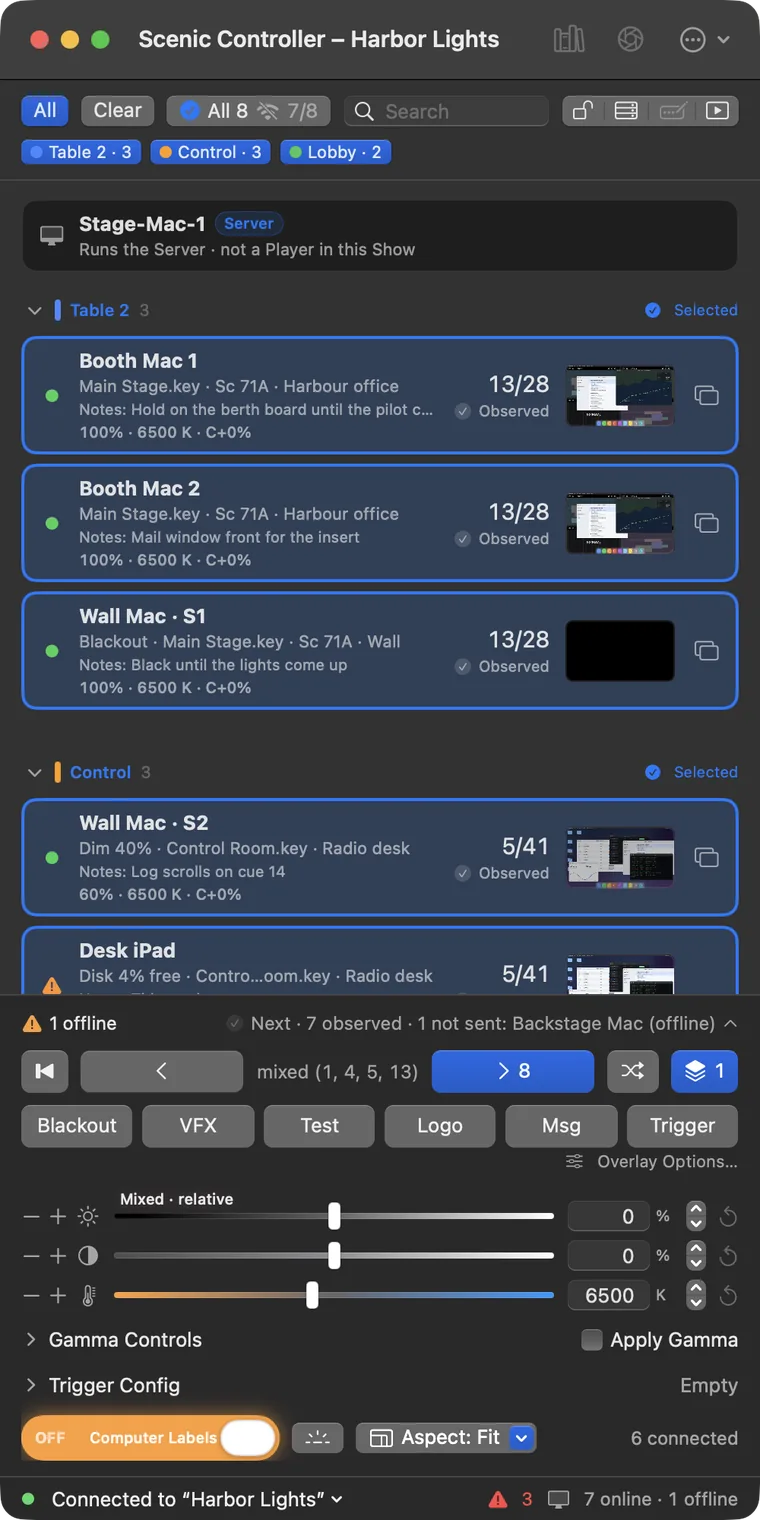
The Controller is one column, top to bottom:
- Notices: a Player went offline, the Server is unreachable, a short Undo after something you did.
- The control row: All, Clear, the selection chip ("3 selected"), Search, and four buttons: Interface Lock, Network window, Edit in Scenic Decorator and Transport Controls. Under it, one button per group.
- The Player List: one card per screen, in sections by group.
- The dock: the summary line, the transport, the overlay row (hidden until you open it), the picture controls, Gamma Controls, Trigger Config and Computer Labels.
- The footer: the Server and Show, the Warnings count, and how many screens are online and offline.
The Library, Snapshots, Network, Grid, Timecode and Logs open as their own windows on a Mac (⌘1–⌘7), and as sheets on iPhone and iPad.
On an iPhone the same column fits one hand: the transport and picture controls sit at the bottom, within thumb reach, and Settings ▸ General ▸ Left-handed transport mirrors the row.
Adding Players
Every Scenic Player on the show network appears in the Network window. Those not in a Show are listed under Not in Show; select them and choose Add to Show. Their screens appear in the Player List at once. See The Network window for installing Players, adopting one from another Server and listing Players by address.
Players also appear at the bottom of the Player List in a collapsed Not in Show section, so you can add one without leaving the main window.
Reading a screen's card
Each screen has one card in the Player List:
- Name, with
· S1,· S2when the Player has several screens, and the screen's Grid position. - The status line: a state word first (Blackout, White, Dim 40%, Pattern, Local), then the content, the slide's cue name and the build.
- Notes for the current slide, when the deck has them.
- The grade: brightness, colour temperature and contrast, such as
100% · 6500 K · C+0%. - The slide counter, large:
13/28. - The delivery word for your last command: Accepted, Observed, Failed.
- The thumbnail. A thumbnail marked LIVE is a picture from the Player; hover over it to see it larger.
- A Screen Sharing button for Mac Players.
- The health glyph, a dot on the left: green for Live; amber or red with the reason, such as "Disk 4% free", "Offline · last seen 2 min" or "Player too old for this deck".
The card only changes when the Player reports a change. A counter never moves because you pressed Next; it moves when the Player says it has.
Cards is the default view. View ▸ Player List as List (⌃⌘2) gives one dense row per screen, and Map (⌃⌘3) shows thumbnails.
Selecting screens
Every live control acts on the selected screens, and only on them. The selection chip in the control row always says what that is.
| To select | Do |
|---|---|
| One screen | Click its card |
| Add or remove a screen | ⌘-click |
| A range | ⇧-click |
| A whole group | Click the group's button under the control row, or the group's name in the Player List |
| Every screen in the Show | All, or ⌘A |
| Nothing | Clear, or Esc |
| Group 1 to 9 | ⌥⌘1 … ⌥⌘9 |
On iPhone and iPad, tapping a card adds it to or removes it from the selection.
With nothing selected, the live controls are off and the dock says "Select screens to use the live controls". All is never assumed.
Hold selection (⌃⌘H, or the checkbox in the selection chip's popover) freezes the selection: clicking a card then only shows its details. Use it during a take so a stray click cannot change your targets.
Groups
Groups are how you work on a real set: "Office wall", "Desk monitors", "Control room". Each group gets a colour, a section in the Player List, a button under the control row, a lane in the Timecode window and an OSC address.
- Make one: select screens, right-click and choose New Group from Selection…. New Empty Group… and New Subgroup from Selection… are there too.
- Move screens: right-click and choose Move to Group.
- Rename, recolour, delete: right-click the group's header. Delete Group goes ahead at once with an Undo notice; its screens stay in the Show.
- Reorder: Move Up and Move Down on a group or a screen.
A screen can be in one group. Groups can hold subgroups.
Aliases
An alias is the name you want to see, such as "Hero laptop" or "Lobby TV left", instead of the machine's own name. Right-click a screen and choose Show Details and Alias…. Set a Player alias, a Screen alias, or both, and press Return. Leave the field empty to remove it. Batch Set Alias… names several at once.
Aliases live in the Show. They do not rename the machine, and OSC can address a screen by its alias.
The Grid: your set on a floor plan
The Grid (⌘2, or Window ▸ Grid, ⌥⌘G) shows every screen where it really is on the set: walls, doors, desks, the camera position, and the screens on them with their group colours, slide counters and state.
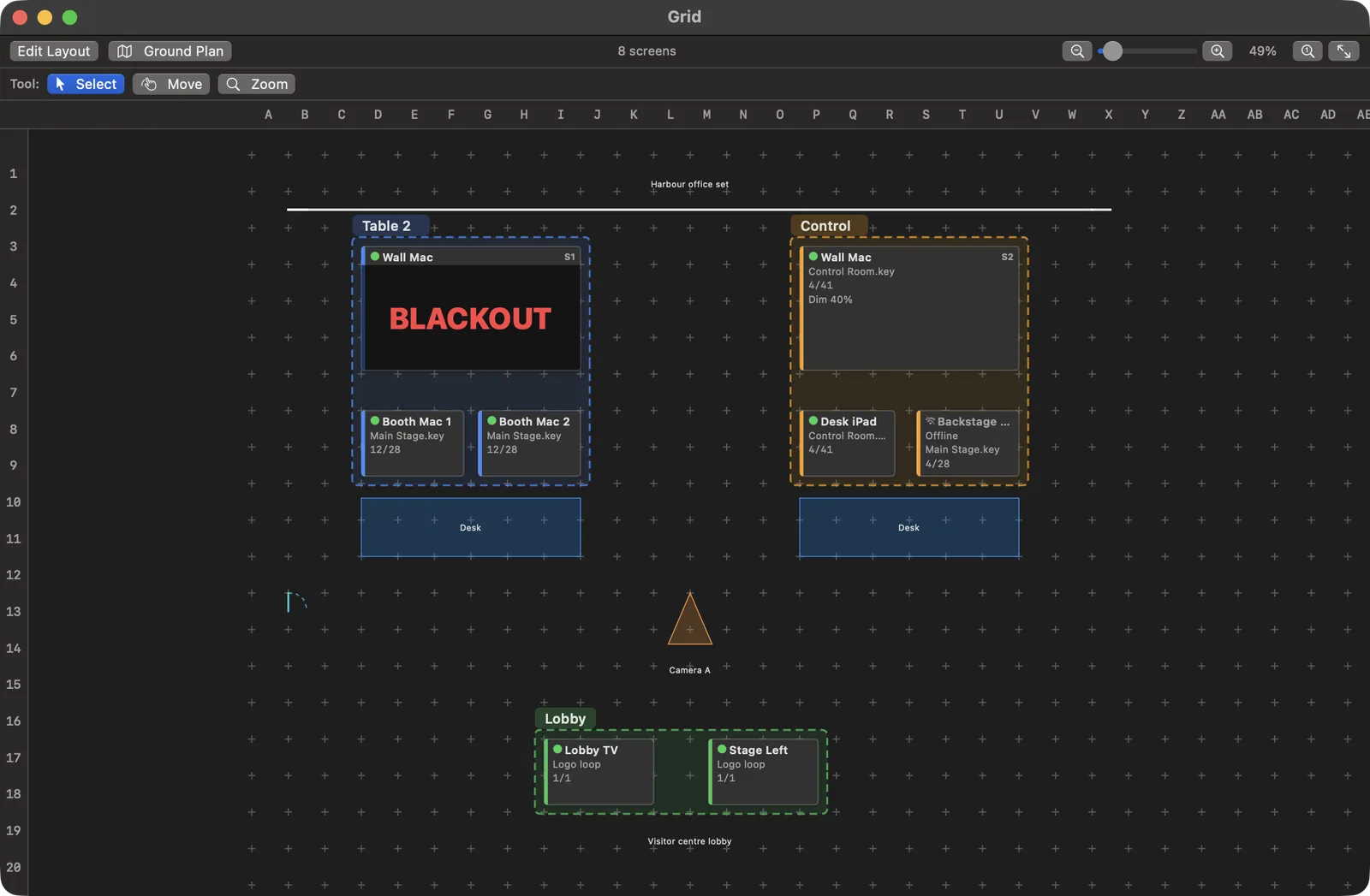
Clicking a screen on the Grid selects it, the same as clicking its card; the selection is shared both ways. Drag a box to select several, or click a group's name tab to select the group. Right-click a screen for Flash Screen, Aspect, Send Content Here…, Previous Content, Set Alias… and the group items.
Laying out the Grid
- Press Edit Layout (⌘E). The bar reads EDITING.
- Drag screens from the Not on Grid tray onto the map.
- Draw the room with the Wall and Door tools, and add desks and markers with Add: rectangle, circle, triangles and text labels.
- Press Save & Exit (⌘E).
Esc backs out of one thing at a time (a drag, a tool) and never throws away your edits. Discard in the bar drops the whole editing session.
Ground Plan imports the art department's plan as a PDF, PNG or JPEG behind the Grid. Calibrate sets its scale from two points and a real distance in feet, and Position and Opacity line it up. The ground plan is for you; it never appears on a Player.
The Grid belongs to the Show, so every Controller sees the same one, and the Snapshot report can include it as a map page.