

Chapter 08
Timecode, OSC and Stream Deck
Scenic can take cues from outside: timecode from the sound cart or a playback track, and OSC from a lighting desk, QLab or a Stream Deck. Both go into the Server by the same road as a Controller's cue, so they are checked, logged and reported on each screen in exactly the same way.
Timecode
The Timecode window (⌘5, or Window ▸ Timecode, ⌥⌘C) holds a timeline of cues that fire at set times: slide changes, blackouts, dims, grades, Snapshots, VFX, triggers and video.
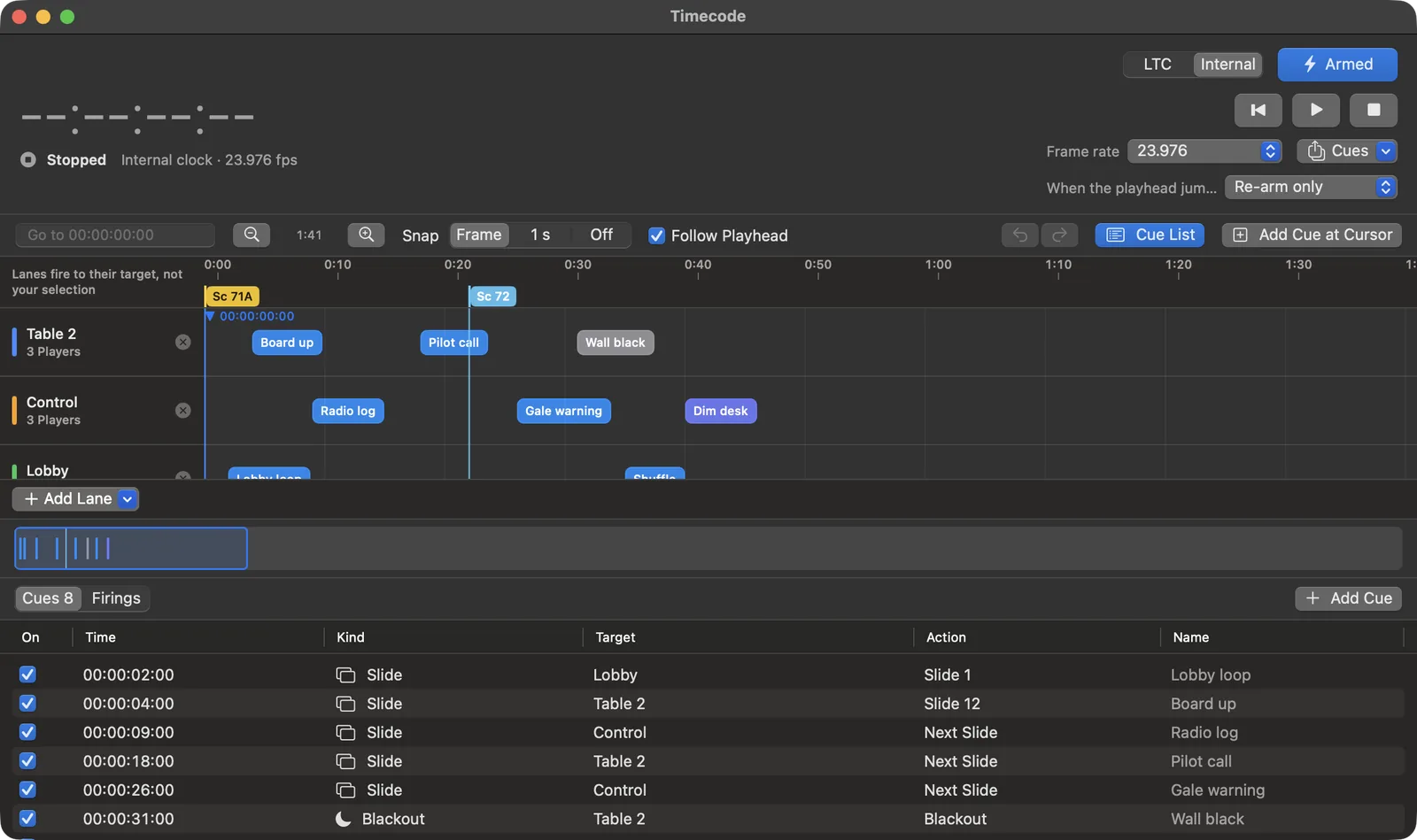
Cues are run by the Server, not by a Controller, so they fire whether or not any Controller is open.
The clock
Choose the source at the top right:
- LTC: Scenic chases linear timecode coming into an audio input on the Server Mac. Choose the input and channel from the input menu. The first time, macOS asks to let Scenic Server use the microphone; allow it. If it was refused, the window says so and Open Privacy & Security… takes you to the setting.
- Internal: Scenic runs its own clock. Use the transport buttons: return to start (↩), play and pause (Space), and stop, which returns to the last locate point.
Frame rate: 23.976, 24, 25, 29.97 DF, 30 or 60 (60 is internal only). Stop the transport to change it.
The big readout and the state beside it are the first thing to look at: Locked or Chasing while LTC is coming in, Freewheel for a moment after it drops, No Signal, or Running, Paused and Stopped on the internal clock. When LTC drops, nothing fires until it comes back.
Arming
The Armed button decides whether cues fire at all. Disarmed, the window says "Cues are disarmed. Nothing will fire." Each cue can also be switched off on its own with the checkbox in the cue list.
When the playhead jumps decides what happens when timecode jumps (a locate, a new take): Re-arm only just gets ready for the next cue; Restore screens puts the screens into the state they should be in at the new time.
Lanes and cues
A cue sits on a lane, and a lane is a target: a group, a Player or a single screen. Add Lane chooses which. A cue always fires at its lane's target, never at whatever happens to be selected in a Controller.
To add a cue, click the timeline where you want it and press Add Cue at Cursor, or press Add Cue under the cue list, or right-click the timeline. Then set:
| Action | Choices |
|---|---|
| Slide | Go to slide #, Next, Previous, Shuffle |
| Blackout | On or off |
| Dim | A level |
| Grade | Brightness, colour temperature, contrast |
| Snapshot | Recall a Snapshot |
| VFX | A preset, or off |
| Trigger | A slot, with Loop or Hold last frame |
| Video | Play, Pause, Faster, Slower |
Give each cue a Name ("Board up", "Pilot call") so the timeline reads like the script.
Snap (Frame, 1 s or Off) lines cues up as you drag them. Follow Playhead keeps the playhead in view. Cue List shows every cue as a table; Firings lists what fired, when, and how it went: Fired, Blocked by lock, Disarmed, or Not sent. The Cues menu exports and imports a cue list.
Follow Timecode: a video that follows the timecode
Follow Timecode locks the video on one screen to the timecode coming in, so a sound department's Pro Tools can play, stop, jump and scrub a lyric video. It is off for every screen until you switch it on, and it is a switch on the screen's card.
The timecode comes into this Mac (the Controller), the one that runs the Server, not into the Player. Use Timecode ▸ Input Setup to choose the audio device and channel. It shows a level meter for the channel (and small meters for the others), the timecode it reads, its frame rate and one state: Receiving, No signal, Too low, Clipping or Audio but no readable timecode. If it hears timecode on another channel it says "Signal found on Channel 2 — switch?".
- Send the video to the screen and let it play.
- On the screen's card, switch Follow Timecode on. This also starts the timecode input.
- Line the video up: with the timecode parked on a moment you can recognise in the video, open Window ▸ Transport (⌥⌘T), scrub the video to the matching frame with its scrubber and press Sync Here. It sets the line-up from the timecode now and the video's position now, so extra seconds at the start of the video, or of the song, are both handled. The line-up reads as a sentence: "Timecode 01:00:00:00 = video 0:05.00". −1 frame and +1 frame nudge it, and Type the line-up… takes both values.
The card says what the screen is doing:
| The card says | Meaning |
|---|---|
| Following · TC 01:00:12:14 | The video is locked to the timecode. |
| Seeking… | The timecode jumped or is being scrubbed; the video is going to each new position. |
| No timecode · holding | No fresh timecode for half a second. The picture holds its frame. It does not say Pro Tools stopped, because a stopped transport and a pulled cable look the same. |
| Before video start · holding first frame | The timecode is before the line-up's start. |
| Past video end · holding last frame | The video has ended. It never loops and never moves the slide on. |
| Manual · Follow suspended | You pressed Play, Pause, Seek, Next or Previous on that screen. Resume Following goes back to the timecode. |
| Blackout · following underneath | Blackout always wins; the picture stays black while following continues, so a reveal is on the right frame. |
| Following · no video on this slide | The slide has no video. |
The card and the Transport window show both where the Server aimed the video and where the Player last reported it, with how old that report is. A frame-rate mismatch between the timecode and the video is shown as a warning; the video still follows by time.
OSC
OSC (Open Sound Control) lets a lighting console, QLab, Bitfocus Companion, TouchOSC or any other OSC sender cue Scenic over the network. The Server receives it; Controllers and Players never do.
Turning OSC on
Open Settings ▸ OSC on any Mac Controller.
- Turn on Enable OSC. The status line reads "Listening on UDP port 8000."
- Leave Port at 8000 unless your console needs another.
- Listen on: Show network lets any console on the show network send. This Mac only refuses everyone else.
- Optional: list Allowed Sources, such as
192.168.1.0/24or one console's address, to accept only those.
The settings belong to the Server's Mac, not to a Show.
More options in the same pane:
- Send feedback sends status (blackout, slide, dim, each screen's delivery) to a Destination address and port, for a console that shows it.
- OSC over TCP also listens for TCP on the same port, for consoles that prefer it.
- Discoverable (OSCQuery) publishes the whole address space, with the open Show's Player, group and Snapshot names, so an OSCQuery-aware app can browse it (port 8001).
- Duplicate window (0.1 seconds) ignores the same command twice from the same sender within that time, which tames bouncing buttons. A different value or target always goes through.
- Log lists every message with its time, sender, address and outcome: Done, Refused, Locked, Duplicate or Not understood.
- Address Catalog lists every address Scenic understands.
What a command acts on
/scenic/next with no target acts on the OSC selection: All Players, until a console sends a /scenic/select/.... Add a target to the address to be exact:
| Address | Acts on |
|---|---|
/scenic/next | The OSC selection (All Players by default) |
/scenic/all/next | Every Player in the Show |
/scenic/group/Office_Wall/next | Every screen in the group "Office Wall" |
/scenic/player/Booth_Mac_1/next | One Player |
/scenic/player/Wall_Mac/screen/2/next | One screen of a Player |
/scenic/alias/Hero_Laptop/next | A Player or screen by its alias |
Names use underscores for spaces and ignore case. A name that matches nothing, or more than one thing, is refused and logged, never guessed. To copy an exact address, right-click a screen or group in the Player List and choose Copy OSC Address.
Settings ▸ General ▸ OSC follows the Player List selection changes the default: an untargeted command then acts on what is selected in a Controller's Player List. Use it when the console operator and the Scenic operator are working the same screens together.
While the Show's input lock is on, every OSC command is refused and logged. A Controller's Interface Lock does not stop OSC.
Common cues
| Do | Send |
|---|---|
| Next | /scenic/next |
| Previous | /scenic/previous |
| Go to slide 12 | /scenic/goto 12 |
| Black out | /scenic/blackout/on |
| Reveal | /scenic/blackout/off |
| Dim to 40 % | /scenic/dim 40 |
| Recall the Snapshot for scene 71A | /scenic/snapshot/recall "71A" |
| Fire trigger slot 2 | /scenic/overlay/trigger/2 |
| SMPTE bars on / off | /scenic/testpattern/smpte_bars / /scenic/testpattern/off |
| Roll the internal timecode | /scenic/timecode/play |
Stream Deck through Companion
Bitfocus Companion turns an Elgato Stream Deck into a button panel. Scenic has a Companion module, StageGlass Scenic.
- On the Server's Mac, turn on OSC (above). If Companion runs on another computer, leave Listen on at Show network.
- In Companion, add a StageGlass Scenic connection.
- Set Server address to the Server Mac's IP address, OSC port to 8000, and Transport to UDP (or TCP if you turned on OSC over TCP).
- Drag the presets onto buttons: Next (All Players), Previous (All Players), Blackout toggle (All Players), Computer Labels toggle (All Players) and Server status.
Actions include Next slide, Previous slide, Go to slide, Blackout (toggle, on or off), Computer Labels, Recall Snapshot, Select target for OSC and a Custom OSC command. Each can target the OSC selection, All Players, a Player, one screen, a group or an alias. Refresh Player, group and Snapshot names reloads the lists after you change the Show.
Buttons can show what happened: a screen's feedback lights amber when the Server has accepted a cue and green when the Player reports it on screen. Other feedbacks show when blackout is on and whether the Server is answering. Variables carry the slide, slide count, connected Players, blackout, dim and timecode for button labels.
OSC address reference
This is the Server's own address table.
Connection
| Setting | Value |
|---|---|
| Transport | UDP, OSC 1.0 (messages and bundles). Optionally TCP with SLIP framing (OSC 1.1) on the same port number. |
| Default port | 8000 |
| Discovery | Optional OSCQuery: the address space as JSON over HTTP (default port 8001), advertised as _oscjson._tcp. |
| Default listener | The show network: any console on it can send once OSC is on. Listing allowed sources narrows it to those addresses; This Mac only refuses everyone else and names them in the log. |
| Argument types | int32 int64 float32 float64 string blob true false nil impulse |
Numeric arguments accept any numeric type or a numeric string: 20, 20.0 and "20" all mean 20. Values outside a range are clamped to it, except slide numbers, which must be 1 or more. Extra trailing arguments are ignored. A command that cannot be understood is rejected and logged in the Network window.
Address spaces
Every address starts with /scenic. Where a command has a shorter form, both are listed.
| Form | Targets |
|---|---|
/scenic/<command> | the OSC selection: All Players until a /scenic/select/... |
/scenic/player/<name>/<command> | one Player |
/scenic/player/<name>/screen/<n>/<command> | one screen of a Player (n starts at 1, as in the Network window) |
/scenic/group/<name>/<command> | every member of a group |
/scenic/all/<command> | every Player in the show |
/scenic/alias/<alias>[/screen/<n>]/<command> | a Player by alias |
Names use underscores for spaces and ignore case: Stage_Left is "Stage Left". A name that matches more than one Player is refused, never guessed. Commands marked show apply to the whole show and take no target prefix. Commands marked Player cannot be sent to a single screen. The same command sent twice within the duplicate window (default 0.1 s) is delivered once; a different value or target is always delivered.
Replies and updates
These follow QLab's conventions. They describe the conversation with one console and never change what the screens show. Each also works under /scenic (/scenic/thump).
| Message | Arguments | Reply |
|---|---|---|
/thump | none | /reply/thump at once. A heartbeat: send one at least every 60 seconds to stay known. |
/alwaysReply | int 1 or 0 (no argument means 1) | Turns replies to action messages on or off for this sender. Queries are always answered. |
/updates | int 1 or 0 (no argument means 1) | Subscribes this sender to status: every /scenic/status/... value at once, then each change. |
A reply goes back to the sender, the way the message came (UDP or TCP), at /reply followed by the address it answers, for example /reply/scenic/next. Its one argument is a JSON string: {"address": "/scenic/next", "status": "ok", "data": ...}. The status is ok when the Server accepted the command or answered the query, denied when the Show's input lock or a takeover stopped it, and error otherwise; data then holds the reason. A query's data is its answer, and a Snapshot recall or capture's data is its outcome.
A sender the Server has not heard from for 60 seconds is forgotten: it must send /alwaysReply and /updates again. A sender that is not allowed is never answered.
Slide & Build
| Address | Arguments | Meaning | Targets |
|---|---|---|---|
/scenic/slide/next /scenic/next | none | Advance to the next slide or build. | screen |
/scenic/slide/prev /scenic/slide/previous /scenic/previous /scenic/prev | none | Go back one slide or build. | screen |
/scenic/slide/goto /scenic/goto | int slide number, 1-based | Jump to a slide. 0 and below are rejected, never clamped. | screen |
/scenic/build/next | none | Next build (same as next slide). | screen |
/scenic/build/prev | none | Previous build (same as previous slide). | screen |
/scenic/shuffle | none | Assign slides at random across the targeted Players. | Player |
Blackout & Dim
| Address | Arguments | Meaning | Targets |
|---|---|---|---|
/scenic/blackout /scenic/blackout/toggle | none | Toggle blackout. | screen |
/scenic/blackout/on | none | Black out. | screen |
/scenic/blackout/off | none | Clear blackout. | screen |
/scenic/dim | int or float percent, 0-100 | Set the dim level. | screen |
/scenic/brightness/adjust | int delta, -100...100 | Change brightness relative to the current dim. | screen |
Video
| Address | Arguments | Meaning | Targets |
|---|---|---|---|
/scenic/video/play | none | Play video. | screen |
/scenic/video/pause | none | Pause video. | screen |
/scenic/video/toggle | none | Toggle play and pause. | Player |
/scenic/video/speedup | none | Increase playback speed. | screen |
/scenic/video/slowdown | none | Decrease playback speed. | screen |
Audio
| Address | Arguments | Meaning | Targets |
|---|---|---|---|
/scenic/audio/mute | none | Mute video audio. | Player |
/scenic/audio/unmute | none | Unmute video audio. | Player |
/scenic/audio/volume | float 0.0-1.0 | Set video volume. | Player |
Color & Grading
| Address | Arguments | Meaning | Targets |
|---|---|---|---|
/scenic/kelvin | int 1800-12000 | Set color temperature in Kelvin. | screen |
/scenic/temp | int or float -100...100 | Nudge the warm/cool bias from the current Kelvin. | screen |
/scenic/temp/reset | none | Reset color temperature to 6500 K. | screen |
/scenic/contrast | float 0.0-2.0 (1.0 is neutral) | Set contrast. | screen |
/scenic/contrast/adjust | float delta, -2.0...2.0 | Change contrast relative to the current value. | screen |
/scenic/rgb | float red, float green, float blue, each 0.0-1.0 | Set per-channel gain. | screen |
/scenic/gamma | 9 numbers (blackR gammaR whiteR blackG gammaG whiteG blackB gammaB whiteB), then int apply 0/1 | Set black, midtone gamma and white per channel. Black and white are -0.5...1.5, gamma 0.1-3.0. | screen |
/scenic/gamma/reset | none | Reset gamma to identity. | screen |
/scenic/gamma/apply | int 0/1 | Turn the current gamma settings on or off. | screen |
/scenic/grading/reset | none | Reset dim, Kelvin and contrast to 0%, 6500 K and 1.0. | screen |
Overlays
| Address | Arguments | Meaning | Targets |
|---|---|---|---|
/scenic/names/show | none | Show Player name overlays. | screen |
/scenic/names/hide | none | Hide Player name overlays. | screen |
/scenic/names/toggle | none | Toggle Player name overlays. | screen |
/scenic/vfx /scenic/vfx/toggle | none | Toggle the VFX overlay. | screen |
/scenic/vfx/on | none | Enable the VFX overlay. | screen |
/scenic/vfx/off | none | Disable the VFX overlay. | screen |
/scenic/vfx/cycle | int direction, optional (negative goes back; default forward) | Step through the VFX presets. | screen |
/scenic/vfx/preset | string preset name (case-insensitive, underscores read as spaces) | Enable VFX with a named preset. Deterministic; prefer it to cycle in cue lists. | screen |
/scenic/logo /scenic/logo/toggle | none | Toggle the logo overlay. | screen |
/scenic/logo/on | none | Show the logo overlay. | screen |
/scenic/logo/off | none | Hide the logo overlay. | screen |
/scenic/message | string text (first 500 characters) | Show a message. | screen |
/scenic/message/show | none | Show the current message. | screen |
/scenic/message/hide | none | Hide the current message. | screen |
/scenic/message/clear | none | Clear the message text and hide it. | screen |
Trigger Overlays
| Address | Arguments | Meaning | Targets |
|---|---|---|---|
/scenic/overlay/trigger/<slot> | none | Fire trigger overlay slot <slot> (1-based, 1 to the configured slot count; default 5). Last wins. | screen |
/scenic/overlay/off | none | Stop the playing trigger overlay. | screen |
/scenic/overlay/toggle | none | Toggle the active slot's trigger overlay. | screen |
Test Patterns
| Address | Arguments | Meaning | Targets |
|---|---|---|---|
/scenic/testpattern/off | none | Turn the test pattern off. | screen |
/scenic/testpattern/<name> | none | Show a test pattern. Names are listed below. | screen |
Aspect
| Address | Arguments | Meaning | Targets |
|---|---|---|---|
/scenic/aspect/<mode> | none | Set the aspect mode: fit, fill or stretch. | screen |
Snapshots
| Address | Arguments | Meaning | Targets |
|---|---|---|---|
/scenic/snapshot/capture | string name, optional | Capture a Snapshot. With no name it is filed under a timestamp label, like the capture sheet. | show |
/scenic/snapshot/recall | string name | Recall a Snapshot by exact name (case-insensitive, underscores read as spaces). When no name matches, by its scene number, or its scene and take with any separator between them (71A, 71A_Wide). The newest match wins; no partial matching. | show |
Timecode Transport
| Address | Arguments | Meaning | Targets |
|---|---|---|---|
/scenic/timecode/play | none | Roll from the current position. | show |
/scenic/timecode/pause | none | Hold at the current position. | show |
/scenic/timecode/toggle | none | Toggle play and pause. | show |
/scenic/timecode/stop | none | Halt and return to the last locate point. | show |
/scenic/timecode/rtz | none | Return to zero. | show |
/scenic/timecode/locate | string HH:MM:SS:FF, or int/float seconds | Jump to a position. Timecode strings resolve at the project rate. | show |
Selection
| Address | Arguments | Meaning | Targets |
|---|---|---|---|
/scenic/select/player | string Player name | Make one Player the OSC selection. | show |
/scenic/select/group | string group name | Make a group the OSC selection. | show |
/scenic/select/alias | string alias | Make the Player or screen with this alias the OSC selection. | show |
/scenic/select/screen | string Player name, int screen number (1-based) | Make one screen of a Player the OSC selection. | show |
/scenic/select/all | none | Make All Players the OSC selection. | show |
/scenic/select/clear | none | Return the OSC selection to All Players. | show |
Queries
| Address | Arguments | Meaning | Targets |
|---|---|---|---|
/scenic/query/players | none | Reply on /status/players to the feedback destinations. | show |
/scenic/query/groups | none | Reply on /status/groups to the feedback destinations. | show |
/scenic/query/selection | none | Reply on /status/selection to the feedback destinations. | show |
/scenic/query/timecode | none | Reply on /status/timecode to the feedback destinations. | show |
/scenic/query/snapshots | none | Reply on /status/snapshots to the feedback destinations. | show |
Test pattern names
solid_white (Solid White), gray50 (50% Gray), solid_red (Solid Red), solid_green (Solid Green), solid_blue (Solid Blue), simple_bars (Simple Bars), smpte_bars (SMPTE Color Bars), camera_color_card (Camera Color Card), gamma_pattern (Gamma Pattern), ramp (Grayscale Ramp), crosshatch (Crosshatch Grid), full_hdtv (Full HDTV), audio_sync (Audio Sync), led_wall (LED Wall), arib_bars (ARIB Bars), hdr_bars (HDR Bars), sdi_bars (SDI Pathological)
Names ignore case and underscores, so SMPTE_Bars and smptebars also work.
On the Server
OSC is received by the Scenic Server, not by a Controller or a Player. It is off until you turn it on in Settings, and the setting belongs to the Server Mac, not to a Show. If the port is in use the Network window says so; the Server never moves to another port.
An OSC command goes down the same path as a Controller's: it is accepted or refused by the Server, sent to each screen once, and shown in the operation history as coming from OSC. Once OSC is on, any console on the show network can send; Allowed Sources narrows that, and This Mac only refuses everyone else and names them.
| Rule | What happens |
|---|---|
| Target names | A Player is named by its name or its alias, a group by its name. The Server resolves the name when the command arrives. A name that matches nothing, or more than one thing, is refused and logged; it is never sent to a guess. |
| Selection | /scenic/<command> acts on the OSC selection: All Players until a /scenic/select/.... The Server keeps one OSC selection for every console; it is not a Controller's selection, and every Controller shows it in Settings ▸ OSC. /scenic/select/clear returns it to All Players. A chosen Player, group or screen is fixed when the select arrives; if those screens leave the Show, a bare command is refused rather than sent elsewhere. |
| Follow the Controller | The Show setting "Follow the Controller's Player List selection" (Settings ▸ OSC) changes that: /scenic/<command> then acts on whatever is selected in a Controller's Player List, as the Controller last told the Server, and All Players until a Controller has. With nothing selected there, a bare command is refused. A console's /scenic/select/... is still remembered and applies again when the setting is turned off. |
| Screen numbers | screen/<n> counts a Player's screens in Network window order, from 1. |
| Whole-Player commands | A command marked Player is refused if the target holds only some of a Player's screens. |
| Toggles | A toggle acts on each screen from that screen's own state. |
| Duplicates | The same command from the same sender inside the duplicate window is delivered once. |
| Input lock | While the Show's input lock is on, every OSC command is dropped and logged as blocked. It is not queued. A Controller's own Lock Interface does not stop OSC. |
| Video on several screens | A Play or Pause for more than one screen is started on every screen at the same instant, about a third of a second after it arrives, when every Player in scope supports it. Otherwise all act at once. |
| Volume | /scenic/audio/volume is refused, naming the Player, when a Player in scope cannot set a volume. |
| Offline screens | The command goes to the screens that are reachable, and the log names the screens it did not reach. If none is reachable, it is refused. /scenic/all/... reaches only the Players in the Show, never another Player on the network. |
| Log | Settings ▸ OSC ▸ Log lists each message with its time, sender, address, outcome and reason: done, refused, blocked, duplicate or not understood. |
| Feedback | Status goes to the feedback destinations from what the Players report, on change and at most every 200 ms per address. A query or a Snapshot from a console is answered at once. |
| Replies | A query is always answered to its sender at /reply/.... After /alwaysReply 1, every command is answered once the Server has handled it: ok when accepted, denied when the input lock or a takeover stopped it, error with the reason otherwise. |
| Updates | After /updates 1, the sender receives every status value at once and then each change, like a feedback destination, without being listed in Settings. It is forgotten after 60 seconds without a message; a /thump keeps it. |
| OSC over TCP | Off by default. When on, the Server also listens for TCP on the OSC port, with SLIP framing (OSC 1.1). A TCP console is answered on its connection. |
| OSCQuery | Off by default. When on, the Server serves its whole address space as JSON over HTTP (port 8001 unless changed) and advertises it on the show network as _oscjson._tcp, named Scenic Server. Each command has its type, range and description; the dim level, slide numbers and status carry their current values; Player, screen and group branches and the Snapshot and VFX preset choices use the open Show's names. ?HOST_INFO names the OSC port. |
Feedback
With feedback on, the Server sends status to each destination as UDP OSC under /scenic/status/: blackout, slide (index from 0, count), connected, overlay (active, slot from 1), dim, testpattern, timecode (state, position) and one screen row per screen (Player, screen from 1, delivery, slide from 0, slide count, blackout). A screen's delivery is sent until the Player acknowledges the Server's last command to it, accepted once it has, and observed only when the Player reports the result; offline, differs and failed say what went wrong. A Companion button shows accepted in amber and observed in green. Values are what the Players report: blackout is 1 when every connected screen is black, and dim is the deepest dim. A change goes out at once and then at most every 200 ms per address, ending on the newest value. Every value is sent again when the listener starts, when a destination is added and when another Show opens.
A console's query/players, query/groups, query/selection, query/timecode and query/snapshots are answered on the matching status/ address. A Snapshot recalled or captured from a console is answered on status/snapshot with captured, recalled (with screens reached and total), notfound, nomatch or failed. When names repeat, the newest capture wins.